 monthlet
monthlet is a note app where you write and grow notes through AI chat. A monthlet note is a plain HTML file. Even without the app, you can open it in a browser and read it.
Earlier posts in this journal covered two groups of components you can use inside a note: charts and themes, and cards and columns. This post covers the components not yet described.
- Putting charts inside a note
- Deciding how a note looks with themes
- Cards and columns in AI-built notes
The first half is about interactive components — ones whose values change when you drag or click them inside the app. The second half is about components that present content, such as formulas and diagrams. At the end, we export the same note, open it in a browser, and look at how each one appears there.
There is a short video showing sliders, status badges, calculation fields, formulas, flowcharts, and a table of contents being placed and operated through chat.
Sliders and status badges
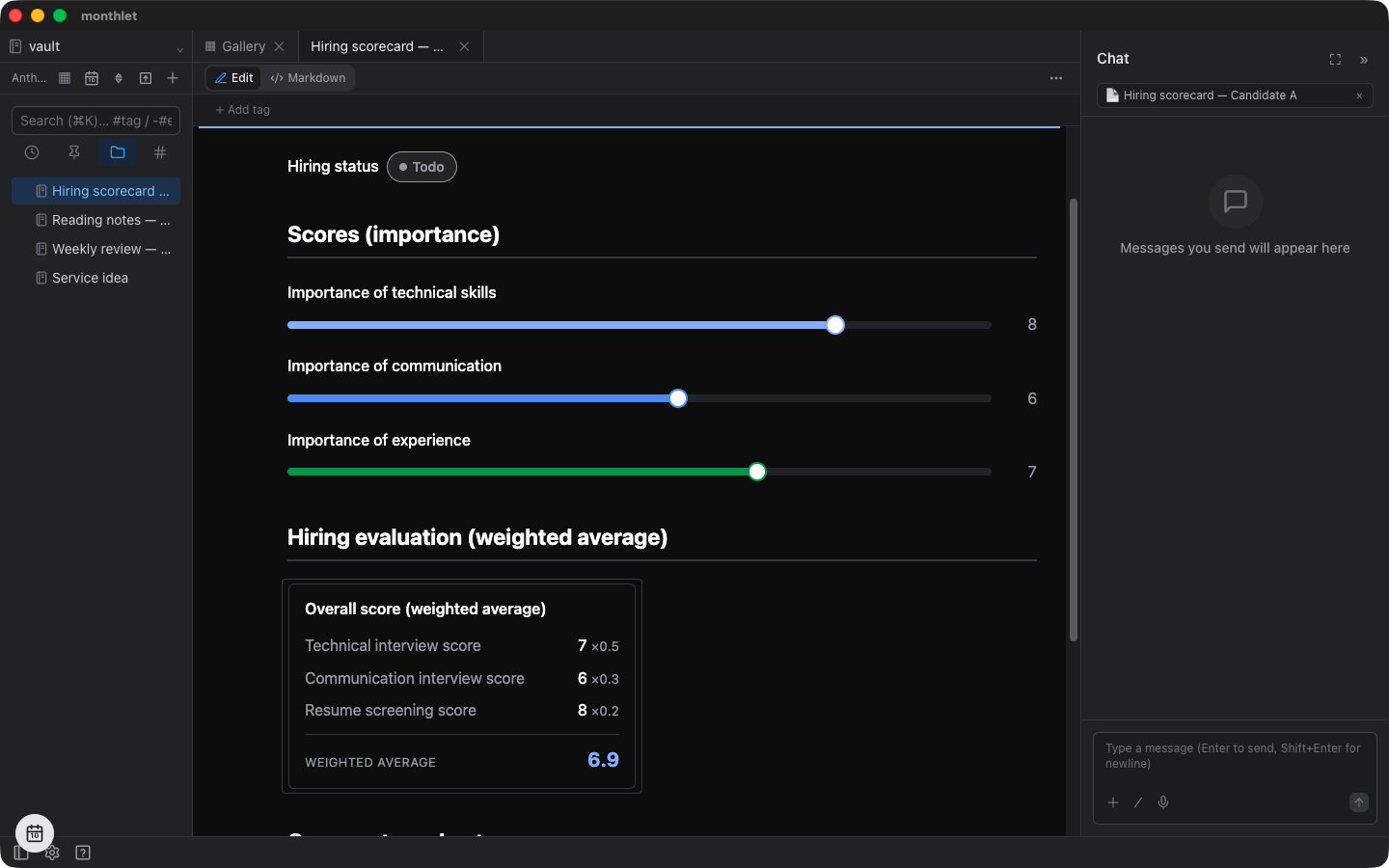
Ask in chat for something like “add a slider for importance” or “make a five-point rating slider,” and the AI places a slider in the note. It is a component for entering a score, such as importance or satisfaction. Dragging the track changes the value. You can stay in the reading view; there is no need to switch to editing.
Ask for “a status with Todo/Doing/Done,” and the AI places a colored badge. Clicking the badge switches to the next option, and after the last option it returns to the first. You decide the names and the order of the options in your own words when you ask.
Checklists work the same way. Clicking an item checks it.
Values you drag, and states you change by clicking, are saved into the note. The next time you open it, it shows the value you last set.
Calculation fields
Ask for “the average of the test scores” or “a hiring evaluation as a weighted average,” and the AI places named numeric input fields along with the result. There are three calculations: sum, average, and weighted average. The weighted average also holds a weight for each item. It suits scoring and cost totals.
If you edit the numbers in the input fields while editing the note, the result is recalculated on the spot. A calculation field totals the numbers in its own input fields. Placed next to sliders and status badges, it forms an evaluation sheet. If you want particular item names, say them when you ask.
Formulas
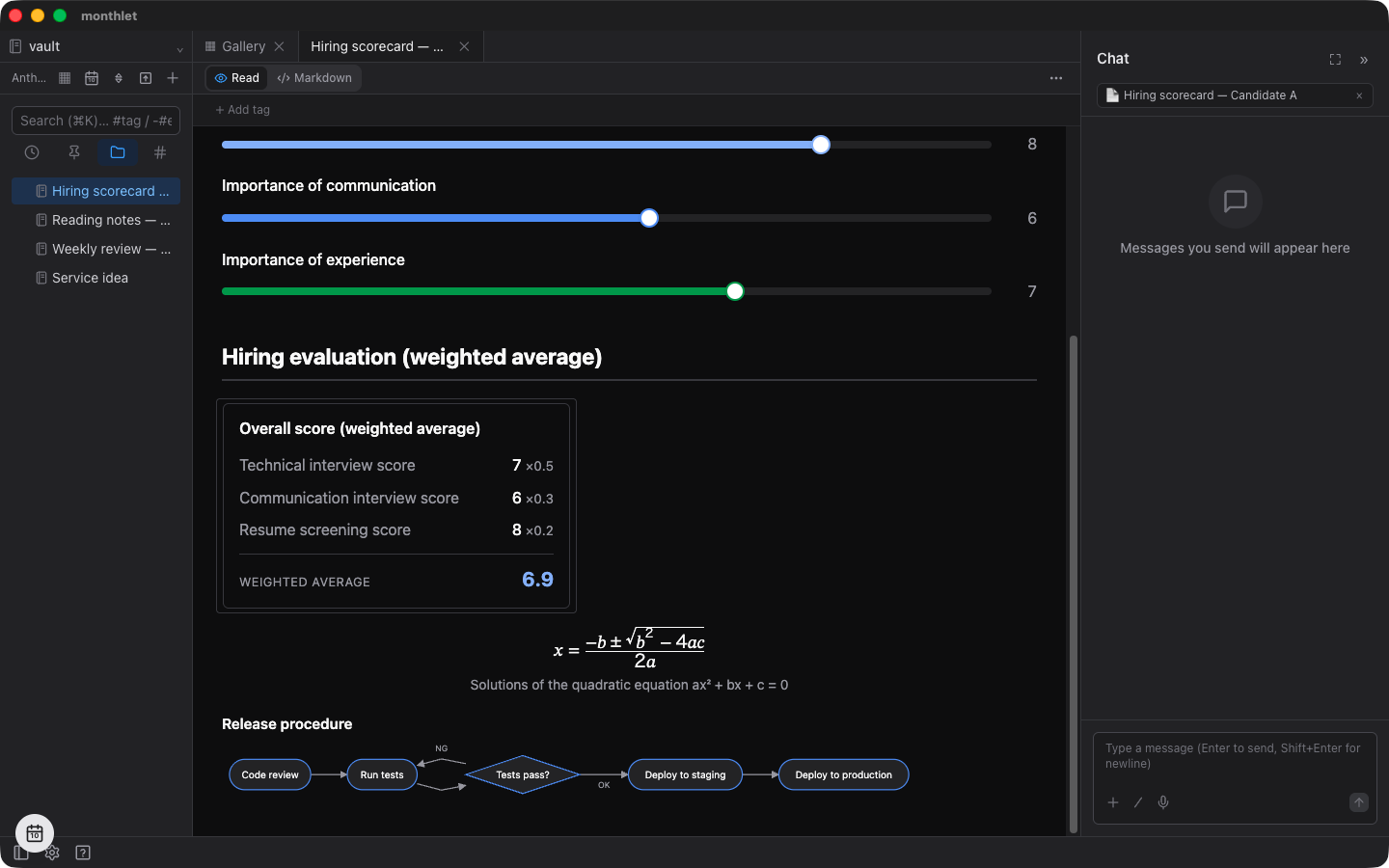
Ask for “the quadratic formula as a formula” or “write out the Gaussian integral,” and the AI places the expression large and centered. For short expressions inside a sentence, you can also use inline formulas wrapped in $.
Formulas are not images. Expressions written in LaTeX are converted to MathML and written into the note’s HTML. MathML is a format the browser draws by itself, so no special font or CSS is bundled. The same expression appears in an exported file and in the thumbnail in the note list. The color of the expression follows the theme.
Diagrams
Ask for “a flowchart of the release procedure,” “an org chart,” or “a mind map of the plan,” and the AI places a diagram. A flowchart draws steps and branches, an org chart draws a hierarchy, and a mind map draws a tree branching out from a single center. The AI supplies only the elements and the arrows. Where each one goes is decided automatically. A mind map is distributed left and right from the center, with a different color per branch.
Diagrams are drawn as SVG, and their colors follow the theme.
Table of contents and other presentation components
Ask to “add a table of contents,” and one is built from the headings in the note. Placed at the top of a long note, it gives you a list of the headings. The entries are rebuilt by reading the headings again each time it is displayed, so adding or rewriting a heading changes the table of contents accordingly. Clicking an entry jumps to that heading. By default the first top-level heading is not listed; if you want it included, ask for the title to be included in the table of contents as well.
There are also timelines, which lay out dated events in order; steps, which lay out numbered procedures; stats, which show a metric as a large number; and progress bars, which show a value from 0 to 100% as a bar. You ask for them with phrases like “turn this into a procedure document,” “show the key metrics like a dashboard,” or “show each task’s progress as a bar.”
Placing components by hand
You can also place components without asking in chat. While editing, hover over a block and a “+” appears on the left. Press it to open a picker of component types. Sliders, status badges, calculation fields, formulas, diagrams, and mind maps are in the “Data” group; the table of contents, tabs, toggles, and columns are in the “Layout” group. Right-clicking empty space with no block opens the same picker.
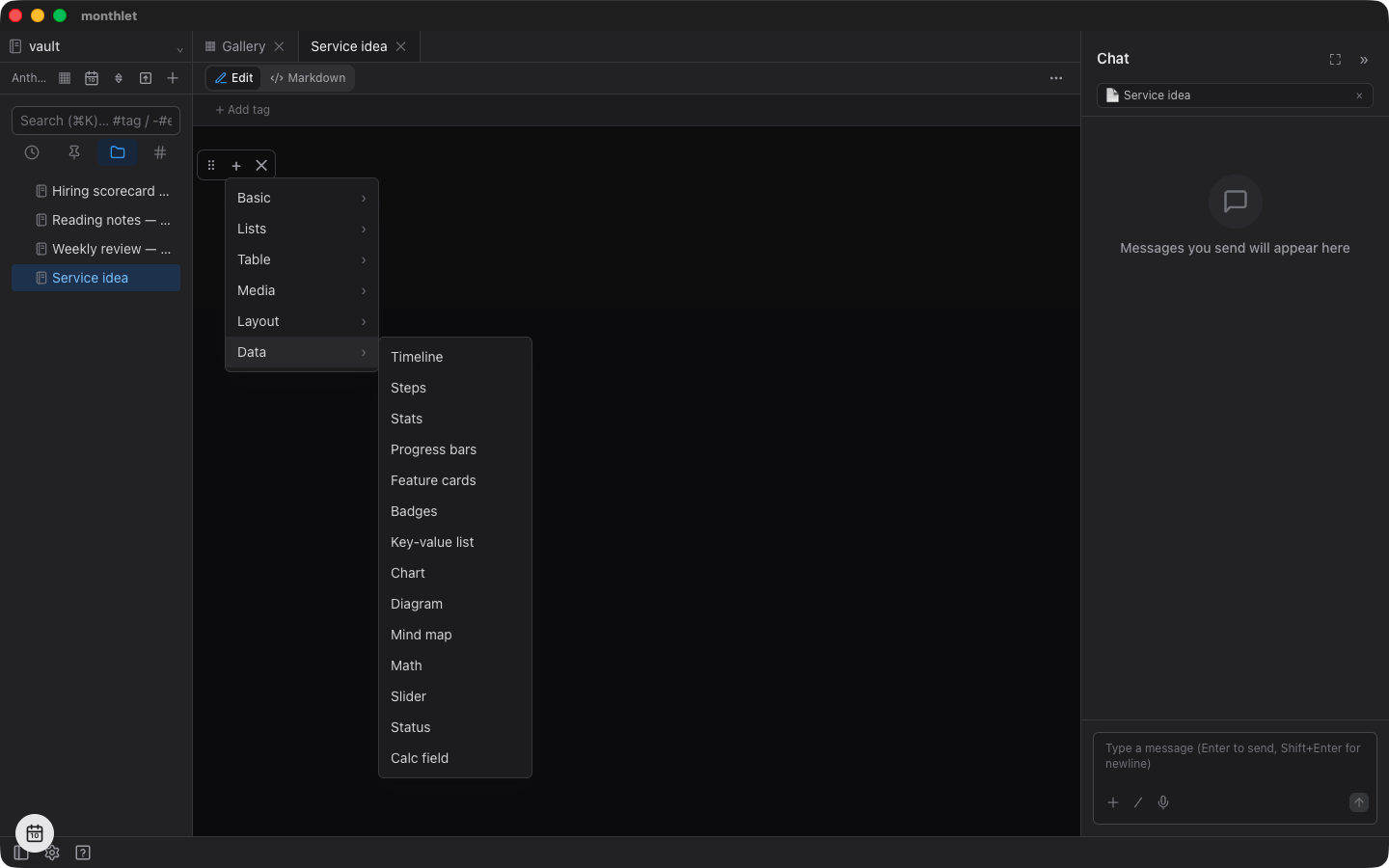
Formulas and diagrams placed by hand come with default content. To change what the expression or the diagram contains, select that block and ask in chat.
The component reference page
The monthlet site has a page listing the components you can use in a note. It covers 34 types, from basics like headings and checklists through to charts, diagrams, and sliders, divided into the same groups as the picker and explained with images. It also includes ones not covered in this post, such as callouts, badges, and key-value lists. When you are unsure what to ask for in chat, you can compare them there before choosing.
https://monthlet.ai/docs/components/
What survives an export
Take a note with all of the above components in it, export it, and open it in an ordinary browser. The exported file contains no scripts. The only things that work are the mechanisms the browser has on its own. Even so, every component you placed is still there.
The interactive components are frozen at the value you last set. A slider shows its bar and number at the last value, a status shows its badge, and a calculation field shows the result as of the time it was saved. Dragging a slider in the browser does not change the value. Tabs are fixed with the first tab open.
The presentation components look the same as they do in the app. Formulas are in the file as MathML and diagrams as SVG, so the person opening the file does not need to install anything. Jumping to a heading from a table of contents link, and opening and closing a toggle, are behaviors built into the browser, so they work in the exported file too.
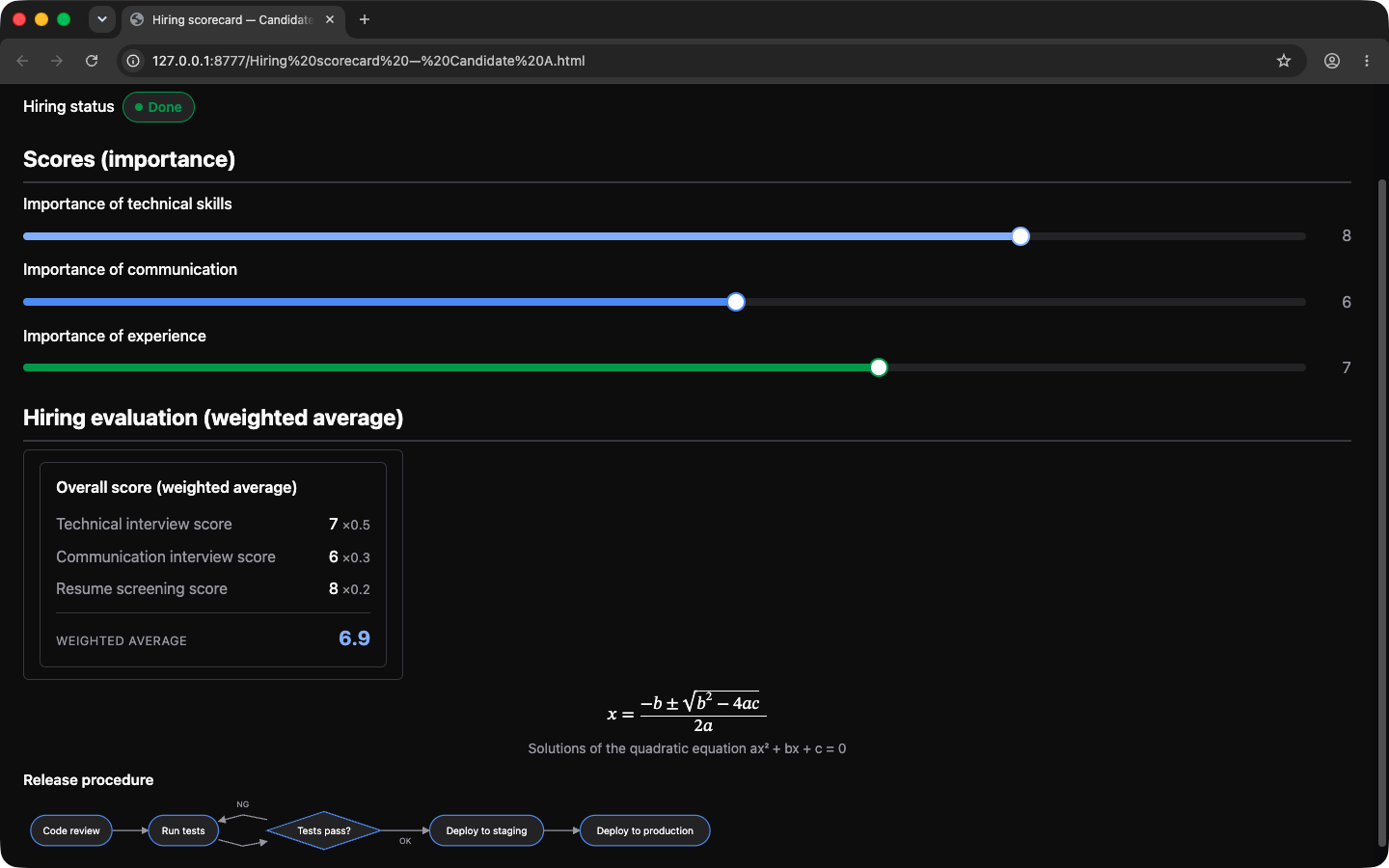
The same holds for export to PDF: formulas and diagrams print as they appear on screen, and the interactive components are frozen at their last value.
Try it
monthlet runs on macOS (Apple Silicon) and Windows. The Windows version is available from the Microsoft Store. Enter your own AI API key and you can use every feature.
-
Download: https://monthlet.ai/download
-
Discord: https://discord.gg/aP4Hc7cJGU