 monthlet
monthlet is a note app where you write and grow notes through AI chat. Each note is a single ordinary HTML file that also opens in a browser.
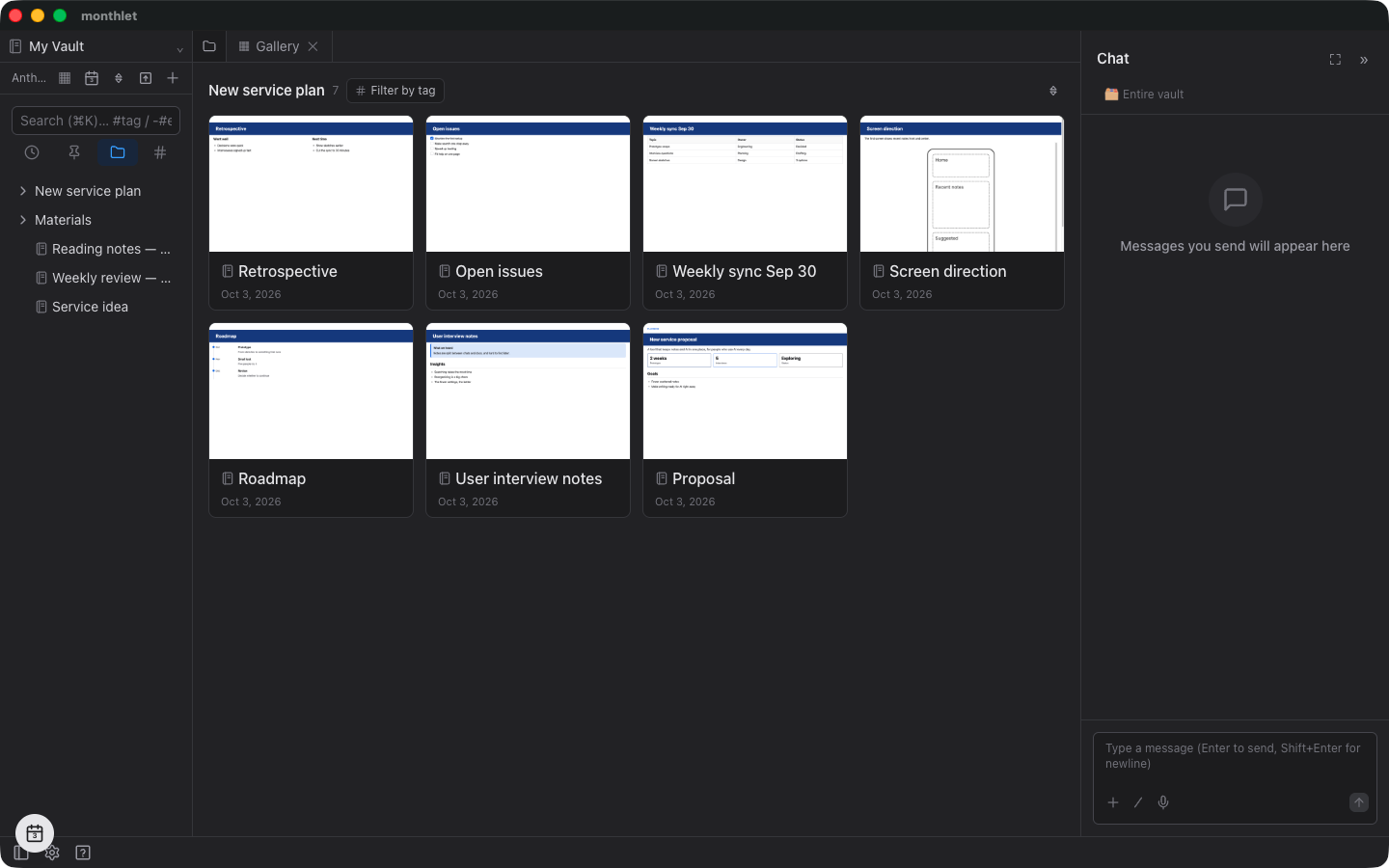
Since version 1.0.0, released on October 1, 2026, folders in the sidebar can be opened as a gallery. The notes inside the folder are laid out as cards, so if you keep a folder per project, you can see just that project’s notes in one list.
The same release added the ability to pin tabs. If you pin the tab holding a folder’s gallery, that project’s tab is there every time you open the app. This journal covers those two features, plus thumbnails that make the cards easier to tell apart.
Opening a folder as a gallery
Right-click a folder in the sidebar and choose “Show as gallery”. A new tab opens and the notes in that folder are laid out as cards. Notes in subfolders are included.
Another folder can be opened the same way in its own tab. If you move between two projects, switch tabs. Choosing a folder that is already open does not add a tab; the existing tab comes to the front.
Cards are ordered the same way as in the sidebar.
If you rename a folder or move it under another folder from inside the app, the tab follows that folder. If you delete the folder, its tab closes. If you move the folder outside the app, the tab shows “Folder not found”.
Pinning tabs
Right-click a tab and choose “Pin”. The tab moves to the left end of the tab row and shrinks to just its icon. The close button disappears as well. To undo this, choose “Unpin” from the same menu.
Along with folder galleries, you can pin tabs for the overall gallery, chat, the calendar, notes, and spreadsheets. Pin the folders for the projects you open often together with chat and the calendar, and each day starts from the icons at the left end.
Closing tabs in bulk with “Close other tabs” or “Close all tabs” leaves pinned tabs in place.
Pinning a note so it appears at the top of a list (the “Pin” item on a note) is a separate feature from pinning a tab.
They are still there next time
Pinned tabs are recorded per vault. They come back when you quit and reopen the app, and when you switch to another vault and come back. If you use several vaults, you can pin a different set of tabs in each one.
Tabs that are not pinned disappear when you close the app. Pin the ones you will use again tomorrow.
Thumbnails for images and PDFs
A folder may hold images and PDFs alongside notes. With “Show non-note files in the sidebar” turned on in Settings, the cards for those files in the gallery show a scaled-down preview of the file’s contents.
This applies to images and PDFs. For a PDF, the first page is shown. The setting is off to begin with.
The scaled-down picture appears only on gallery cards. While you are filtering by tag, file cards are not listed. To look for images and PDFs, clear the filter first.
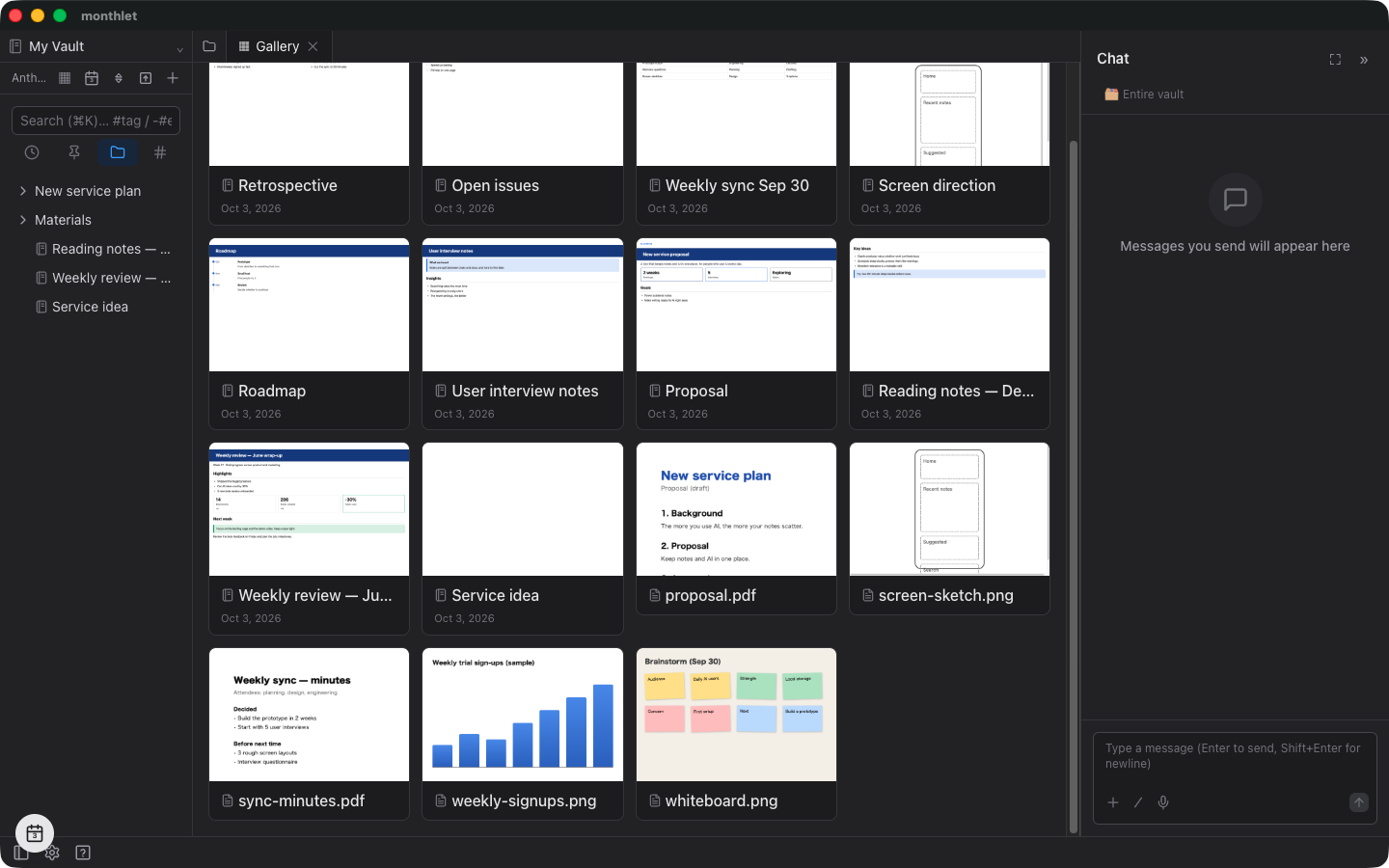
These thumbnails are stored inside the vault. When you update the original file, the thumbnail is recreated.
Choosing the image on a card
By default, a note’s card shows a picture generated from the note’s contents. You can also choose the image yourself.
Right-click a note, choose “Choose image…” under “Thumbnail”, and pick an image. The same menu is available from the sidebar, from a gallery card, from the ⋯ button at the top right of a note, and from the spreadsheet menu. To go back to the picture generated from the contents, choose “Default”.
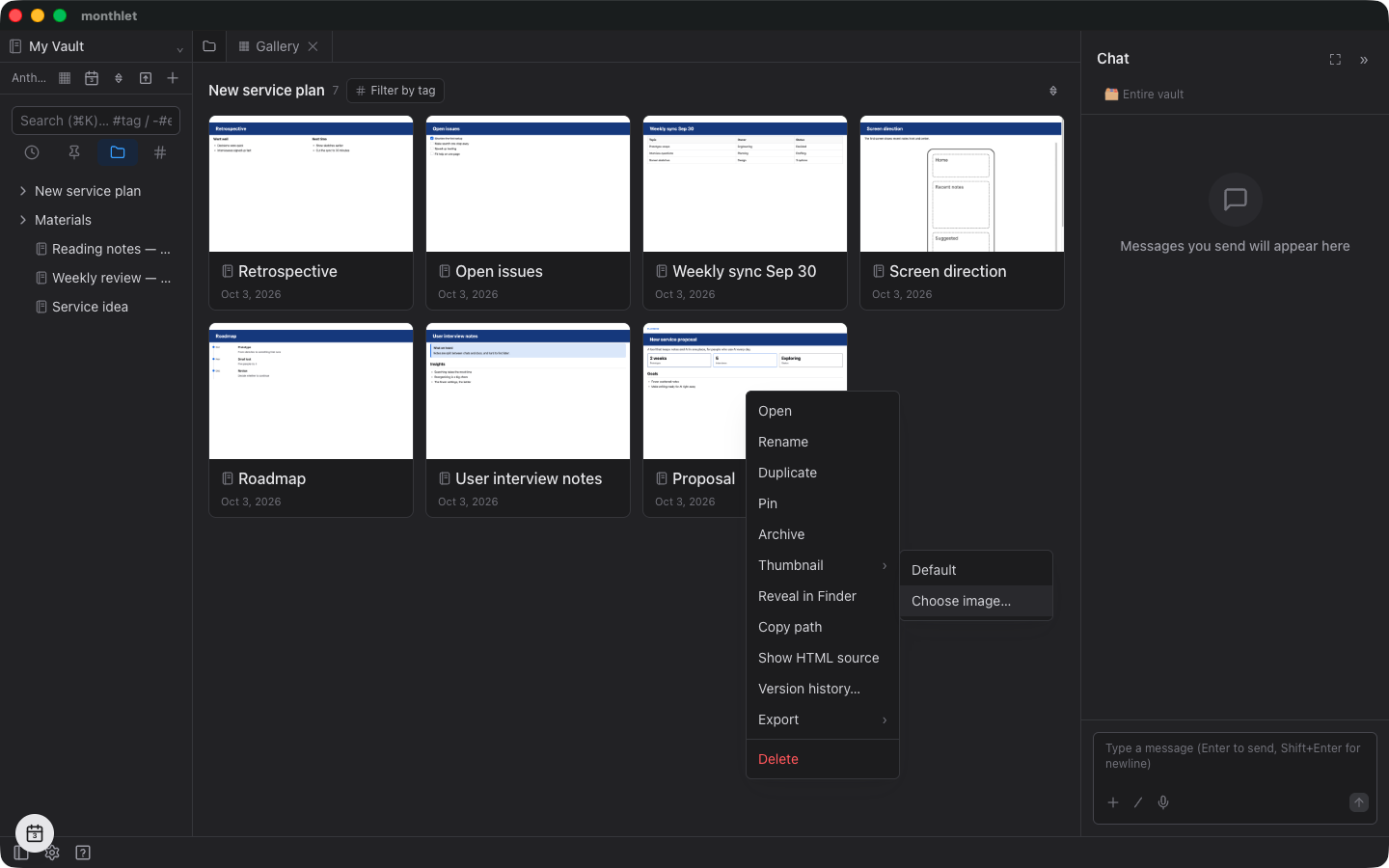
To use an image that is already in the body of the note, right-click that image and choose “Use as thumbnail”. This works for images added to the note as files.
If you choose an image from outside the vault, it is copied into the same folder as the note. An image already in the vault is used from where it is.
The selected image is recorded inside the note’s HTML file. If you later delete that image, the card goes back to the picture generated from the contents.
Try it
monthlet runs on macOS (Apple Silicon) and Windows. The Windows version is available from the Microsoft Store. The features described here are in 1.0.0. Enter your own AI API key and every feature is available.
-
Download: https://monthlet.ai/download
-
Discord: https://discord.gg/aP4Hc7cJGU