 monthlet
monthlet is a note app where you write and grow notes through AI chat. Each note is a single ordinary HTML file, so it opens in a browser as well.
Version 1.0.0, released on October 1, 2026, added more AI services you can connect to. The previous post covered how to set those up. This post covers another change in the same release: how the AI assembles a note.
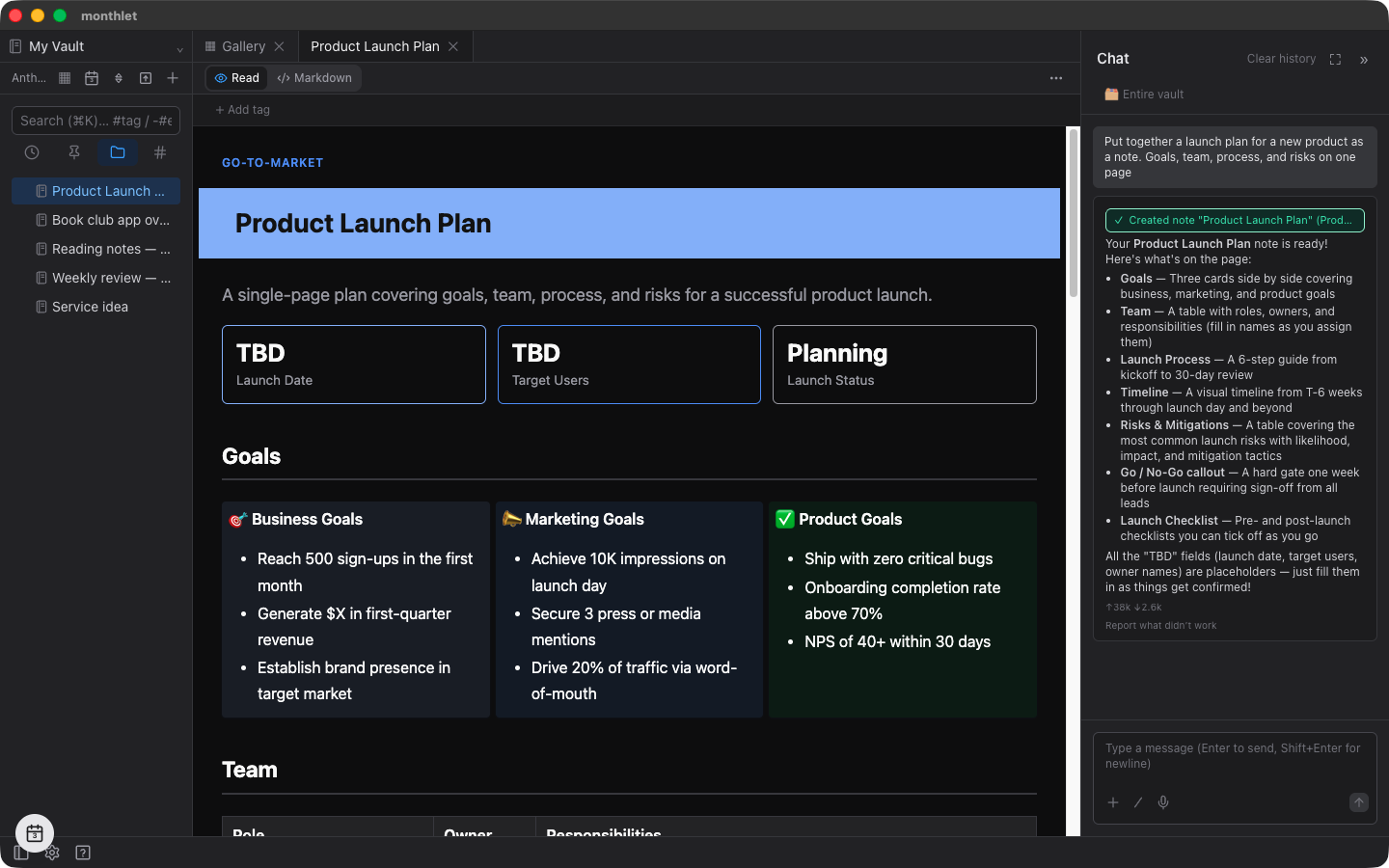
When you asked the chat to summarize something into a note, the AI used to use cards and columns sometimes and not others, and sometimes produced a note that was just headings and paragraphs stacked from top to bottom. From 1.0.0, it groups related content into cards, and splits material you would want to compare side by side into two or three columns.
Cards and columns were always available
Card, Two columns, Columns, Toggle, and Tabs are layout blocks that hold other blocks inside them. All of them could already be placed in a note. You can add them yourself from the “+” in edit mode, and the AI places them too. Whether the AI chose them, though, depended on the content and on how you phrased the request.
What changed in 1.0.0 is the guidance the AI follows when it assembles a note. The component list passed to the AI now describes which kinds of content belong in which block. With that, the AI picks blocks that fit the content without you having to phrase the request differently.
How content gets organized
The guidance passed to the AI works like this.
Related content — a subheading with body text and a bullet list, for example — goes into a card. Two parallel items go into Two columns; three or four go into Columns, with one card per column laid out across the page. Comparisons and contrasts are split left and right. Supplementary material, FAQs, and long reference text go into a collapsible block. Things you switch between at the same level of detail, such as before and after or one period versus another, become tabs.
Nesting goes two levels deep. Cards can sit inside Two columns or Columns, but no further columns are created inside a card, and the note as a whole is never wrapped in a single card or tab set. Card contents stay at roughly two to four blocks — a subheading plus body text or a bullet list — and long body text and tables are kept outside cards.
The two-level limit is guidance chosen for readability. The note format itself does not restrict depth to two levels.
Cards and columns can hold charts and tables as well as body text and bullet lists.
Visual options
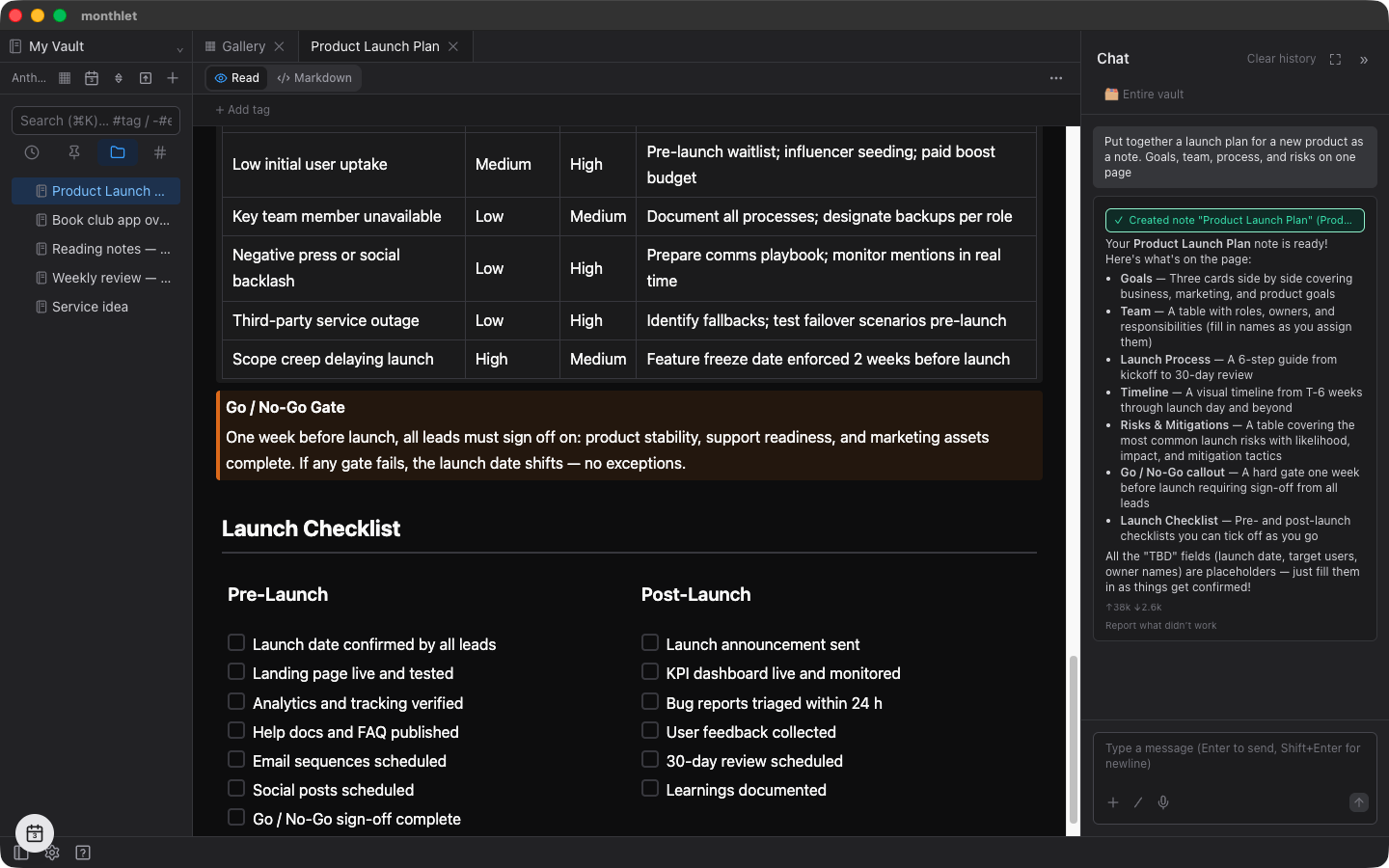
The AI can now also set visual options when it picks a block. There are seven:
-
A background band behind a block
-
The spacing below a block (tighter or wider)
-
Card fill (filled, or a light tint)
-
The gap between columns in Two columns and Columns (tighter or wider)
-
Paragraph text size (larger for an opening sentence, smaller for a side note)
-
Centered paragraphs
-
A short eyebrow heading above a heading
Every value comes from a fixed set of choices, and colors come from the theme. An eyebrow heading, for instance, is shown in small text in the theme’s accent color. Change the theme, and the colors in notes that use these options change with it.
The guidance also covers when to use them. Eyebrow headings go only at the start of a section. Large paragraphs are for an opening sentence, small ones for side notes. Background bands and spacing changes are used on only one or two blocks you want to emphasize, and cards sitting side by side share the same fill.
Existing notes are unchanged
Blocks with no visual options set get no styling at all. Updating to 1.0.0 does not change how your existing notes look.
The one exception is spacing for blocks inside cards, collapsible blocks, and columns. The gap below the last block inside and above the first heading has been tightened, and cards laid out side by side now line up along the bottom. Notes that already used columns will show that much less whitespace.
Asking the AI for a specific layout
The guidance is text passed to the AI, and the same text goes to every service you connect. How closely it is followed varies by model, so the same request will not always produce the same layout.
When you want a specific shape, say so in the request. Naming the block type and the count — “organize this into cards,” “lay it out in three columns,” “put the comparison side by side,” “put the supplementary material in a collapsible block” — makes that shape more likely. “Lay it out in three columns” splits the content across three columns; “put the supplementary material in a collapsible block” moves that part into a toggle.
To change part of a finished note, select that block first, then ask in the chat. The same applies when adding an item inside a card.
Building layouts by hand
You can create cards and columns yourself. In edit mode, press “+” (“Add a block below”) to open the block picker; the “Layout” group starts with “Two columns,” “Columns,” “Card,” “Toggle,” and “Tabs.”
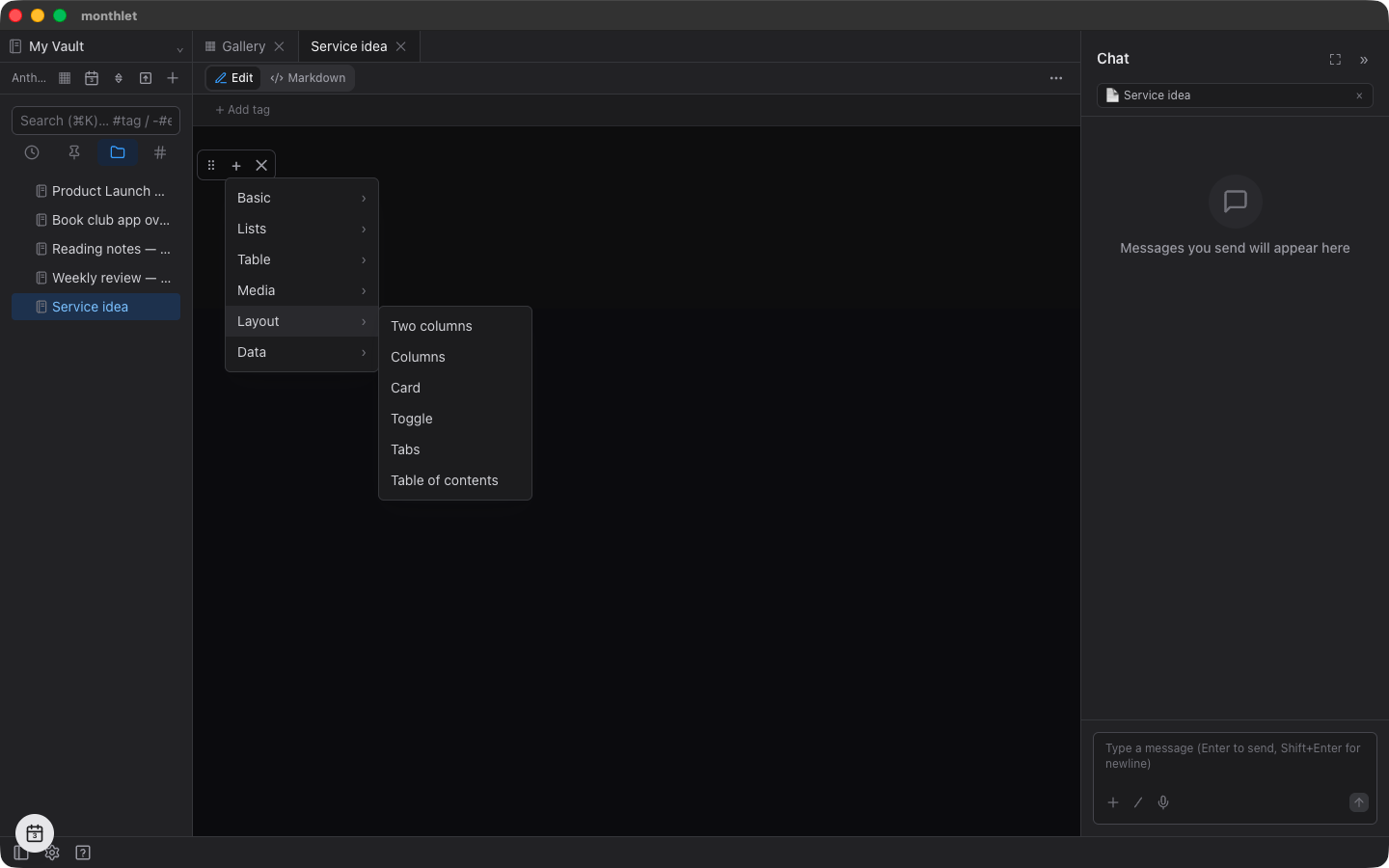
A block you just added is empty, so click the paragraph inside it and type directly. Card titles can be clicked and rewritten too. If you want the contents filled in all at once, it is faster to place the block, select the card, and ask in the chat.
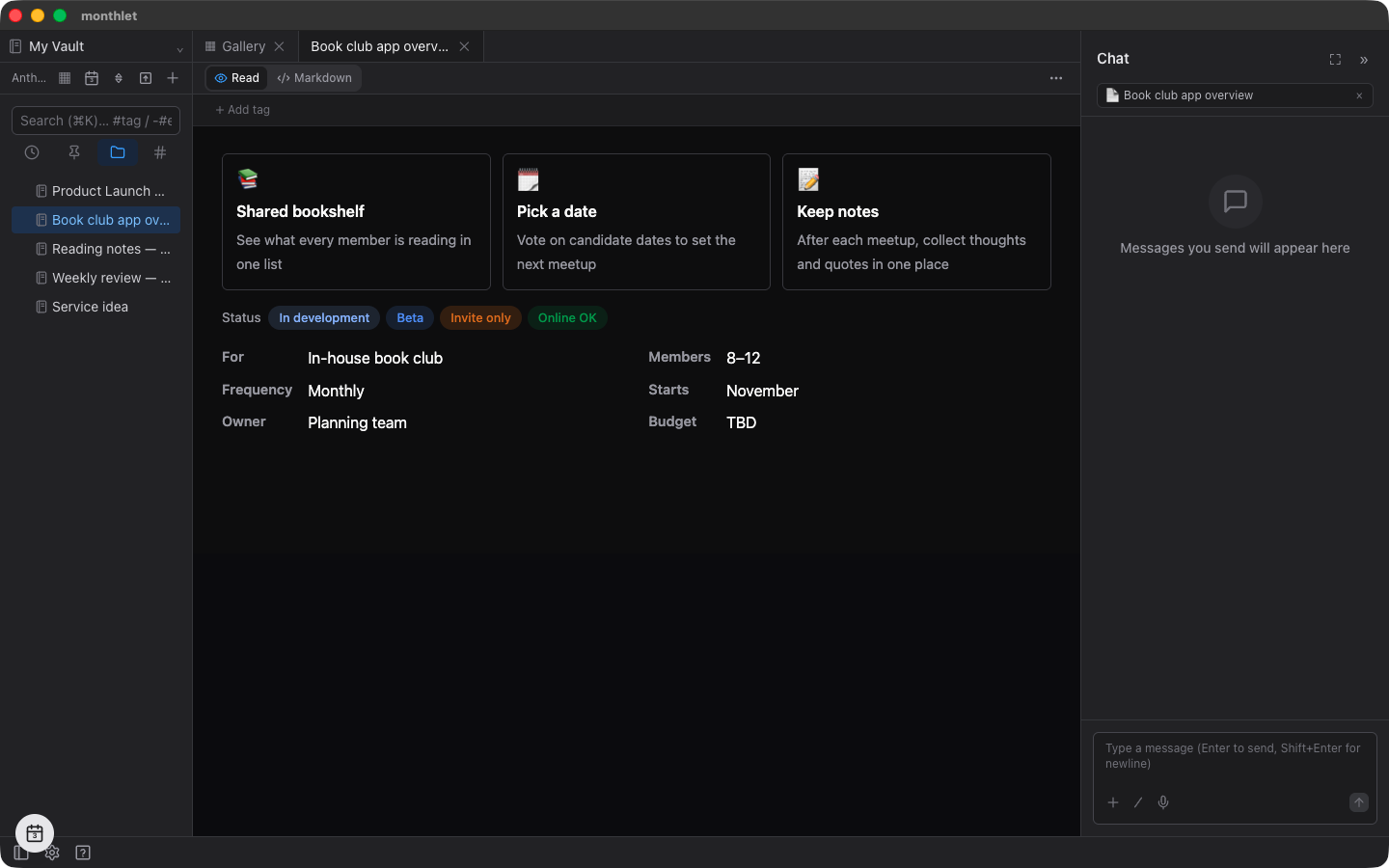
The “Data” group in the same picker gained three components in 1.0.0. “Feature cards” lays out cards with an icon, a title, and a short description side by side. “Badges” shows short labels in color. “Key-value list” lists pairs of a field name and its value in two columns.
The AI uses all three when it builds a note. The guidance says to put lists of features or benefits into Feature cards, short labels such as tags or statuses into Badges, and field-and-value pairs such as a summary or an owner and due date into a Key-value list. All three can also be placed inside a card.
Layouts survive export
When you export a note as HTML, the cards, columns, and visual options come with it. monthlet notes are stored as ordinary HTML files, and export rebuilds the body through the same mechanism. The exported file contains the block structure along with the spacing and fill styles, so opening it in a browser shows the same layout as in the app.
Text written inside cards and collapsible blocks is included in note search.
Try it
monthlet runs on macOS (Apple Silicon) and Windows. The Windows version is available from the Microsoft Store. The features in this post are available from 1.0.0. Enter your own AI API key and all features are available.
-
Download: https://monthlet.ai/download
-
Discord: https://discord.gg/aP4Hc7cJGU