 monthlet
monthlet is a note app where you write and grow notes through AI chat. On October 1, 2026, the Mac version that had been distributed as a beta was released as 1.0.0. The same day, the Windows version reached 1.0.0 in the Microsoft Store.
As described in the September 1 post, 1.0.0 contains fixes for the problems reported during the beta period, along with many small adjustments to how the app handles. The largest change on the AI side is the structure of the notes the AI produces: the AI now groups related content into cards and columns within a note. That will be covered in a separate post. Other additions, such as gallery view for folders and pinned tabs, are listed in the 1.0.0 release notes.
One more item was also added to the AI settings. You can now register an endpoint with an OpenAI-compatible API as the AI connection. This post explains how to use it.
What this adds
Until now, AI chat in monthlet used one of three providers: Anthropic, OpenAI, or Google (Gemini). You register an API key you obtained from the provider yourself, an arrangement known as BYOK. From 1.0.0, in addition to those three, you can select a service with an OpenAI-compatible API.
This covers any service that accepts requests in the same format as the OpenAI API. That includes cloud services as well as a local LLM server running on your own computer. If you choose a local LLM server, you can use AI chat without sending the contents of your notes outside your machine.
Where to set it up, and what to enter
Open Settings (⚙) and select the AI tab. The provider cards now number four instead of three. The fourth is the OpenAI-compatible (custom) card.
The field unique to this card is the endpoint URL. Enter a URL beginning with http:// or https://. The API key field works the same as on the other three cards.
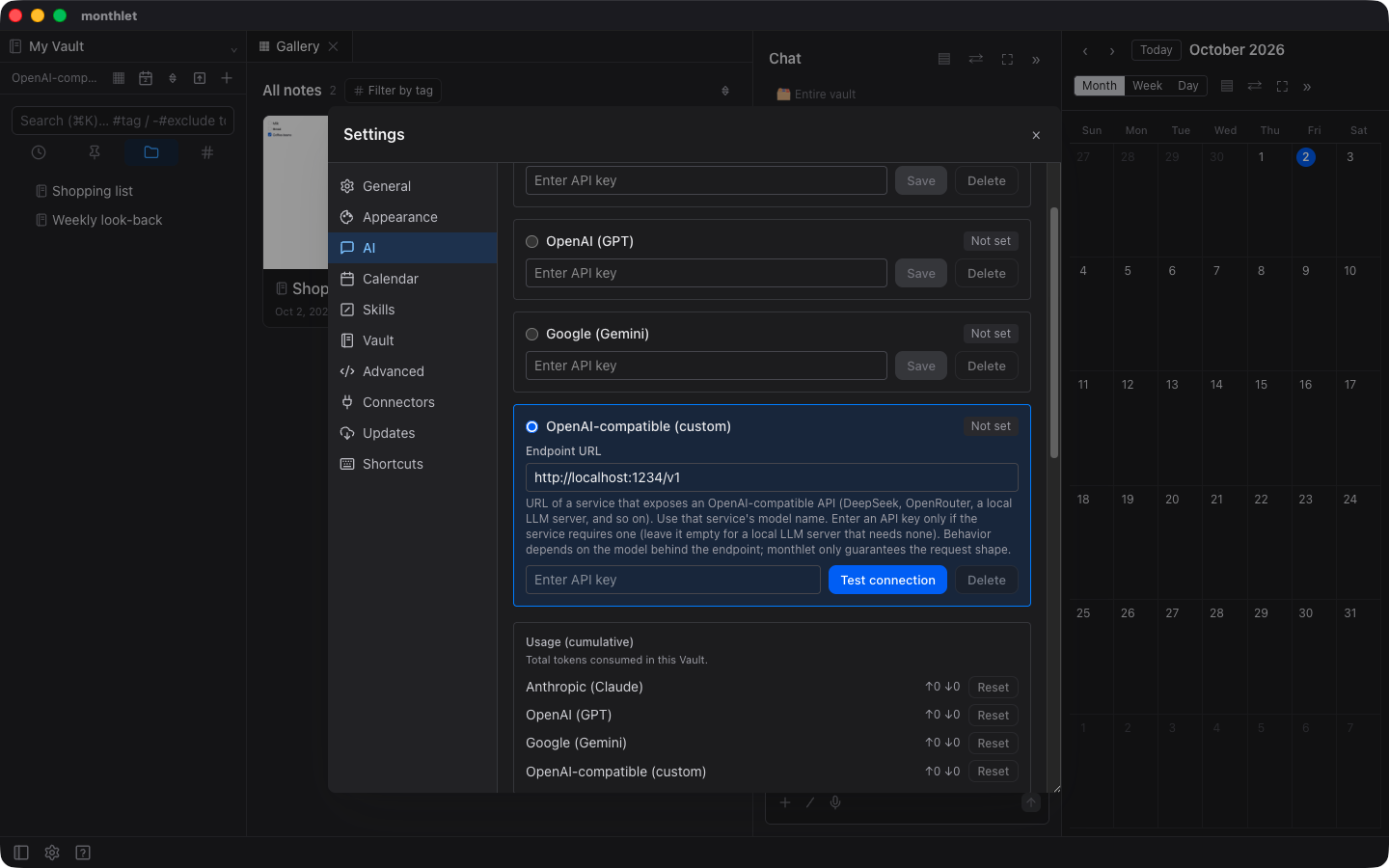
The note below the fields gives examples of the intended connections: cloud services such as DeepSeek and OpenRouter, and local LLM servers.
This card appears only in Settings. It is not shown in the first-run setup screen, so even if you want to use a compatible endpoint from the start, complete setup once and then open Settings.
You enter the model name yourself
While the fourth card is selected, the model field changes from a picker to free text. The placeholder reads “Model name (e.g. deepseek-v4-flash)”. Enter a model name published by the service you are connecting to.
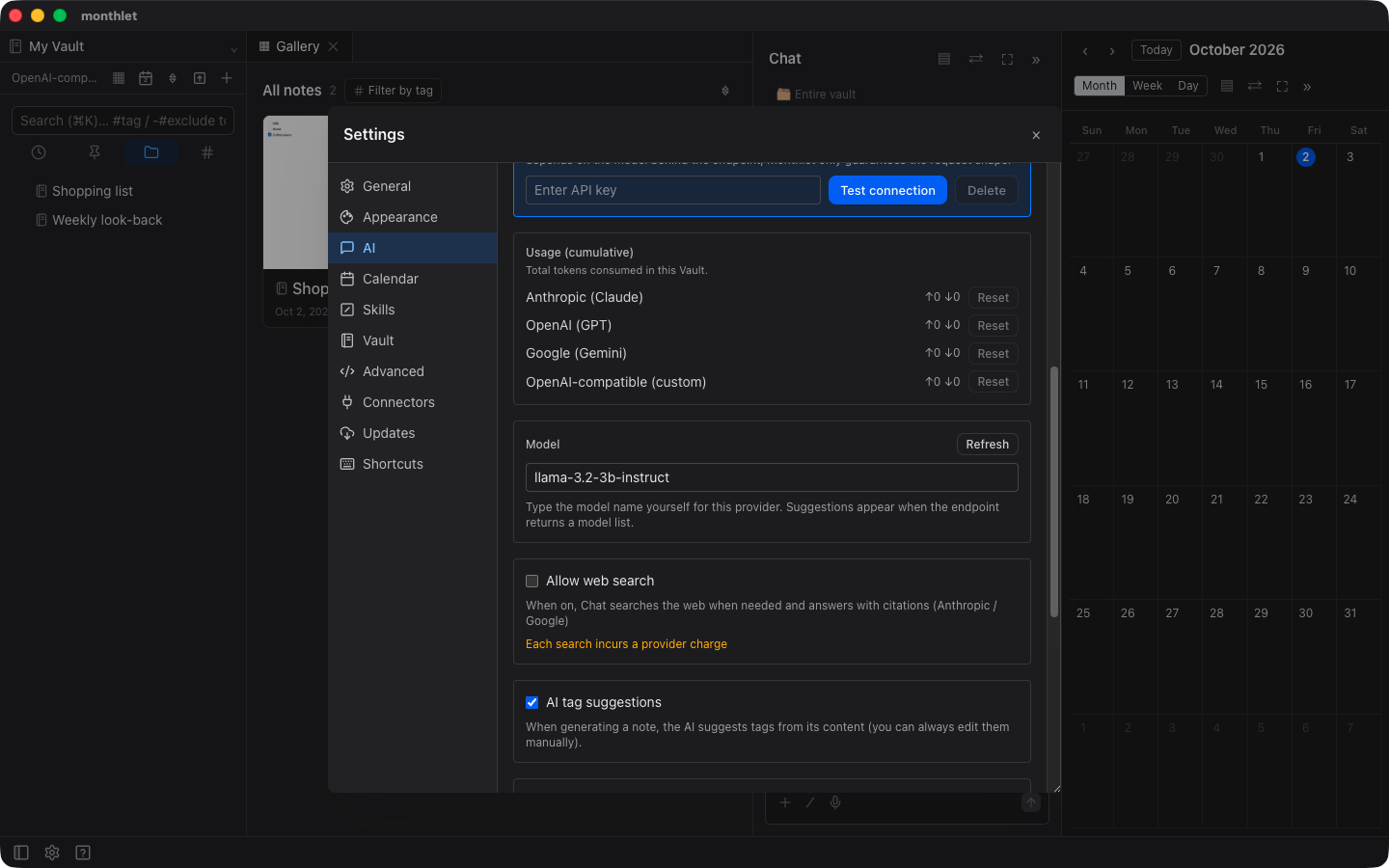
If the endpoint returns a list of models, suggestions appear below the field. Some services do not return a model list, in which case no suggestions appear. You can still send requests by typing the model name.
This card has no default URL or model name supplied by monthlet. For the three provider cards, monthlet updates the list each time a provider publishes a new model. For a compatible endpoint, monthlet has no way of knowing which models run behind it, so the person registering it decides which model to use.
When no API key is required
The two required items are the endpoint URL and the model name; the API key is optional. For a service that does not ask for a key, such as a local LLM server on your own computer, leave the key field empty. When the key field is empty, the Save button changes to “Test connection”. Pressing it only checks whether a connection can be made without a key.
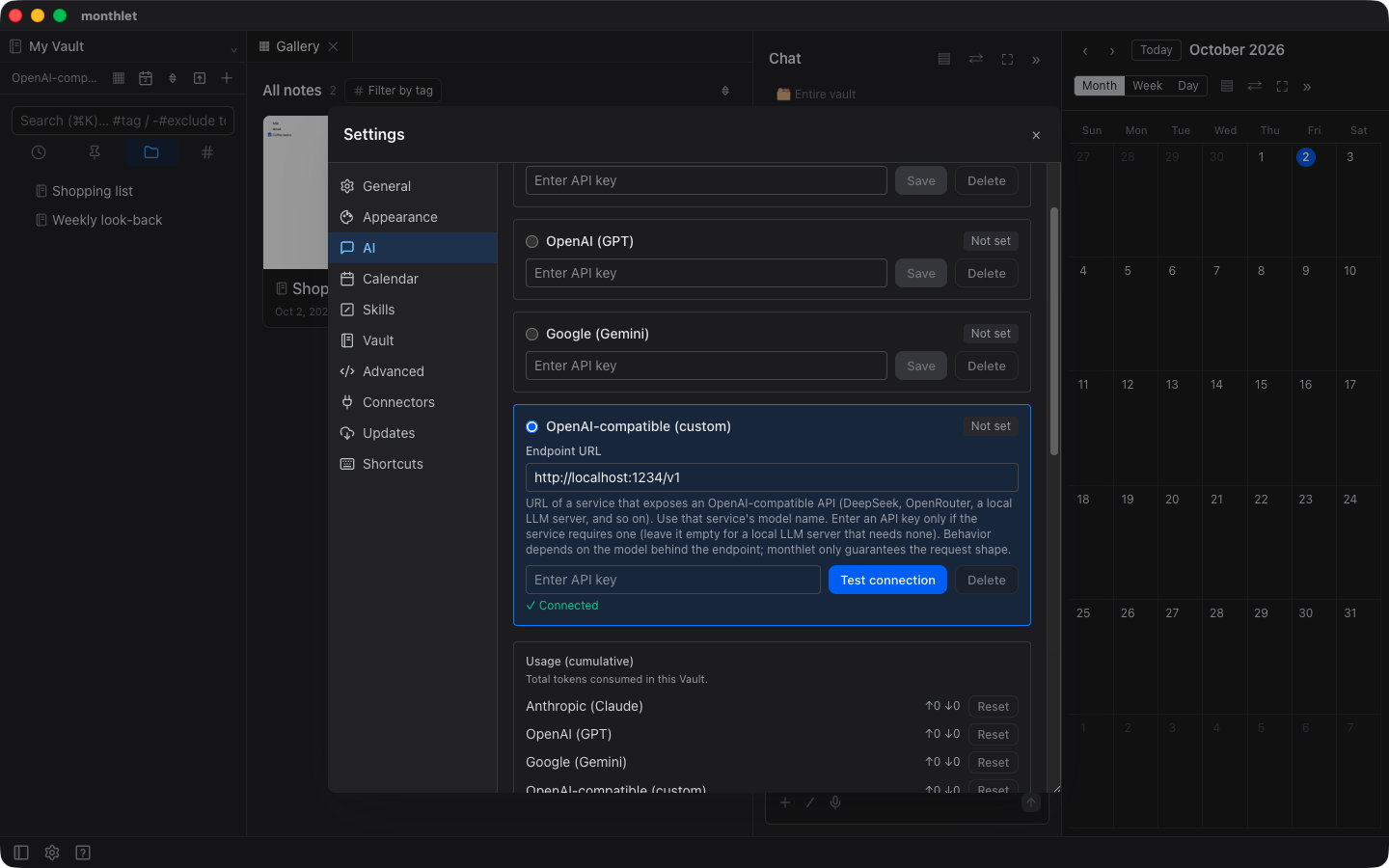
If you connect without a key to a service that requires one, the check stops with an authentication error and the message “This endpoint requires an API key.” You can run the check with the key field empty, but whether the endpoint works without a key is determined by the endpoint itself.
The three provider cards are unchanged
Nothing in the three existing provider cards has changed. Registered keys and selected models stay as they were.
One thing did change: the default model for OpenAI. If you use your own OpenAI key and have not selected a model, GPT-5 mini is now used instead of GPT-4o mini. GPT-5 mini follows instructions about appearance and structure more closely, but its price per token is higher than GPT-4o mini. To go back to GPT-4o mini, select the model again in the AI tab in Settings.
You switch between connections with the radio button on the left of each card. A change takes effect from the next chat message you send, so you can try a compatible endpoint and then switch back to one of the three providers.
Where it differs from the three providers
monthlet’s own tools for reading, creating, and rewriting notes, as well as external tools connected through MCP connectors, all work when the connection is a compatible endpoint. The main operations available in AI chat are the same as with the three providers.
There are three differences. The first is web search: it uses functionality provided by Anthropic and Google (Gemini), so it is unavailable with a compatible endpoint. The second is PDFs: files are sent as-is to those two providers, while text is extracted and sent to a compatible endpoint. The third is the cost estimate shown before sending, which is not displayed for a compatible endpoint. monthlet holds price tables only for the three providers and cannot know the pricing of a compatible endpoint.
The token count estimate before sending, and the confirmation when it exceeds the threshold, are still shown for compatible endpoints. There is no cost figure, but you can still keep the volume you send in check.
What is guaranteed is the shape of the request
The last sentence of the note under the fields reads:
“Behavior depends on the model behind the endpoint; monthlet only guarantees the request shape.”
For OpenAI, Google, and Anthropic, monthlet accounts for behavioral differences between models and verifies behavior down to tool calls. With a compatible endpoint, monthlet cannot tell which model is running on the other side. monthlet’s responsibility ends at sending a request in the correct format. Whether the tools are used appropriately depends on the capability of the model at the endpoint.
If note editing does not go well, try a different model before reviewing your settings or your approach. Results differ by model even at the same endpoint.
Availability
monthlet runs on macOS (Apple Silicon) and Windows. The Windows version can be installed from the Microsoft Store. The feature described in this post is included in 1.0.0 on both Mac and Windows. Register an AI connection you have prepared yourself and all of the features are available.
-
Download: https://monthlet.ai/download
-
Discord: https://discord.gg/aP4Hc7cJGU