 monthlet
monthlet is a note app where you write and grow notes through AI chat.
If you had to pick colors and decide heading sizes every time you created a note, there would never be enough time. And when you look back later, notes that each have a different feel are somehow unsettling.
monthlet separates the logical structure of a note from its appearance. A block carries only its meaning; the theme decides how it looks. Write a heading as a heading and a note as a note, and how it is displayed is the theme’s job.
Choosing a preset
Open Settings and go to the appearance section, and you get a set of theme cards. Five of them — Corporate, Editorial, Docs, Playful, and Accessible — are listed with color swatches, and each row has a button for duplicating the theme.
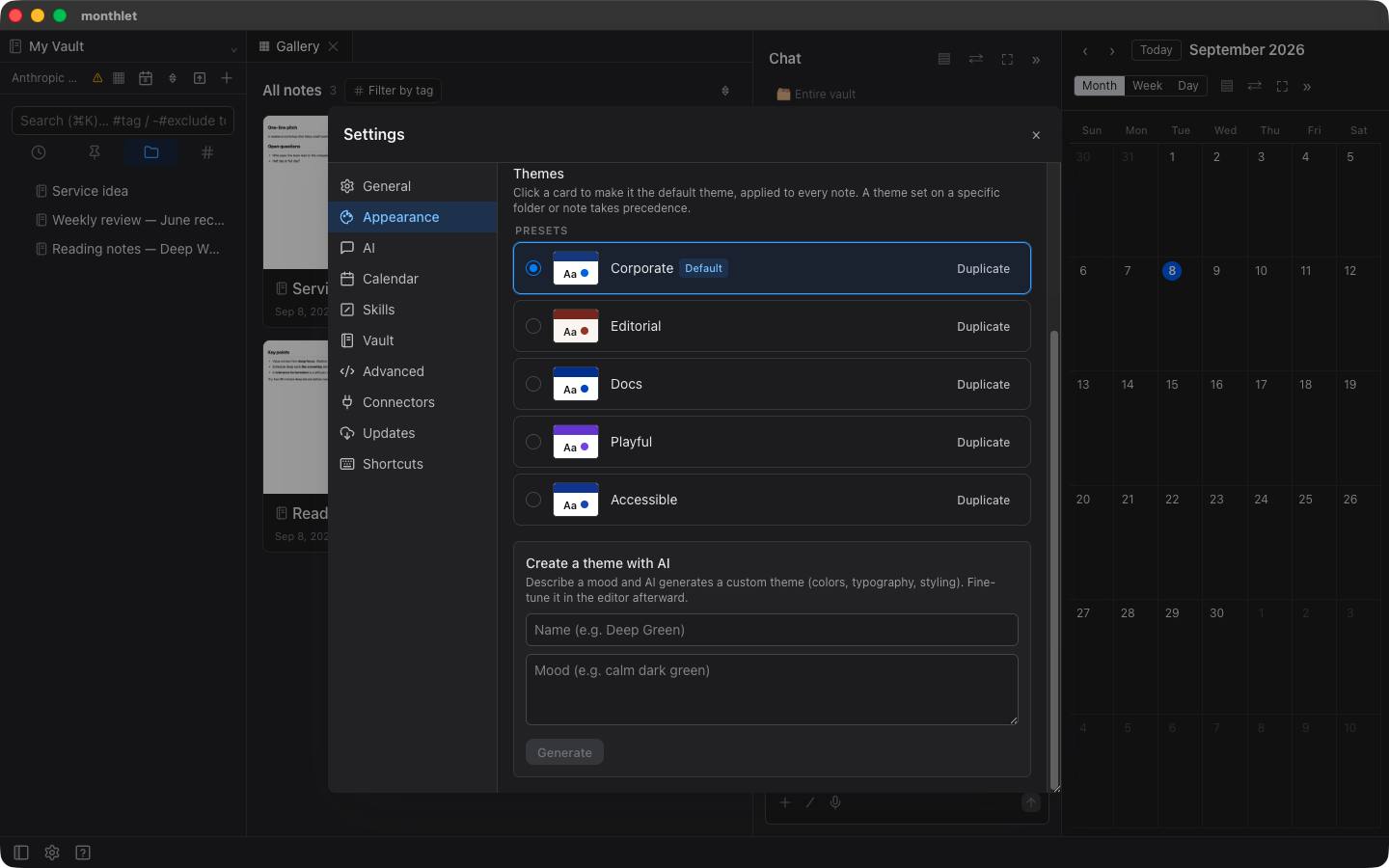
Clicking a card makes it the default theme. It applies to every note. You also pick one during first launch, and whatever you chose there is what shows up here.
Themes apply at three levels
On top of the default theme, you can also set a theme per folder and per note. The more specific setting wins.
From a note’s “…” menu you can pick its theme. The one marked with a ★ is the theme currently being inherited.
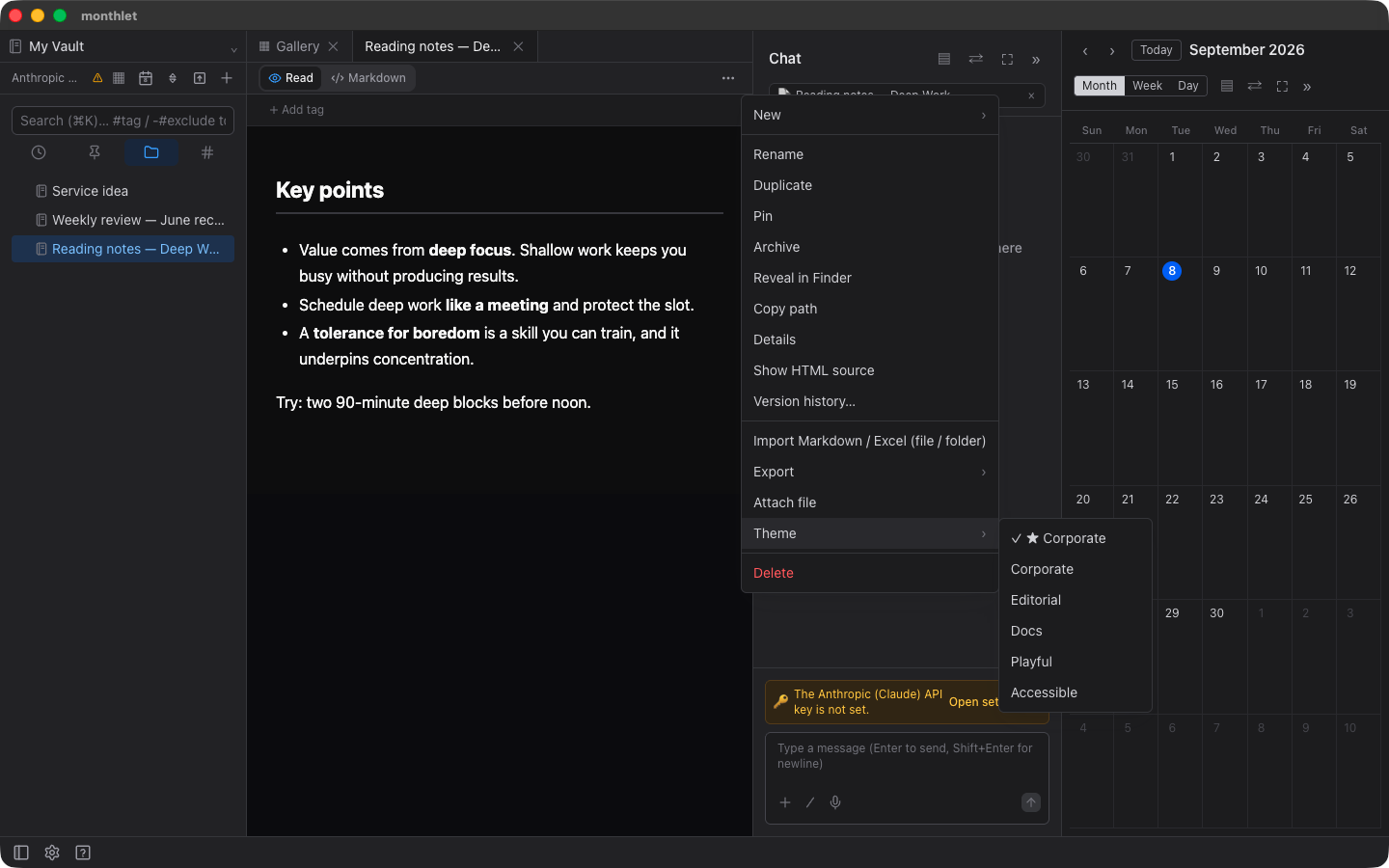
So you can give a work folder a subdued palette and use a different theme for a diary. If you choose nothing on the note itself, it stays on the theme with the ★ at the top. The name of the folder theme or the default theme is shown there, so you can see what is being inherited on the spot.
A short video walks through everything from picking a preset to having AI create a theme.
Having AI create a theme
When the presets aren’t enough and you want a theme of your own, you can have AI create one. The entry point is in the same appearance section: describe the image you have in mind for the theme. Something like “a calm dark green” is enough.
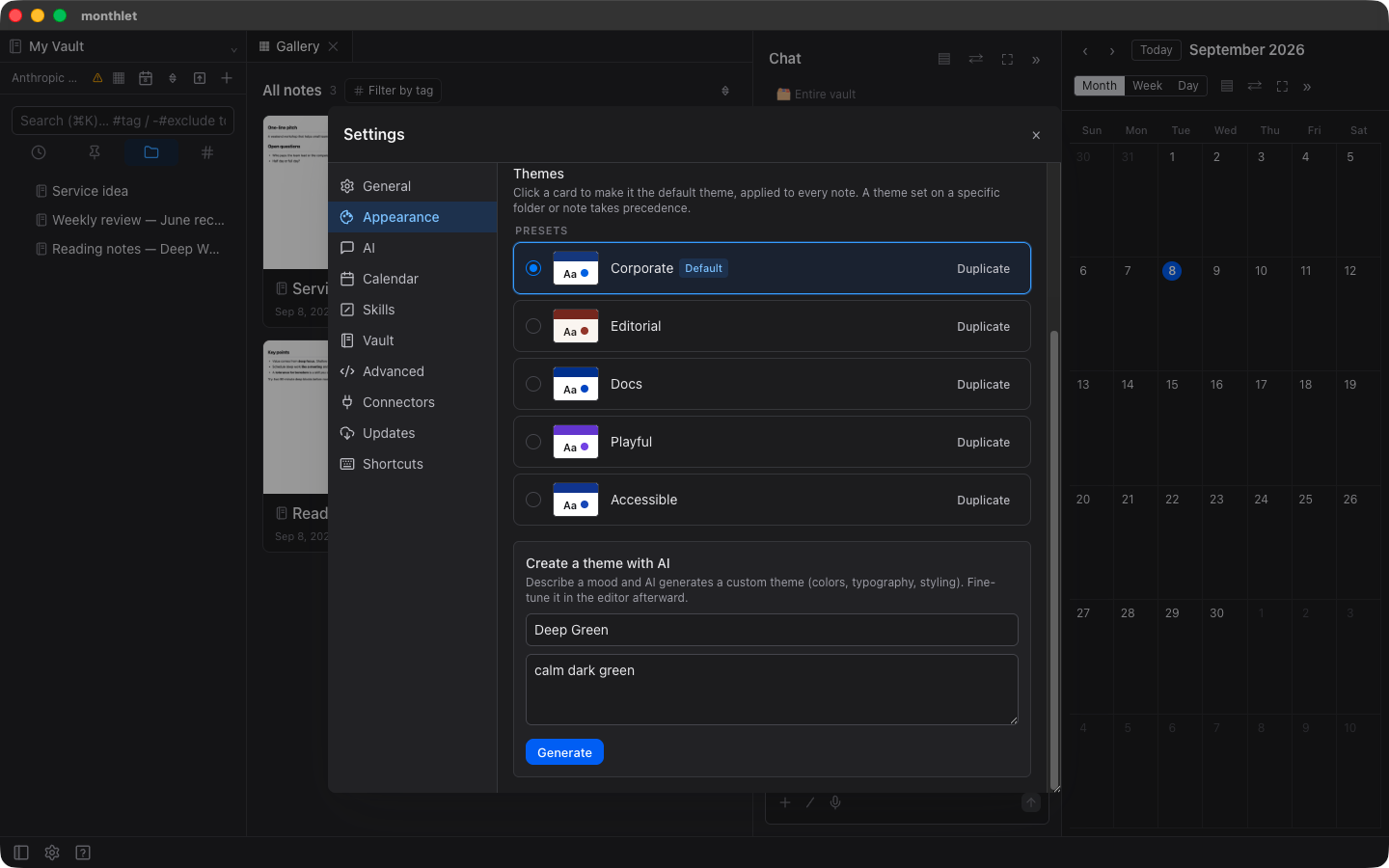
You then press generate, and out comes a theme with colors, fonts, and block styles already chosen. If you don’t like it, you can fix it in the editor described next.
Adjusting a theme in detail
Presets are read-only. When you want to make changes, press the duplicate button. A copy is created and the editor opens.
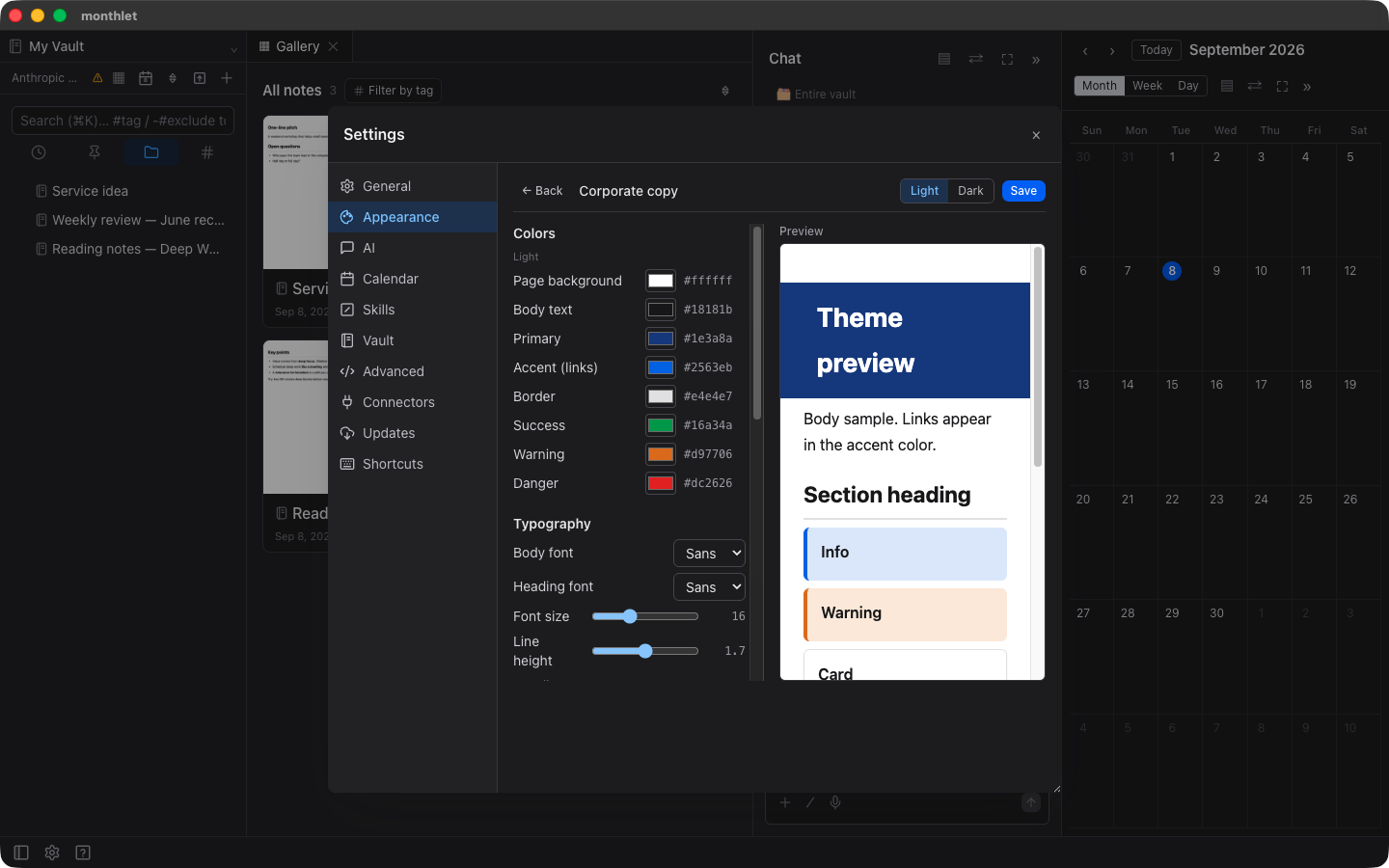
You can change the palette (light and dark separately), typography, dimensions, and the style of each block type. For headings, you can choose between a plain heading, an underline, a band, and an accent bar, and decide whether the topmost heading becomes a full-width band.
Changes show up in the preview on the right immediately. You don’t write CSS.
Colors are specified by meaning
A theme’s palette holds meanings rather than specific colors: primary, accent, success, warning, danger, and so on.
A caution block is filled with “the warning color,” not with “orange.” That’s why changing the theme changes the appearance of everything without opening a single note.
There are two kinds of dark mode
These are easy to confuse, so here they are separately.
The appearance mode is about the whole app. For the surrounding interface — the sidebar, the chat, and so on — you choose light, dark, or follow the system.
Light and dark for the note body itself belong to the theme. Each theme carries a pair and follows the appearance mode above. You don’t have to pick a different theme; switch to dark and you get that theme’s dark palette.
It applies to exported HTML too
Notes are saved locally as HTML files, and the theme is applied to the file itself.
If you hand an exported note to someone else, it looks in a browser the way it looked in monthlet. Both light and dark modes are included, so it follows the OS setting of whoever opens it.
Try it
monthlet is currently distributed for macOS (Apple Silicon). (Added October 2026) The Windows version is now on the Microsoft Store. Enter your own AI API key and you can use all of the features as they are.
-
Download: https://monthlet.ai/download
-
Discord: https://discord.gg/aP4Hc7cJGU