 monthlet
monthlet is a note app where you write and grow notes through AI chat.
As you use monthlet, you may notice that you ask the AI for the same thing over and over. For example, every weekend you write “Create this week’s weekly review note. Include what progressed, the numbers, and what’s stuck.” The next week, you ask for almost the same thing.
Skills are a way to save these repeated instructions. Once registered, you can call them from the chat with “/”.
No skills are registered by default. You register the instructions you use often yourself.
There is a short video covering everything from creating a skill to calling one. Watching it first makes it easier to see where things are.
Calling a skill
Type “/” in the chat input field and a list of your registered skills appears. You can also open it from the / button at the bottom left of the input field. Skills marked as having variables show an input field when you call them.
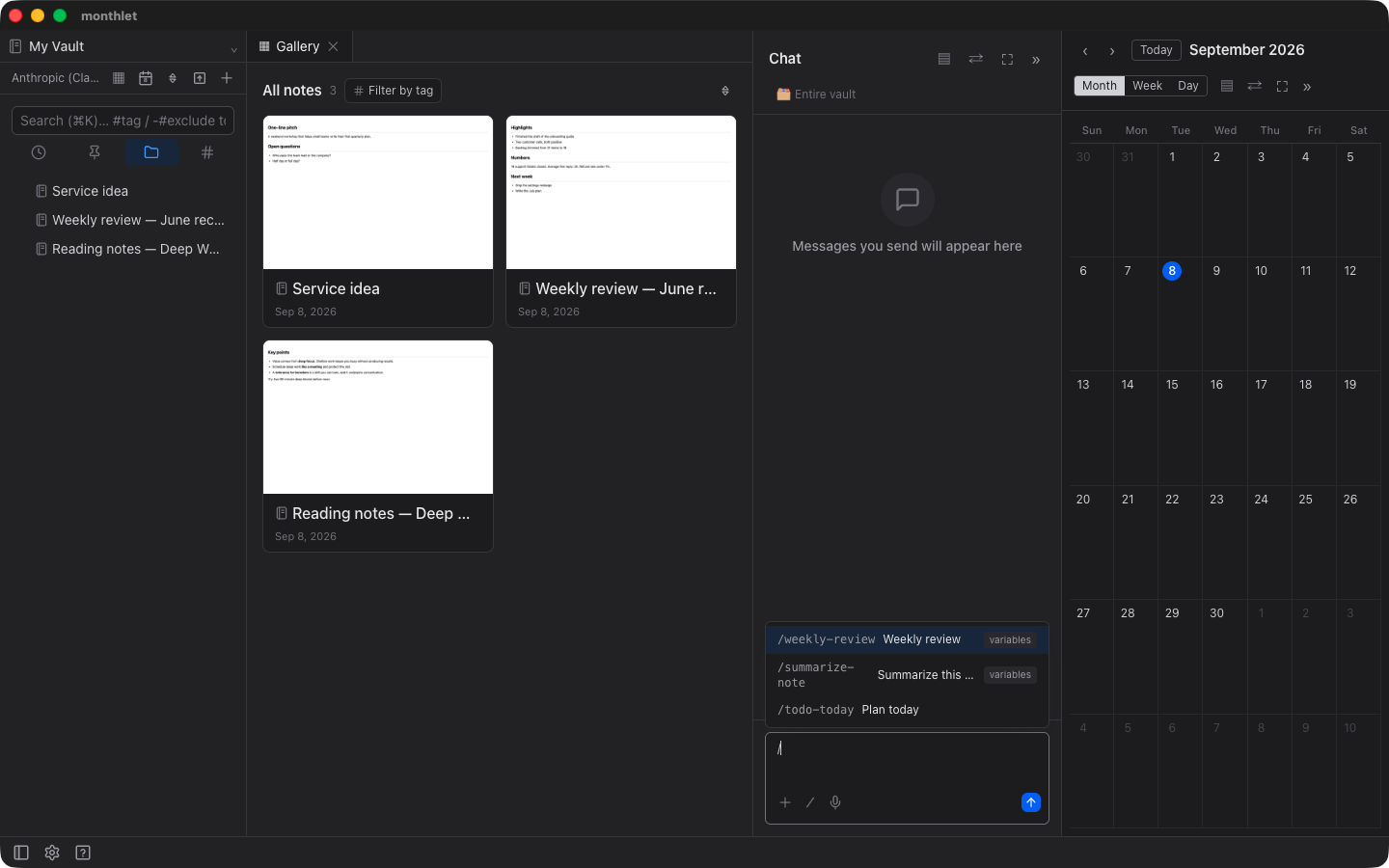
When you select one, the saved instruction text is placed in the input field. You can send it as is, or add something to it first.
Once you have a lot of skills, typing characters after “/” narrows the list. Matching applies to the display name as well as the command name. Even if the name is weekly-review, if the display name is “週次レビュー”, typing “/週” will show it.
Skills marked with variables in the list ask for values when you call them. That is covered next.
Creating a skill
Open settings, select Skills, and create one from New skill. You enter a command name, a display name, and the body of the instruction.
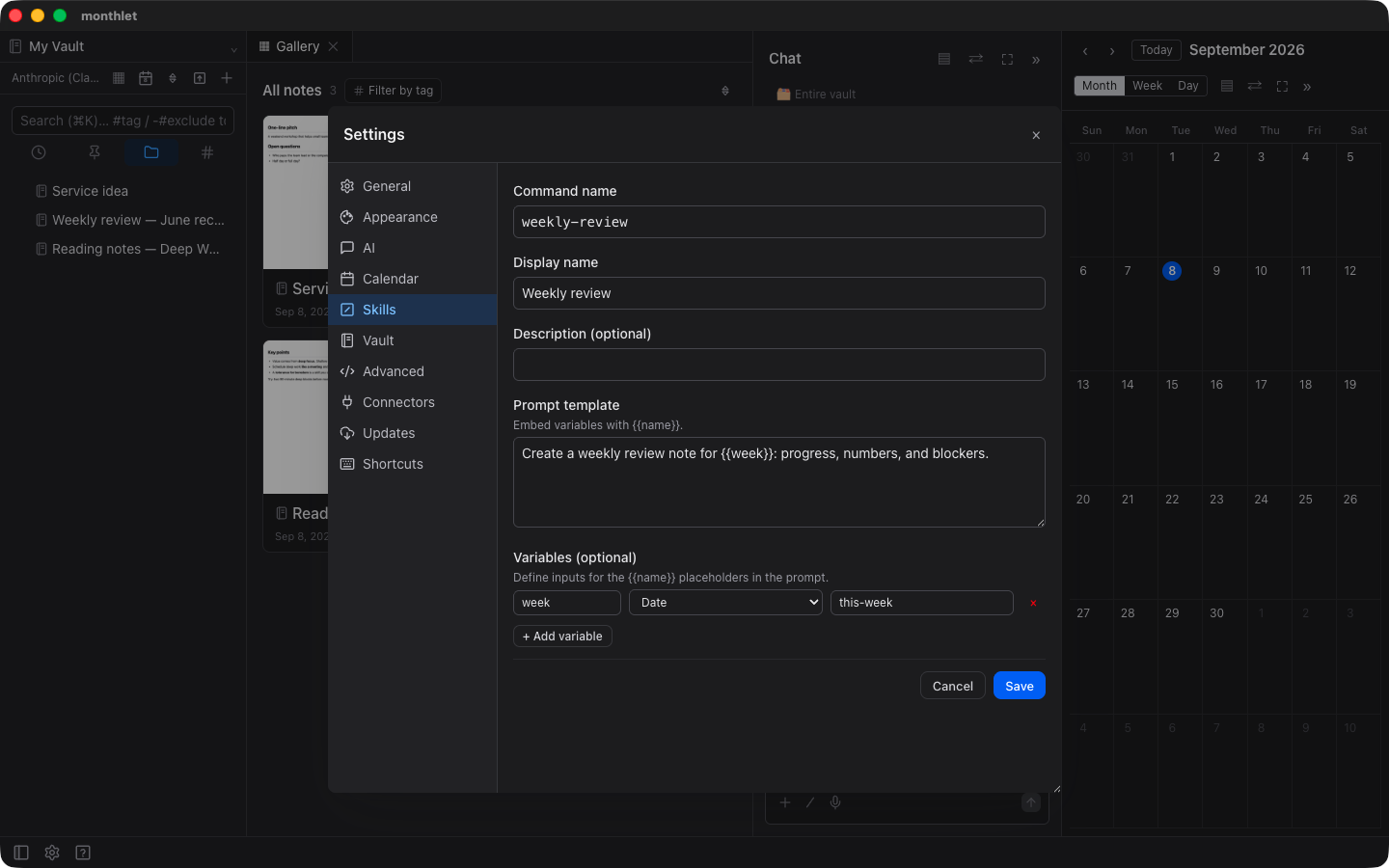
The command name is what you type after “/”, and only lowercase letters, digits, and hyphens can be used. The display name is what appears in the list, so Japanese is fine.
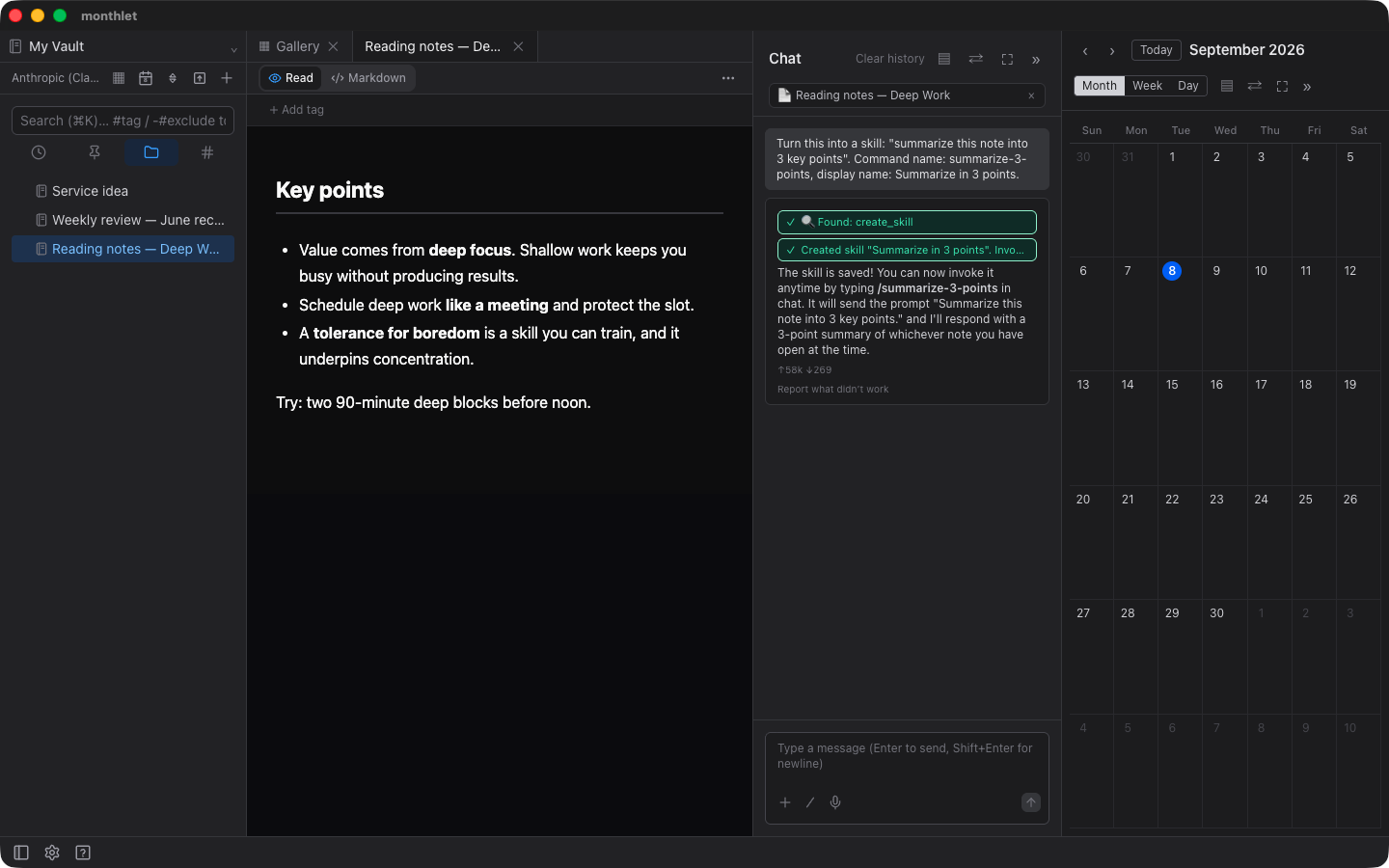
You can also create a skill without opening the settings screen. Ask in the chat to turn an instruction into a skill, and it will build one from that exchange. If you also give a command name and a display name, it will be created and saved that way. This lets you save an instruction that worked well as a skill on the spot.
Embedding variables
If you write {{week}} inside the instruction text, that part becomes a variable. When you call the skill, an input field appears, and the value you enter is inserted before the message is sent.
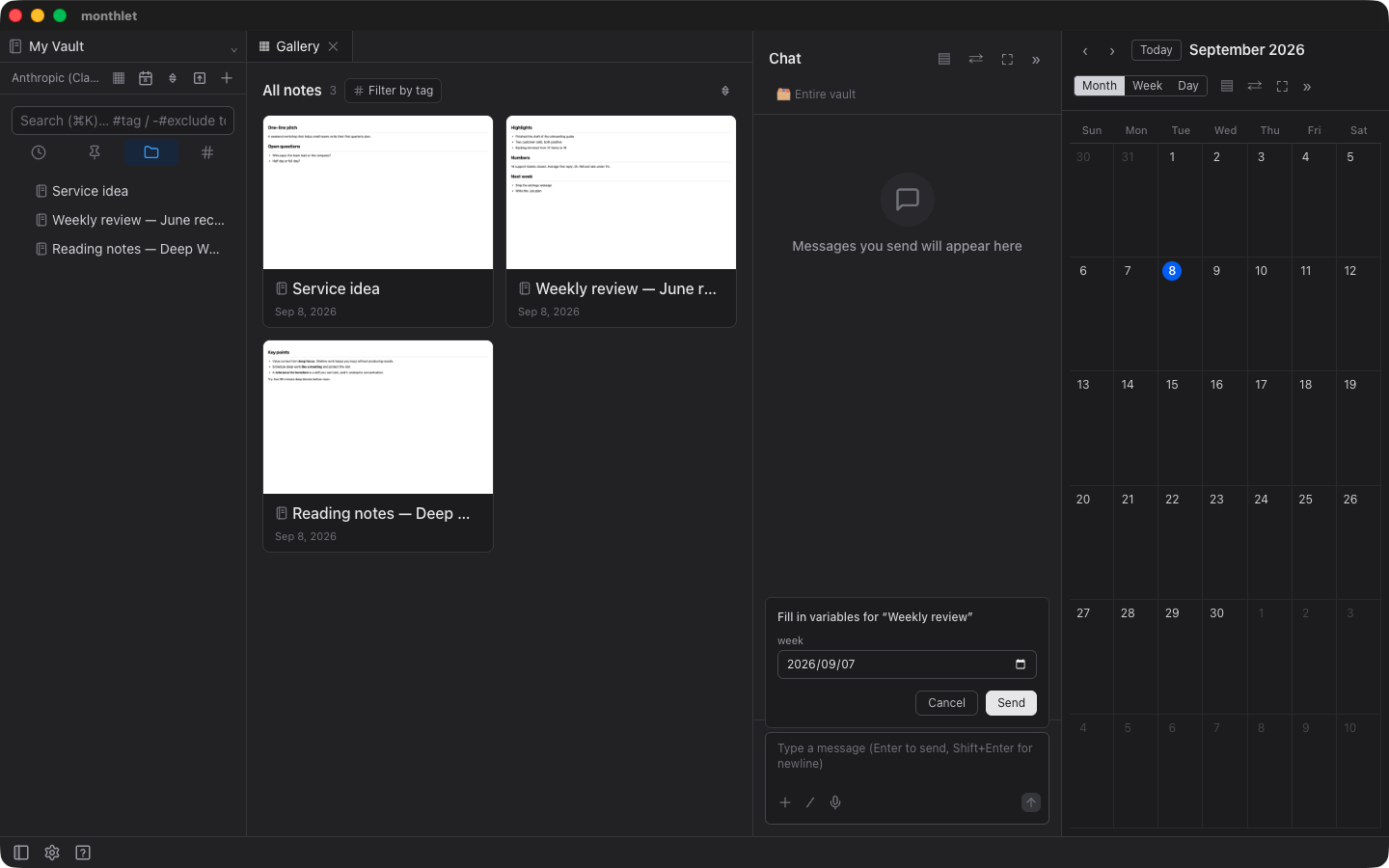
For a weekly review, only the target week changes each time. If you make just the parts that change into variables, you do not have to write the rest.
Three variable types
Variables have types: text, date, and note.
Text is free input. Date is entered as a date.
For note, the location of the note you currently have open is filled in automatically. You do not need to touch the input field. If you save an instruction that acts on the open note, such as “Summarize this note and put just the key points into a separate note,” you can simply call it without writing what the target is. When no note is open, or when you are working on an unsaved draft, that variable becomes a manual input field instead.
Default values for dates
Date variables can take a keyword as a default value. Writing today fills in today’s date, and this-week fills in that week’s date.
Japanese also works: 今日, 昨日, 明日, 今週, 先週, 来週. All of these are treated as keywords.
For this week, last week, and next week, the date used is the Monday of that week. Since the first day of the week is filled in, this pairs well with instructions like “look back on this week.”
How this differs from templates
We previously introduced the note templates that ship with the app. Those have a different role.
A template determines the shape of the finished note. For meeting minutes, a table of decisions and a ToDo checklist are included as the skeleton. The AI writes the contents each time.
A skill saves the instruction you give the AI: what to create, where to put it, what to include. It does not determine the shape of the result.
That is why templates can ship with the app and skills do not. The shape of a finished note is common across many people, but instructions to the AI vary widely depending on what each person wants to do.
Try it
monthlet is currently distributed for macOS (Apple Silicon). (Added October 2026) The Windows version is now on the Microsoft Store. Enter your own AI API key and all features are available.
- Download: https://monthlet.ai/download
- Discord: https://discord.gg/aP4Hc7cJGU
- X: https://x.com/monthlet
- YouTube: https://www.youtube.com/@monthletofficial