 monthlet
monthlet is a note app where you write and grow notes through AI chat. A note the chat produced can be corrected later by hand, and a paragraph you wrote yourself can be handed to the AI for revision. Both AI editing and direct human editing are available while building a single note.
The reason for this arrangement is that having to ask the AI for even a small fix to a note it generated would be inconvenient, and it would waste tokens.
Three modes support this: “Read”, “Edit”, and “Markdown”.
Two buttons switch the modes
At the left end of the bar above the note body there are two buttons.
The first toggles between “Read” and “Edit”. The button shows the name of the current mode, and pressing it switches to the other one. The second button is “Markdown”, which works independently. While Markdown is displayed, pressing the first button leaves Markdown and returns to whichever mode you were in before.
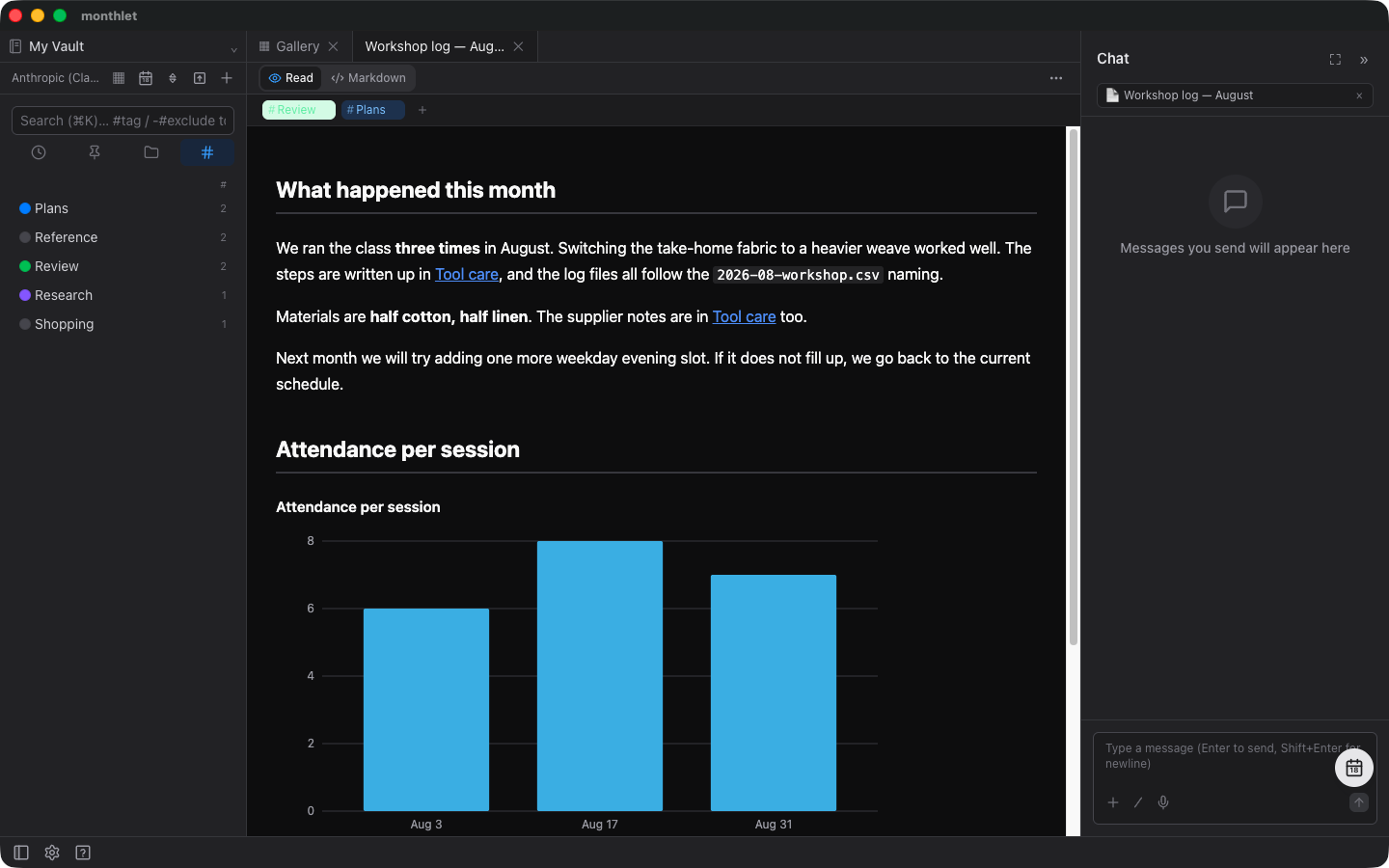
The mode is remembered per open tab. A newly opened note starts in Read mode.
In Read mode, a click does not rewrite anything
In Read mode, clicking text in the body does not put it into an input state. Nothing is changed unintentionally while you read.
Even in Read mode you can still select text to add a link, or select a block to discuss it in chat.
Tables are the one exception. If “Enable editable tables” is turned on under “Advanced” in Settings, clicking a table in Read mode makes it editable in place, and clicking outside the table returns it to its normal display.
In Edit mode, only the part you click shows its markup
In Edit mode, clicking text in the body lets you rewrite it.
The part you click switches its display to Markdown notation. Clicking a bold word reveals the original notation with its surrounding asterisks so you can correct it in place, and clicking elsewhere returns it to the formatted display. Four kinds of markup are handled this way: bold, italic, code, and links.
Typing a hash and a space at the start of a line does not create a heading. There is no mechanism for changing a block’s type as you type. To change or add a block type, use the “+” that appears to the left of the block.
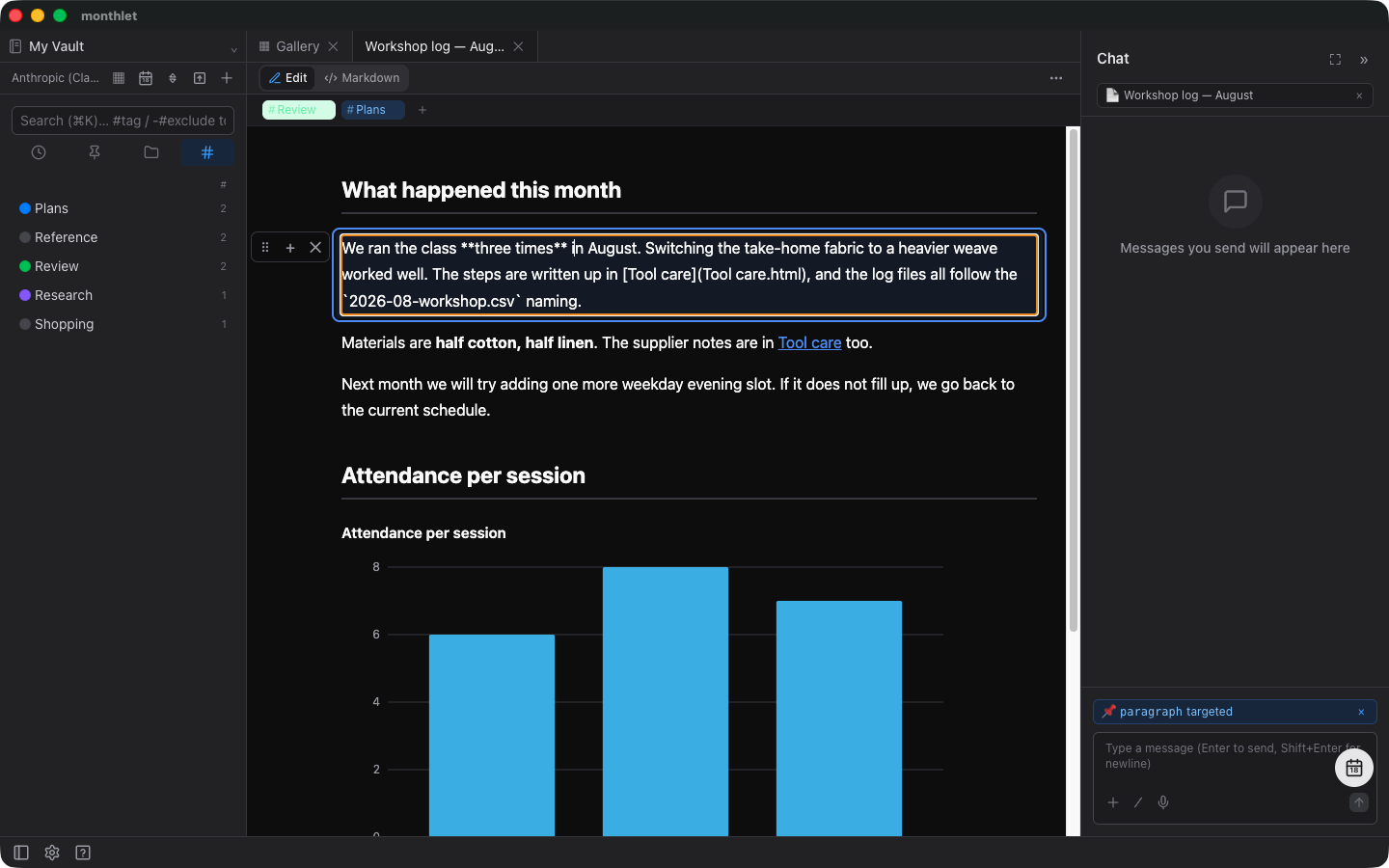
In Edit mode, hovering the pointer over a block shows a handle on its left side. You can drag to reorder, and use the “✕” to delete. Images and videos can be resized by dragging their right edge.
Markdown mode turns the whole note into a single text
Entering Markdown mode turns the entire note into one piece of text. On leaving, what you wrote is converted back into blocks and saved. This suits writing with the keyboard alone, or rearranging the whole structure.
Headings, bulleted lists, numbered lists, checklists, tables, quotes, callouts, code, mermaid diagrams, and formulas all survive this round trip.
Some block styles, such as charts and videos, cannot be expressed in Markdown. These are displayed as a code block named monthlet-block. Leave that line in place and the original block comes back; move the line and the block moves to that position; delete the line and the block is deleted. For notes containing blocks of this kind, a notice appears at the top when you enter the mode.
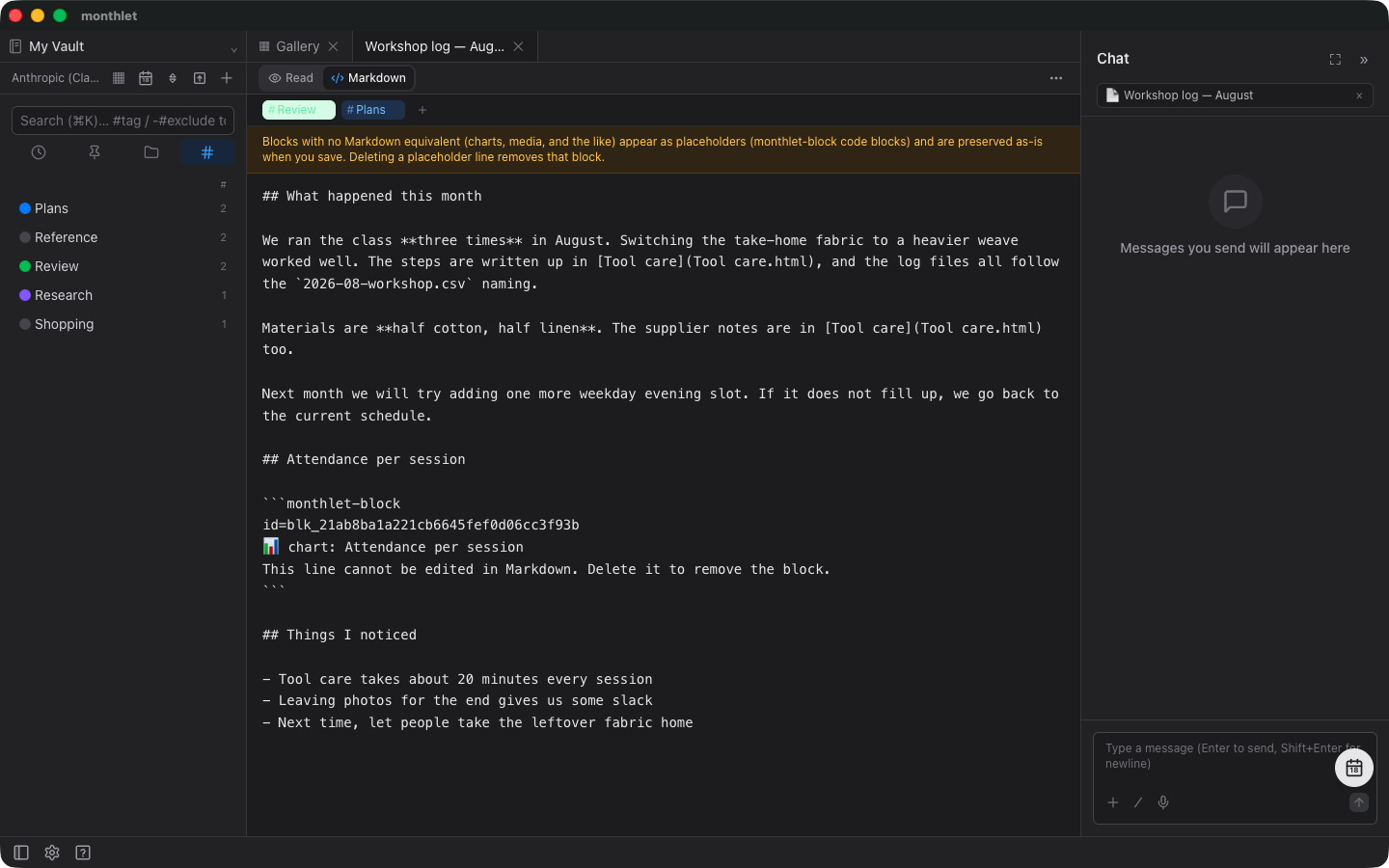
It is possible to break one of these replacement lines by accident. If the original block can no longer be restored — for example because a code block was left unclosed — a confirmation appears when you try to move to another mode. Choosing “Back to Markdown editing” lets you fix the formatting before saving.
If you add text in Markdown mode and return to Read mode, what you wrote becomes blocks. A short video shows this.
Fixing part of a note the AI produced
A note created through chat can be opened in Read mode, and if there is something to fix, you can switch to Edit mode and correct just that part directly.
If you want to undo a correction, first try undo (⌘Z / Ctrl+Z). Content the AI applied can be reverted this way as well. To go back to a specific version, open “Version history…” from the note menu. Versions from before each overwrite are listed, and selecting one shows a preview. Pressing “Restore this version” overwrites the note with it. The content from just before the restore is also kept in the history, so you can move forward again afterwards.
Each version in the list carries a reason. The version immediately before the AI rewrote the note is marked “Before AI change”. Records of manual edits are grouped with intervals between them, while every AI application is recorded. Version history is a feature from 0.10.0 and is enabled by default.
Selecting a paragraph you wrote and asking the AI
Select a paragraph you wrote yourself and ask the chat to make it shorter, and only that paragraph is rewritten. Clicking a block shows a badge above the chat input field indicating that the block is the target. Pressing Esc clears the selection. Selecting alone works in Read mode, so anything you notice while reading can be handed over immediately.
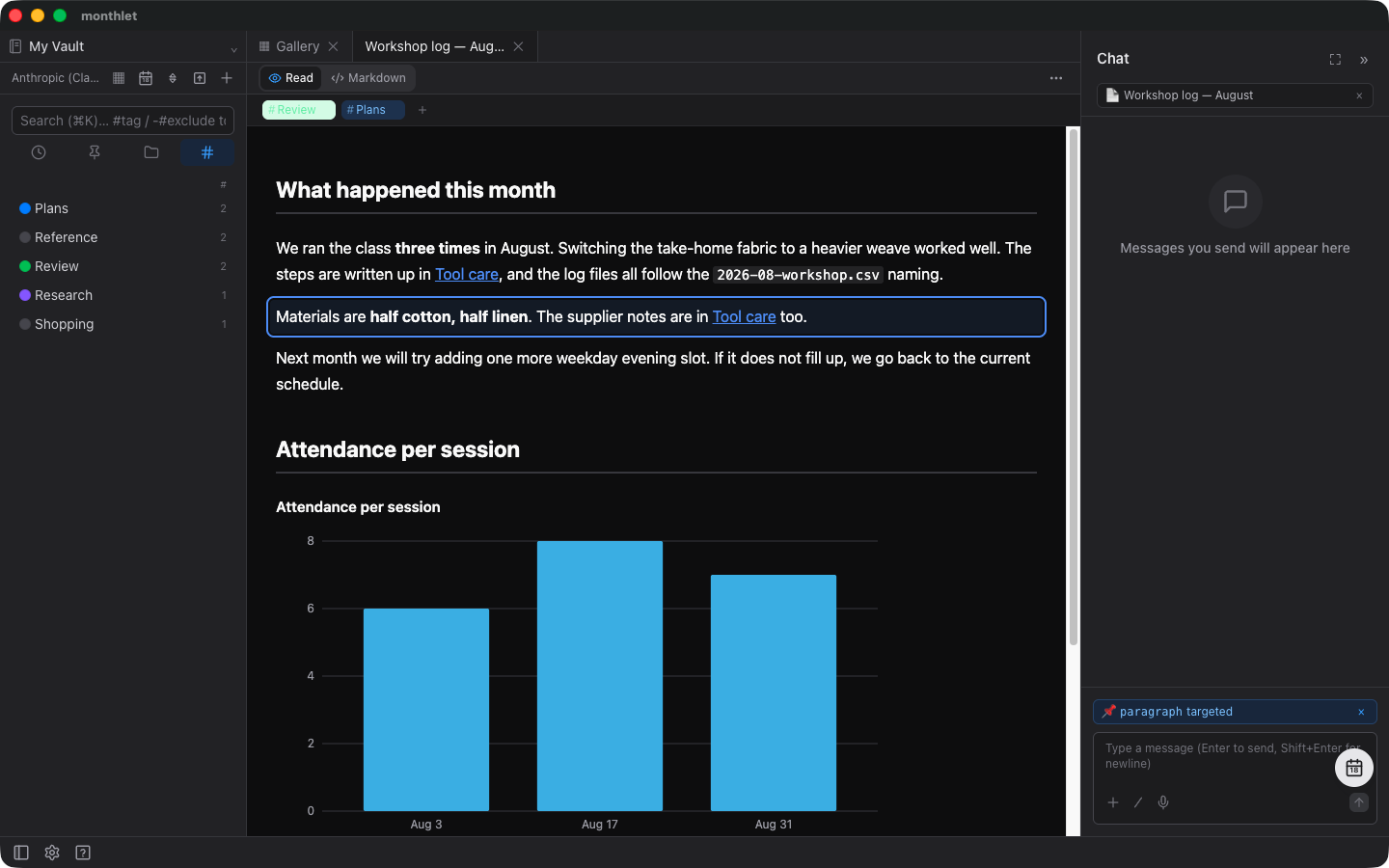
Even when you ask without selecting a block, the AI only replaces the blocks that change. Replacement happens as a rewrite, insertion, deletion, or move, and the parts you wrote by hand are left as they are unless the instruction concerns them.
The HTML source is read-only
monthlet notes are each saved as ordinary HTML. Choosing “Show HTML source” from the note menu lets you check the saved content. This screen is read-only. Copying the full text is as far as it goes; to make changes, return to one of the three modes.
Try it
monthlet is currently distributed for macOS (Apple Silicon). A Windows version is in preparation. Enter your own AI API key and all features are available.
-
Download: https://monthlet.ai/download
-
Discord: https://discord.gg/aP4Hc7cJGU