 monthlet
 is a note app where you write and grow notes through AI chat.
In August, the post monthlet is now an MCP server described how AI agents outside the app, such as Claude Code, can read and write the notes in a vault. At that point there were only five read operations and four write operations.
Across three releases, from 1.1.0 to 1.2.0, the number of operations available to external agents has grown to 28. Moving and renaming notes and folders, rewriting only part of a note’s body, handling tags and attachments, and finer control over search and reading were added, and 1.2.0 added rewriting spreadsheet cells and deleting notes and folders. This journal entry goes through the new operations one by one.
Four checkboxes
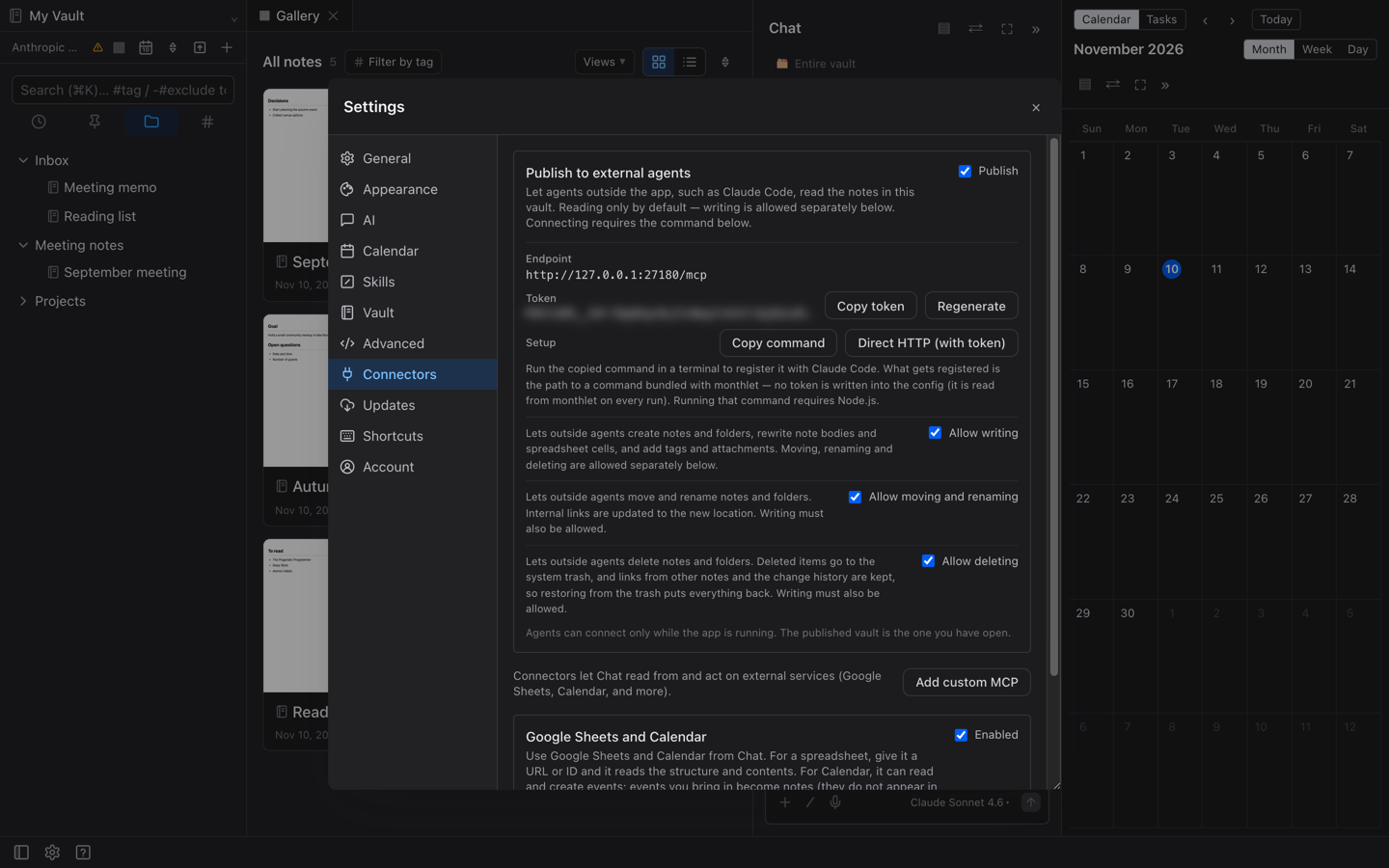
You grant the operations handed to external agents under Settings (⚙) → Connectors → Publish to external agents, at the top of the tab. There are four checkboxes.
-
Checking Publish makes the read operations available.
-
Checking Allow writing adds creating notes and folders and rewriting bodies, tags, attachments, and spreadsheet cells.
-
Checking Allow moving and renaming adds moving and renaming notes and folders.
-
Checking Allow deleting adds deleting notes and folders.
All four are unchecked by default. The third checkbox was added in 1.1.0 and the fourth in 1.2.0, and both are checked after the second one, for writing. To hand over moving and renaming, check the second and third; to hand over deletion, check the second and fourth. The third and fourth are set separately, so you can allow moving while keeping deletion to yourself.
The checkboxes are set per device. If you open the same vault on another device, they are treated as unchecked until you check them there. monthlet also checks permission every time an operation runs, so an agent that stays connected loses access to any operation you uncheck.
Moving notes and folders
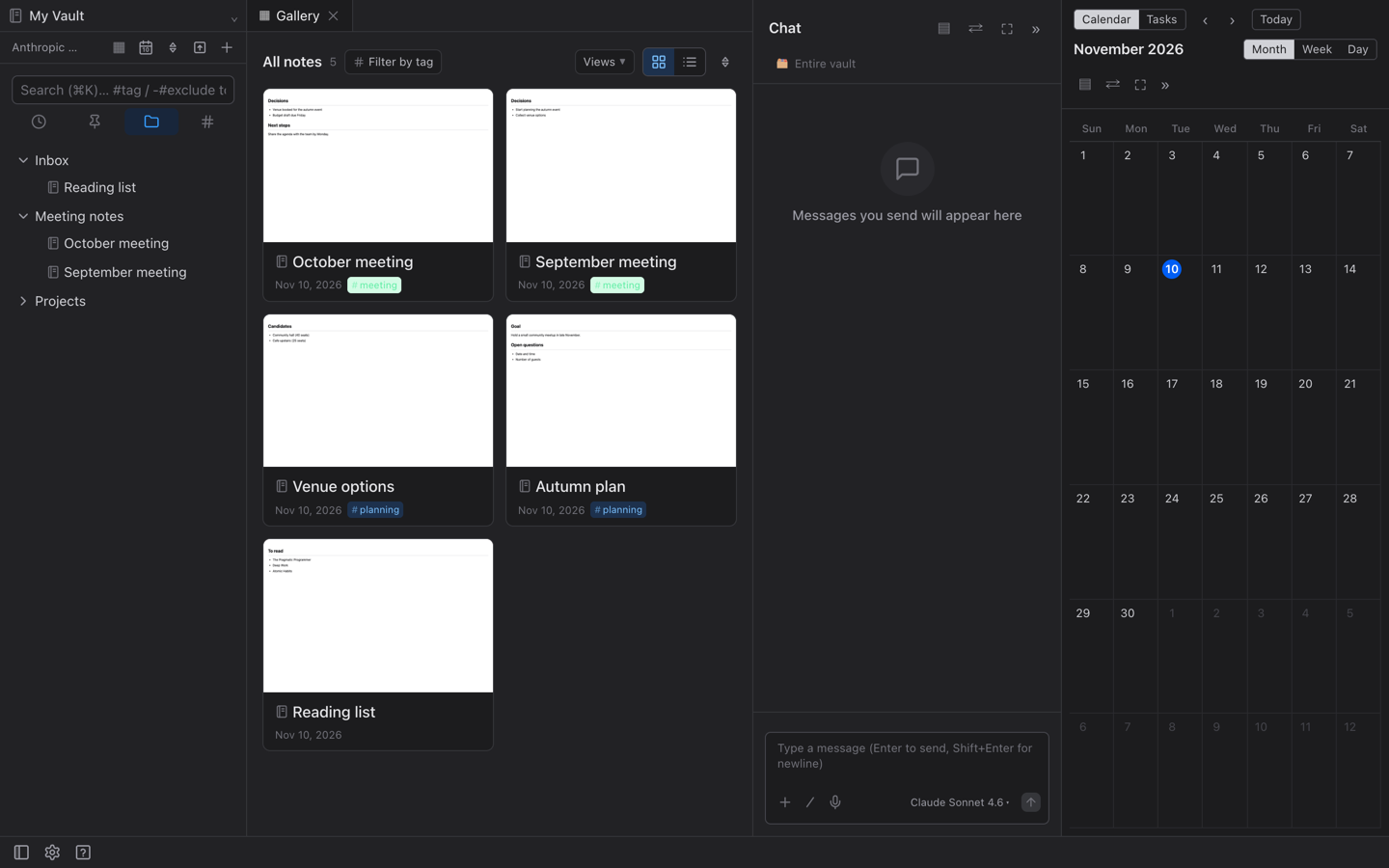
With the second and third checkboxes checked, you can ask an external agent to move and rename notes and folders. Tidying such as “sort the notes I’ve finished reading into folders by month” or “make the meeting minutes titles all start with the date” can be left to the agent.
When a note is moved or renamed, internal links from other notes are not broken; they are rewritten to point at the note’s new location. The text shown for the link stays as it was. If the note is open in a tab, the tab ends up showing the note in its new location. Notes with unsaved edits are not moved. When moving a folder, the operation is refused if even one note inside it is unsaved.
The earlier post gave a reason for not handing over moving and renaming: inside the app these operations show a confirmation dialog before they run, and there is no one on the other side of the connection to answer that confirmation. This time, instead of asking for confirmation on every operation, permission is granted up front with a checkbox. While the third checkbox is checked, moves and renames run without confirmation. Deletion, described next, works the same way.
Deleting notes and folders
With the second and fourth checkboxes checked, you can ask an external agent to delete notes and folders. Tidying such as “clear out the draft notes I no longer need” can also be left to the agent. Merging several notes into one becomes possible with this checkbox as well, since the original notes can then be deleted.
Deleted notes and folders are moved to the OS trash. Links from other notes and the note’s change history remain, so restoring from the trash puts everything back as it was. If a deleted note is open in a tab, that tab closes. Notes with unsaved changes are not deleted. When deleting a folder, the operation is refused if even one note inside it is unsaved.
Rewriting part of a note’s body
At the time of the earlier post, the only way to rewrite a body was to replace it entirely. From 1.1.0 there is an operation that replaces only a specific string within the body. Blocks outside the replaced section are left unchanged, contents included.
From 1.1.1, adding and removing tags can also be requested separately from rewriting the body. That operation does not touch the body.
When creating or rewriting a note, writing [[note name]] in the body creates an internal link to that note. Names that cannot be found are left as plain text, and the agent is told about it. This is also from 1.1.1.
Rewriting spreadsheet cells
From 1.2.0, external agents can also rewrite spreadsheet cells. This is available when Allow writing is checked. What can be rewritten is a cell’s value, formula, and formatting, so you can ask for things like “put the monthly totals in as formulas and make the header row bold.”
A value that starts with = is treated as a formula and recalculated before saving. Charts and kanban boards connected to that spreadsheet are updated along with the rewrite. Spreadsheets with unsaved changes are not rewritten.
Reading and writing Markdown
Notes are passed to and from external agents as Markdown. From 1.1.0, the Markdown returned by read operations starts with frontmatter summarizing things like the note type. Custom fields written into the frontmatter when writing are saved with the note.
From 1.1.1, nesting in bulleted and numbered lists is also preserved on both read and write. A note containing nested lists can be read in and rewritten and comes back with its hierarchy intact.
Working with attachments
From 1.1.1, external agents can work with a note’s attachments. They can read the list of attachments on a note, read images as images, PDFs as text, and text files as their contents.
If writing is allowed, agents can also add attachments to a note. Images, video, audio, PDFs, and text are supported, up to 20MB each. When a file of the same name already exists, it is not overwritten; the new file is saved with a number appended to its name.
Search and reading
Search became two operations in 1.1.0. The existing full-text search returns up to 199 results, and when there are more than that it tells the agent that the results were truncated. The newly added search looks for exact matches and regular expressions and returns the lines around each match. Separately from the number of results returned, it counts the total number of matches, so it can answer requests like “how many notes use this phrasing.”
1.1.1 added more read operations.
-
Long notes can be read by specifying a range of lines.
-
The folder tree, including empty folders, can be read along with the number of documents in each folder.
-
The list of files in a folder, such as images and PDFs, can be read.
-
The list of notes linking to a given note can be read.
What is recorded in the change history
When an external agent rewrites a body, both full replacement and partial replacement leave the previous version in the change history, just as when a person saves. Rewriting spreadsheet cells is the same. Adding and removing tags, and moving and renaming, are not recorded in the change history.
Try it out
monthlet runs on macOS (Apple Silicon) and Windows. The Windows version is available from the Microsoft Store. The features in this post are available from 1.2.0. Entering your own AI API key gives you access to all features.