 monthlet
monthlet is a note app where you write and grow notes through AI chat.
The previous journal post covered connecting outside tools to monthlet: register an MCP server, and the AI inside the app can use that tool. It ended with a note that the reverse direction was in the works.
That feature shipped in 0.13.1, released on 16 August 2026. monthlet itself can now act as an MCP server, so an agent outside the app — Claude Code, for example — can read and write the notes in your vault.
Why an MCP server is needed
monthlet notes are just .html files in a local folder, so it was already possible to point an external AI agent at that folder and ask it to edit the files directly. But editing monthlet’s .html from outside can cause a few problems.
First, a monthlet note carries a block structure inside the file, separate from the visible HTML. Elements such as charts and calculation blocks are managed there, so rewriting only the body text from outside can put the text and the structure out of sync, and the note may not be read correctly when you open it in the app.
Second, nothing is recorded in the change history. monthlet keeps versions of a note, but only for saves made by the app. A file rewritten directly from outside leaves no history.
Third, it can conflict with a note you have open. If a file is rewritten in the background while you are editing it on screen, deciding afterwards which version is correct is tedious.
Exposing monthlet as an MCP server means routing every write through monthlet. The app stays the only writer, so the history, the search index, and the contents of the note open on screen all stay consistent with what the agent did.
Turning it on
Open Settings (⚙) and go to the Connectors tab. Publish to external agents sits at the top. It is off by default.
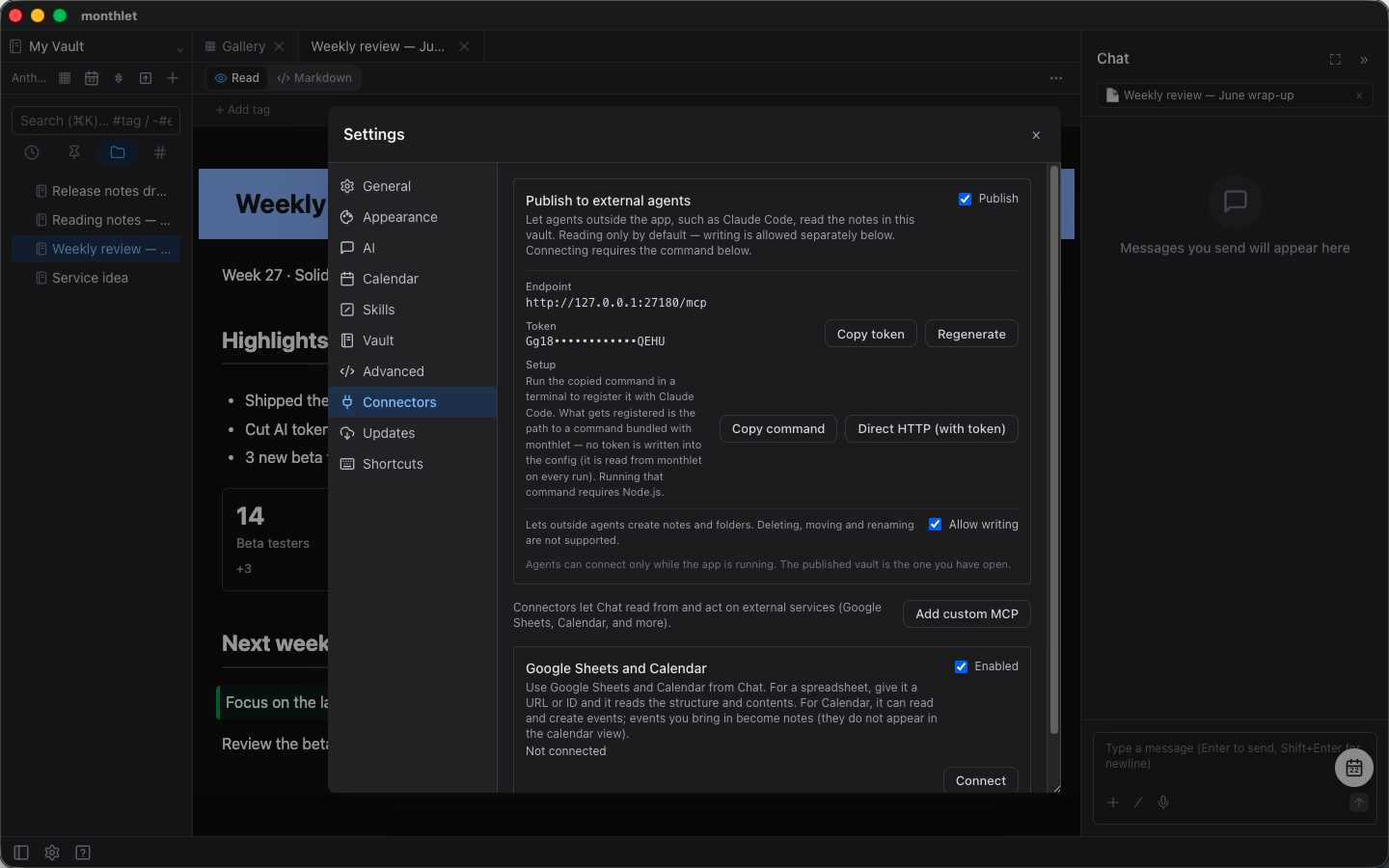
Turn on Publish and the endpoint and a token appear. Press Copy command under Setup and run the command in your terminal as-is, and monthlet is registered with Claude Code.
claude mcp add --scope user --transport http monthlet \
  http://127.0.0.1:27180/mcp --header "Authorization: Bearer <token>"
You can check the registration with claude mcp list:
monthlet: http://127.0.0.1:27180/mcp (HTTP) - ✔ ConnectedThe command includes --scope user. The token is stored in your user settings, not in a project file, which avoids accidentally committing a config file containing the token to a repository.
Any MCP client that supports this transport (streamable HTTP) can connect with the same endpoint and token.
Reading comes first
Once registered, the agent has five operations available.
- List notes and spreadsheets (by folder, in order of last update)
- Full-text search over titles, body text, and tags
- Read a note’s body (returned as Markdown)
- Read spreadsheet cells (A1-style range)
- Read the values behind a chart
So you can ask for something like this:
claude -p "Find and read the weekly review notes in my monthlet vault, and summarize the decisions in three points"And get back something like this (excerpt from an actual response):
Found one note:
Weekly review — June wrap-up(Week 27, updated 2026-08-16). It has no explicit “Decisions” section, so these three are the forward-looking commitments stated in its Next week section:
- Focus next week on the landing page and the demo video — those two are the named priorities.
- Keep scope tight — deliberately no additional workstreams alongside those two.
- Review beta feedback on Friday and plan the July milestones off it — feedback review gates the next planning cycle.
A request like “read all of last month’s meeting notes and list only the decisions” completes without opening a single note, as long as monthlet is running.
Body text is returned as Markdown. Elements that Markdown cannot express — charts, embeds, calculation blocks — are passed as placeholder lines carrying an id. If the actual numbers are needed, the chart data can be read using that id.
Writing is a separate switch
Publishing the vault gives read access only. Writing is a separate switch — Allow writing, in the same place — and it is off by default as well.
With writes allowed, four more operations become available.
- Create a note (from Markdown)
- Rewrite a note’s body
- Create a folder
- Create a spreadsheet
Ask something like “add a checklist of next steps to the end of this note”, and the note in monthlet is updated accordingly.
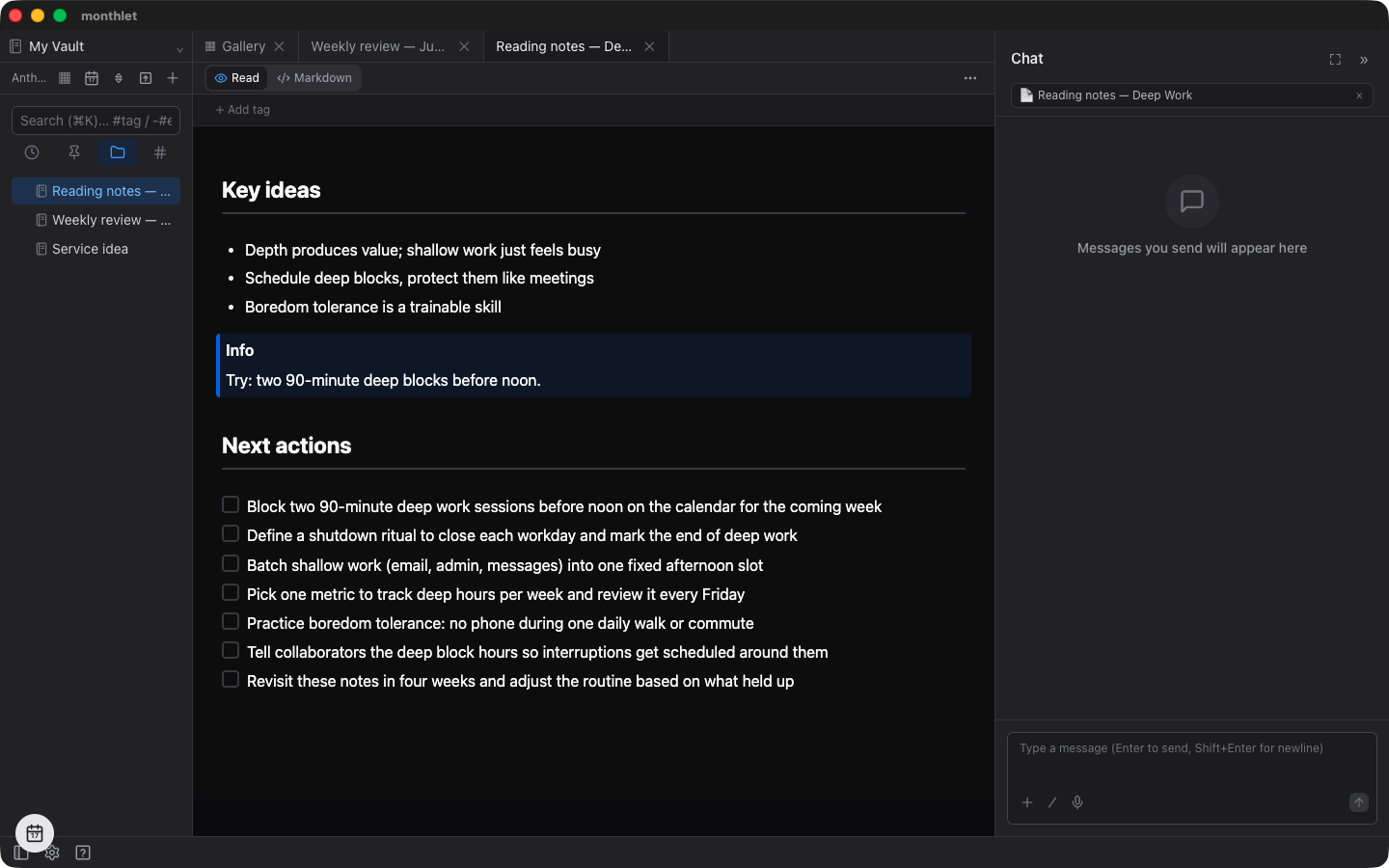
Deleting, moving, and renaming, as well as editing cells in an existing spreadsheet, are not available at the moment even with writes allowed. Inside the app these operations show a confirmation dialog before they run, and on the other side of the connection there is no one to answer that confirmation.
When an agent rewrites a note
Once you allow an agent to write, the question becomes what happens if it overwrites a note by mistake.
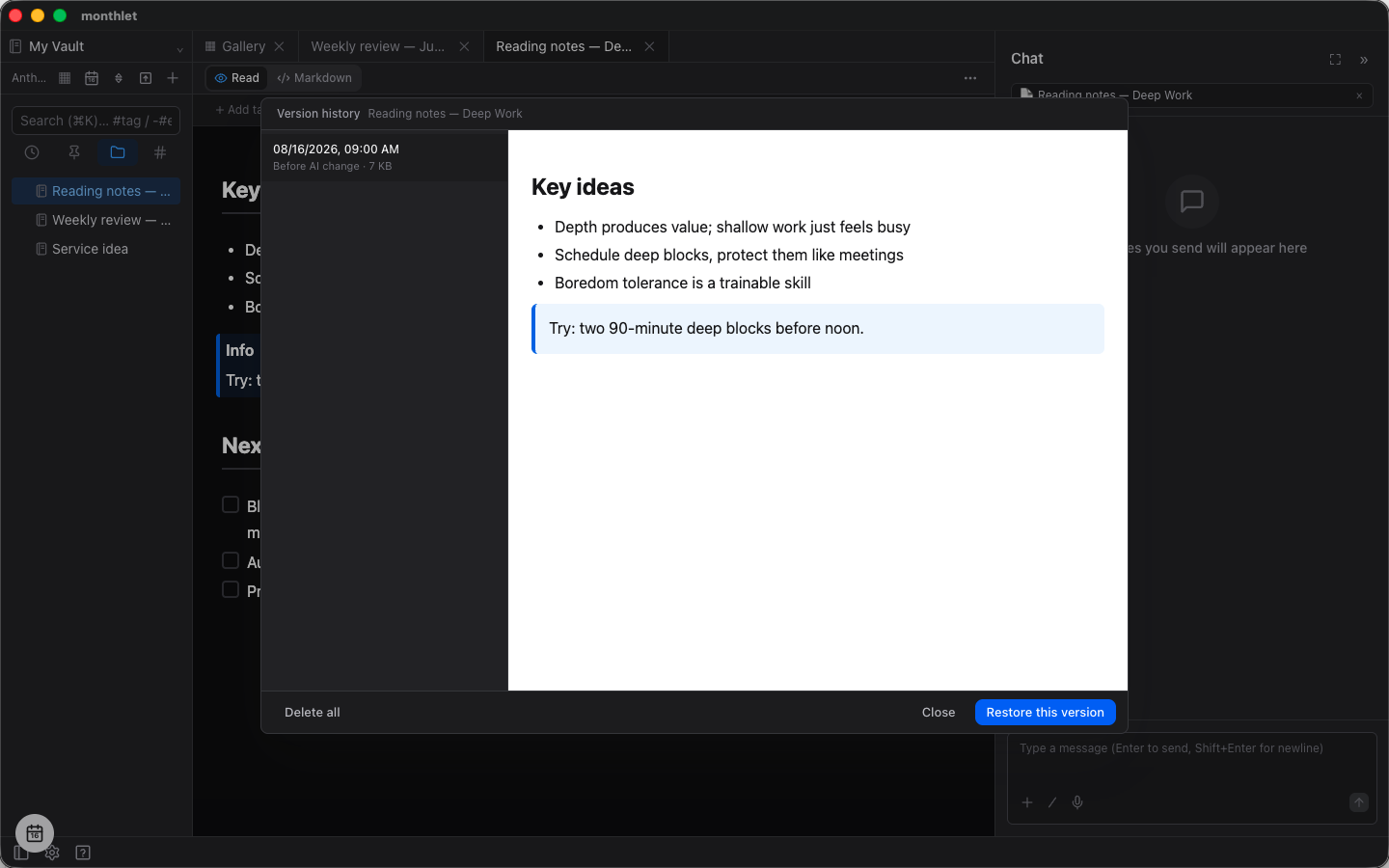
The previous version is kept. An agent’s write goes through the same path as a save made by a person, so you can open the note’s “⋯” menu, look at Version history, and restore an earlier version. If the note is open, Undo works too.
Notes being edited are not written to. A write to a note that is open in the app with unsaved changes is rejected on the spot.
Changes made after the agent read are not overwritten. If the note changed after the agent read it — by your hand, or through sync — the overwrite is rejected as well.
Anything removed is reported. Rewriting the body is a full replacement. Keep a placeholder line and the original element stays; remove the line and the element goes with it. When something is removed, its id and label are included in the response, so a chart cannot disappear without you noticing.
What is exposed
- The connection is available only while the app is running. Quit the app and the connection ends.
- Only the vault currently open is exposed. Switch vaults and the exposed vault switches with it.
- Connections are limited to the same machine (127.0.0.1). Other devices and browsers cannot connect.
- A token is required to connect. If a token ever leaks, press Regenerate; the previous token stops working immediately.
One caveat. To the agent receiving them, note contents are text from an outside source. Whether an agent obeys a sentence in a note that reads like an instruction depends on how that agent is designed, and is outside what monthlet can guarantee. If you have delegated broad permissions to an agent, keep this in mind.
Reference documentation
The list of available operations, their arguments, what they return, and the guarantees they make are collected on the specification page. Check there when configuring the agent side: https://monthlet.ai/docs/mcp
What’s next
Registration currently requires specifying the endpoint and token directly. We plan to make the setup shorter.
Deleting and moving notes are not permitted at the moment; if there is enough demand, we will consider supporting them.
Try it
monthlet is currently distributed for macOS (Apple Silicon). (Added October 2026) The Windows version is now on the Microsoft Store. Enter your own AI API key and all features are available.
- Download: https://monthlet.ai/download
- Discord: https://discord.gg/aP4Hc7cJGU
- X: https://x.com/monthlet
- YouTube: https://www.youtube.com/@monthletofficial
Addendum: registration got shorter (19 August 2026)
Since this post went out, registration changed in 0.13.3, released on 19 August 2026. The shorter setup planned under What’s next is in that version.
Open Settings (⚙) → Connectors → Publish to external agents, and under Setup there are now two buttons: Copy command and Direct HTTP (with token). Two buttons means you have the newer version.
Copy command gives you a command in this form:
claude mcp add --scope user monthlet -- /Applications/monthlet.app/Contents/Resources/bin/monthlet-mcpWhat gets registered is only the location of a command bundled with monthlet.
The method described earlier passes the endpoint and the token directly, so the token ends up written into the agent’s config file. With this one, no token is left there. The agent reads it from monthlet each time it connects.
Regenerating the token no longer means registering again. You do not have to reconnect either — it keeps working.
Running this command requires Node.js. For agents that cannot launch a command, Direct HTTP (with token) is still there, and the steps in the body above still apply to it.
Note that monthlet works as an MCP server from 0.13.1, while this bundled command arrived in 0.13.3.
The specification page listing the available operations and the guarantees around them has been updated as well: https://monthlet.ai/docs/mcp/