 monthlet
monthlet is a note-taking app where you write and grow notes through AI chat.
Spreadsheets are a convenient place to keep numbers organized. Household budgets, sales tables, experiment logs — many people keep all of these in Google Sheets. monthlet has its own spreadsheet feature, and it can take in files from Excel. But when information already lives in Google Sheets, it is more convenient to bring it in directly, without exporting to a local Excel file first.
From 0.12.2, released on August 13, 2026, monthlet can read Google Sheets. There are two ways to use this: ask about a sheet on the spot, or import it into monthlet.
Setup — connecting
Open Settings (⚙) → the “Connectors” tab → press “Connect” on “Google Sheets and Calendar”. A Google sign-in and permission screen opens in your browser, and once you grant permission you are returned to monthlet. When the card shows the email address of the connected account, setup is done.
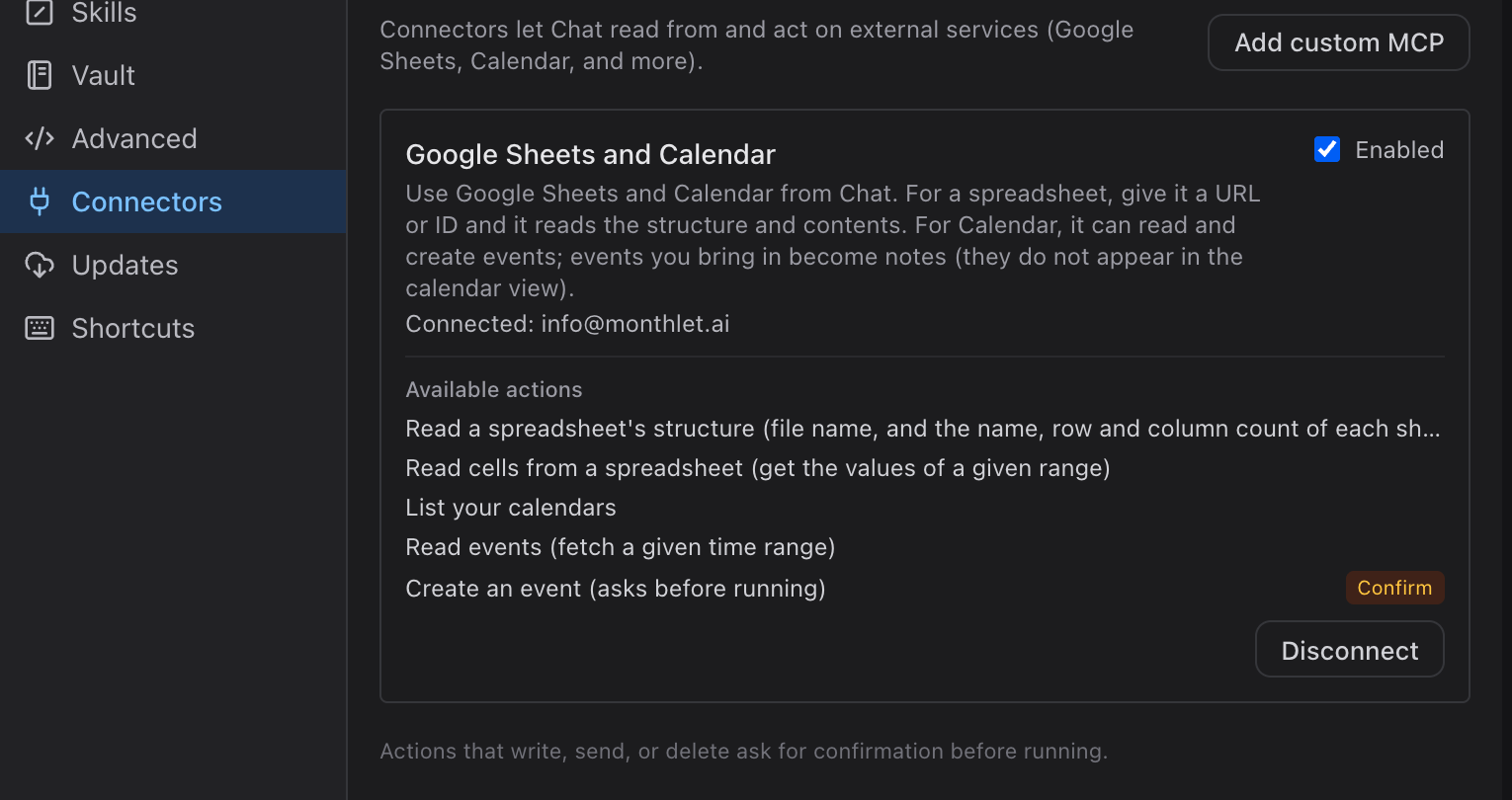
After connecting, you can revoke permission at any time with “Disconnect”. Disconnecting discards the stored permission immediately, and the connector is unavailable from Chat until you connect again.
Way 1 — ask on the spot
Give Chat the URL of a spreadsheet (https://docs.google.com/spreadsheets/…) or its ID, and monthlet can read the contents of that sheet.
Take the Expenses tab of (URL) and total the amounts by category
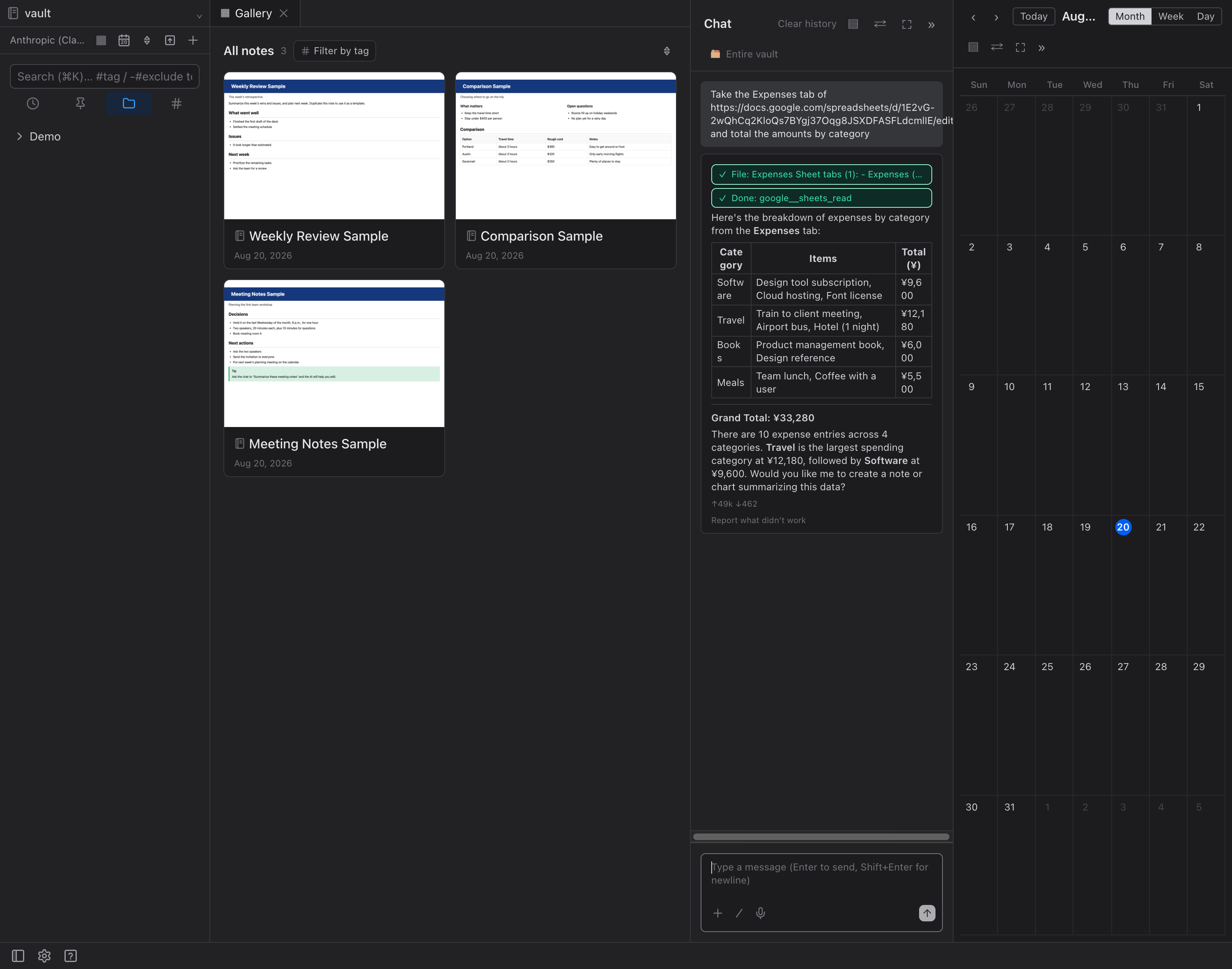
monthlet performs two operations on a spreadsheet: reading the structure of the sheet (the file name, and the names, row counts, and column counts of the sheets it contains), and reading cells (fetching values for a specified range). The card in Settings lists the actions available for the permissions you granted, so if you allow Calendar as well, the calendar actions appear there too.
What it reads can go straight into a note. If you follow up with “put this summary into the note as a table”, the numbers stay where they came from in the spreadsheet, and only the conclusion remains in the note.
We put together a video of about one minute showing the actual steps.
Way 2 — importing
Beyond just referring to the data, you can import it and use it as a monthlet spreadsheet.
Open a spreadsheet document, then use “…” at the top right → “Import” → “Import from Google Sheets”. Paste a URL and the list of sheets in that file appears, so you can check the ones you want to bring in. You can select all of the sheets in the target spreadsheet, or specific ones (multiple selection is possible).
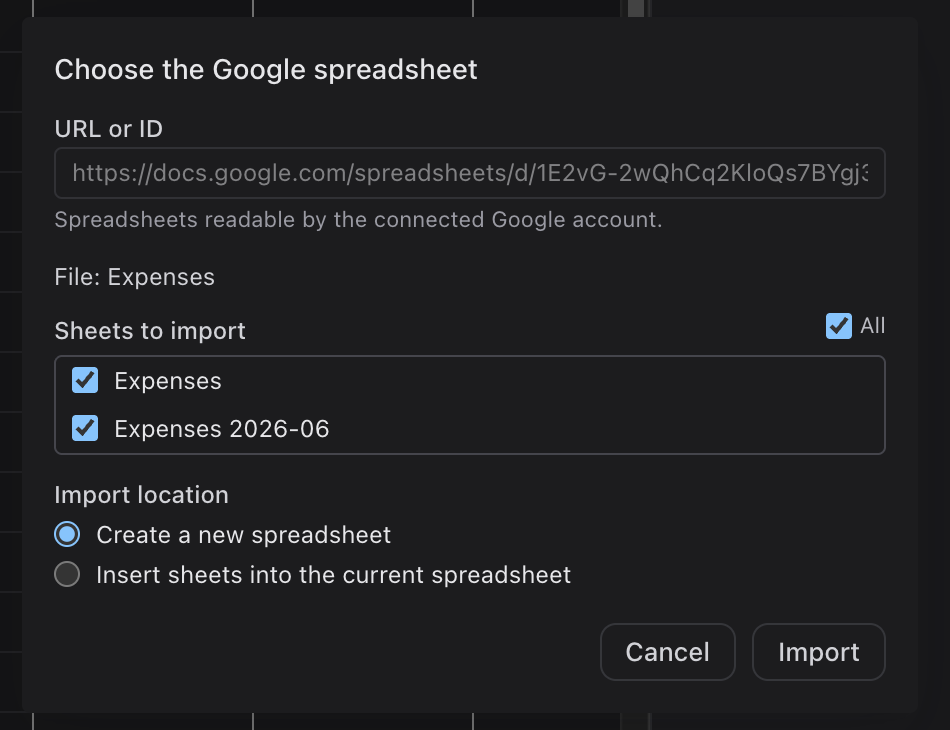
There are two destinations to choose from. “Create a new spreadsheet” makes a new document in the same folder and collects the selected sheets there. “Insert sheets into the current spreadsheet” appends them as sheets at the end of the document you have open, which is useful when you want them next to a table you already have. The inserted version can be reverted with Undo.
Once imported, the result is an independent document, separate from the original spreadsheet. Editing it in monthlet does not change anything on the Google side, and changes on the Google side are not synced back into monthlet.
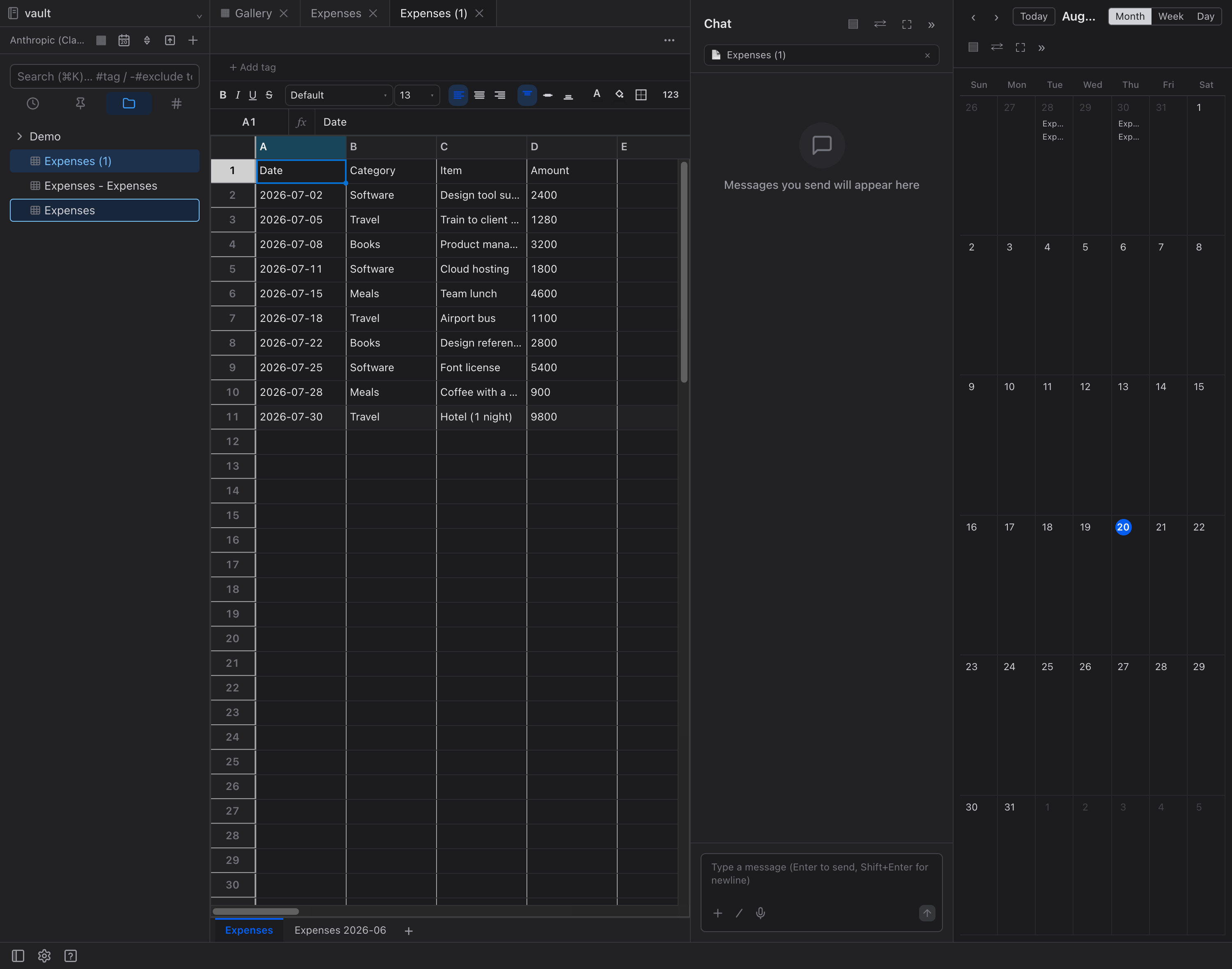
A one-way connection, Google → monthlet
At present, this connector can only read spreadsheets. monthlet will not modify your spreadsheets.
There is one more thing it cannot do right now: it cannot list your spreadsheets. There is no file picker; each time, you tell it a URL or an ID.
That may look inconvenient, but the reason lies in the scope of permission monthlet asks Google for. Listing files requires permission to see your entire Drive. monthlet asks for only two things — reading spreadsheets, and knowing the email address of the connected account so it can be shown on the card — and does not ask for permission to see your Drive. The list is unavailable because monthlet does not hold that permission.
(This permission scope passed Google’s review in August 2026. In the review we showed on video what the feature actually does, and explained why the narrow scope is sufficient.)
Limitations at release
-
Read only. monthlet will not modify or delete your spreadsheets.
-
No listing. Please provide the target URL or ID each time.
-
Imported information does not stay in sync with the original Google spreadsheet. When you need the latest numbers, import again or read them from Chat.
-
Connections are per device. To use this on another device, connect again on that device.
What comes next
What this article covers is the Google Sheets connector. The Google Calendar connector is available from 0.14.0, released on 19 August 2026: it can read your schedule and write it into a daily note, or total things up over a period. Each added service changes the scope of permissions, which means going through Google’s review again each time. Rather than adding services quickly, we prioritize staying able to explain what you would be exposing when we do.
There is also a route where you connect something yourself instead of using an existing service. That is the custom MCP support covered in the previous article: register an MCP server you have prepared, and monthlet’s AI can use that tool.
Try it
monthlet is currently distributed for macOS (Apple Silicon). (Added October 2026) The Windows version is now on the Microsoft Store. Enter your own AI API key and you can use all of its features.
-
Download: https://monthlet.ai/download
-
Discord: https://discord.gg/aP4Hc7cJGU