 monthlet
In monthlet, one note is one .html file. A vault — the place where your notes live — is not a special database format either; it is just a folder. That means if you want the same notes on more than one machine, you can do it with the cloud storage you already use. This post covers how to set that up and what to keep in mind.
Setting it up
- On your first Mac, create a folder inside iCloud Drive (Google Drive works the same way; Dropbox and OneDrive are untested).
- In monthlet’s settings, under Vault, add that folder as a vault. Wait for syncing to finish, then add the same folder as a vault on the second machine.
If you already have a local vault, quit monthlet, move the whole folder into your cloud storage, and add it again from its new location.
The first time you open the vault on the second machine, notes that have not been downloaded yet appear in the list with a cloud icon, using the file name as the title. Opening one downloads just that note and turns it into a normal note. You do not have to wait for everything to come down. Search works from the start too — the search index syncs along with the folder, so it is reused as-is.
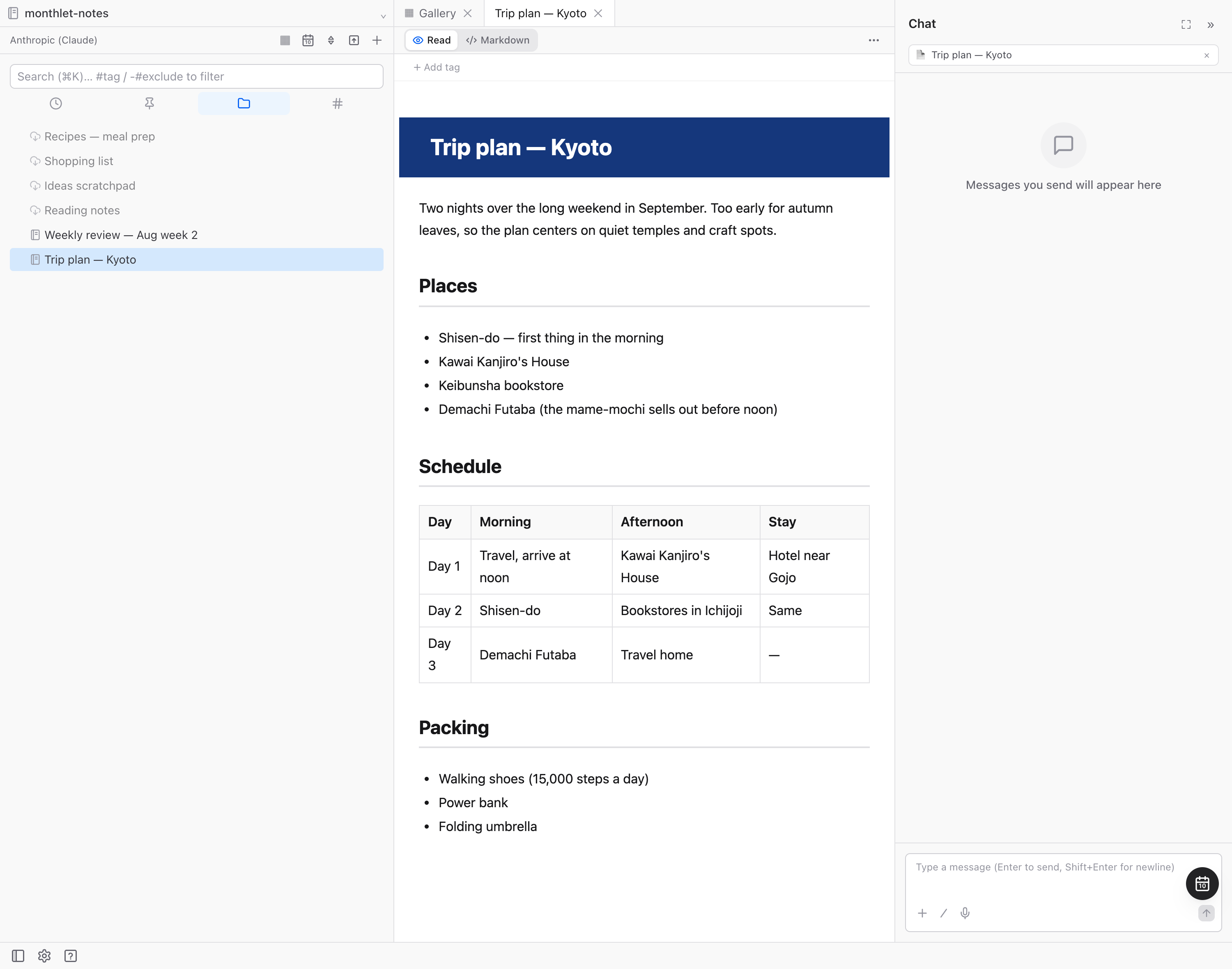
More than notes gets synced
Besides your notes, a vault contains data monthlet uses, in a hidden .monthlet folder: chat history, skills you have created, themes, note version history, and per-vault settings such as display language and default sort order. Since the whole folder syncs, all of that reaches the second machine as well. A skill you created on one machine can be used on the other.
Your AI API keys, on the other hand, are not stored in the vault. They are encrypted per device, so you enter them again on the second machine. API keys never travel through your cloud storage.
How monthlet picks up outside changes
monthlet does not watch the vault continuously. When the window regains focus, it re-checks the folder tree and the notes you have open, and reloads anything that is newer on disk. An edit synced from another machine and a file you swapped out in Finder are handled the same way.
If the same note changed both inside the app and outside it, you get a confirmation dialog when you try to save. One option saves the contents of the tab you have open, discarding the outside change; the other reloads the change that arrived from outside, discarding this tab’s most recent edit. Reloading the outside change is the default.
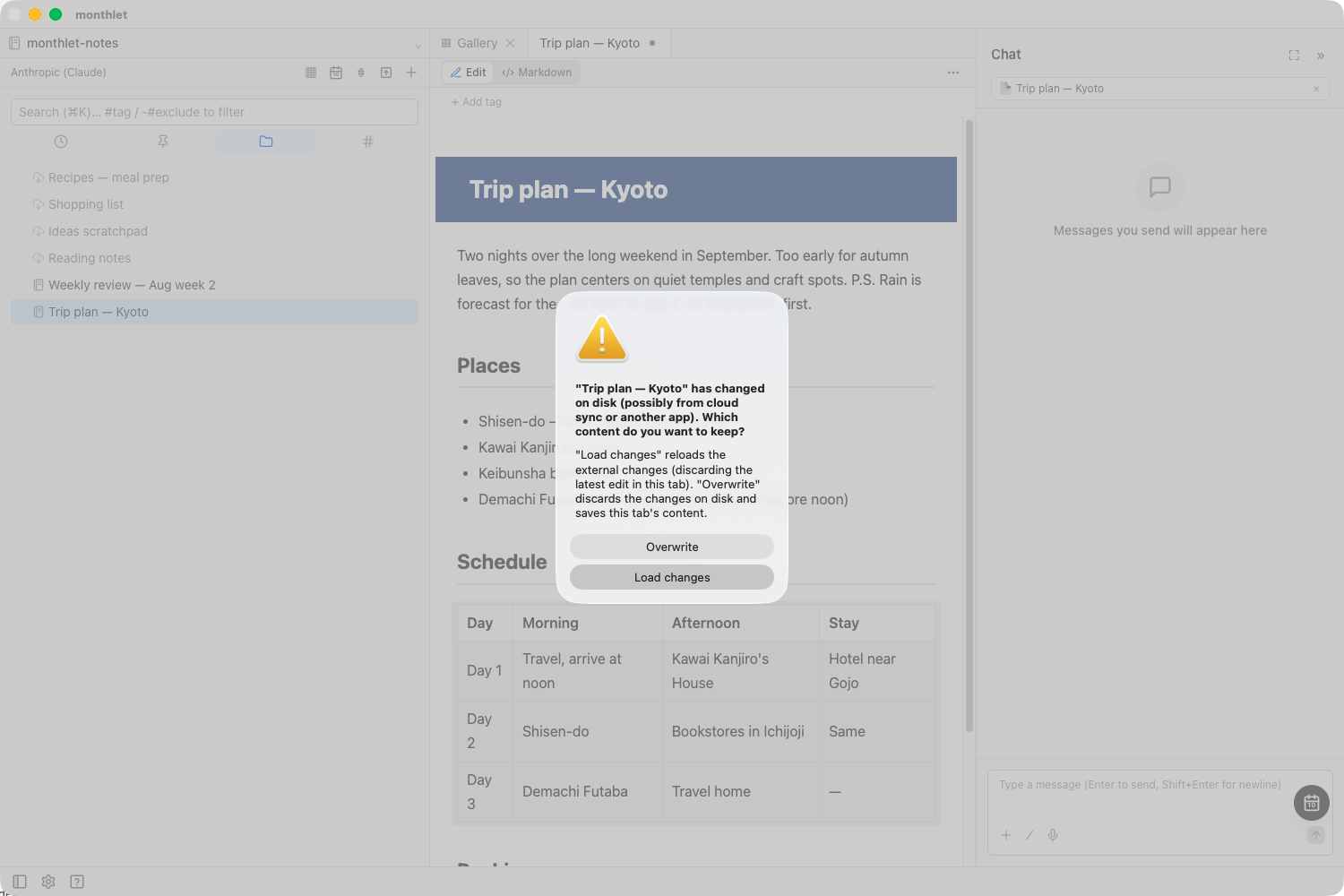
Whichever you choose, the discarded version stays in the note’s version history. If you pick the wrong one, you can restore it from that note’s history.
Things to watch out for
Three points, to avoid accidents.
If you want to work offline, keep the vault downloaded. When iCloud’s “Optimize Mac Storage” kicks in, or with Google Drive’s default of streaming files, the file contents are not on the device. Those notes still show up in the list with a cloud icon, and opening one downloads it on the spot — but not while you are offline. If you often work away from a connection, use “Download Now” on the vault folder in iCloud, or mark it “Available offline” in Google Drive.
Do not point more than one sync service at the same vault. Avoid setups such as registering a folder that lives inside iCloud Drive with another sync service as well.
Do not edit the same note on both machines before the change from the other one arrives. monthlet leaves syncing to your cloud storage, which means it works at the file level. If you edit the same note on both machines, iCloud keeps whichever was edited later and the other machine’s change is gone. No conflict copy under a different name is created either. That said, the change that disappeared is still in that machine’s version history, so when you notice, you can restore it from the note’s history.
Put differently: as long as you avoid touching the same note at the same time, the cloud storage takes care of the rest. A habit of closing the window when you are done is enough.
Please update to the latest version
While testing cloud storage syncing we found and fixed several bugs. monthlet updates itself automatically while it is running, and you can also check for updates manually from its settings. Please update to 0.11.3.
Where this approach falls short
If you have several machines of your own and want to use monthlet on each of them, this method is enough. Notes are ordinary HTML, so even on a machine without monthlet installed, you can open them from the synced folder in a browser and read them as they are.
What it does not cover:
- On machines with restrictions on cloud storage — a company-issued machine, for example — you may not be able to sign in to the service you want to use.
- How much you can recover if you lose all your machines at once depends on the sync service you use.
- Any guarantee that the provider cannot read your contents also depends on that service.
To address these, we plan to offer encrypted note and file syncing and backup across devices as a subscription service. The schedule is not fixed yet, but we want to get there as soon as we can.
And once it exists, the approach in this post will keep working. A vault will still be an ordinary folder, and notes will still be ordinary HTML files. Which syncing method you use stays your choice.
Try it out
monthlet is currently distributed as a beta for macOS (Apple Silicon). A Windows version is in preparation. Enter your own AI API key and you can use every feature.
If you would like to report bugs or send feedback and feature requests, please join the community on Discord.
- Download: monthlet.ai/download
- Discord: discord.gg/aP4Hc7cJGU
- X: @monthlet
- YouTube: @monthletofficial