 monthlet
monthlet is a note app where you write and grow notes through AI chat. Each note is a single ordinary HTML file that also opens in a browser.
You can attach images and PDFs to a chat and ask about them. For example, paste a screenshot and ask what something on screen means, or hand over a PDF document and ask for the main points. This journal covers the three ways to attach a file, how PDFs are sent, and where attached files are kept.
Pasting a screenshot and asking about it
Copy a screenshot to the clipboard and press ⌘V in the chat input field. Images line up as small thumbnails above the input field, so you can type your question and send.
After sending, the thumbnails stay inside your message, so you can scroll back through the conversation and see which image a question was about.
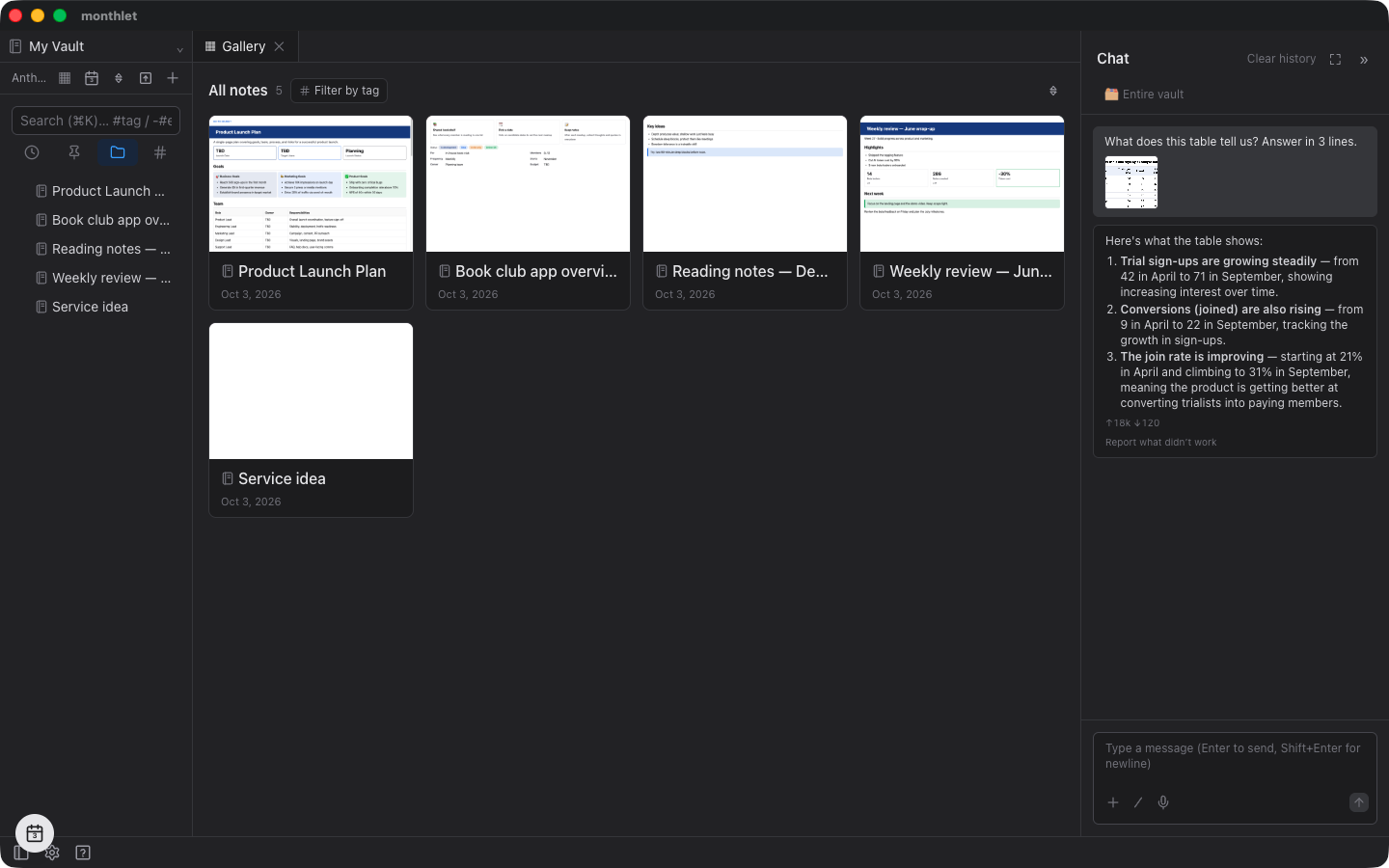
If you change your mind before sending, remove an image with the × on its thumbnail.
Three ways to attach
Besides ⌘V, you can choose a file from the + button at the bottom left of the input field. You can also drag and drop a file onto the input field area.
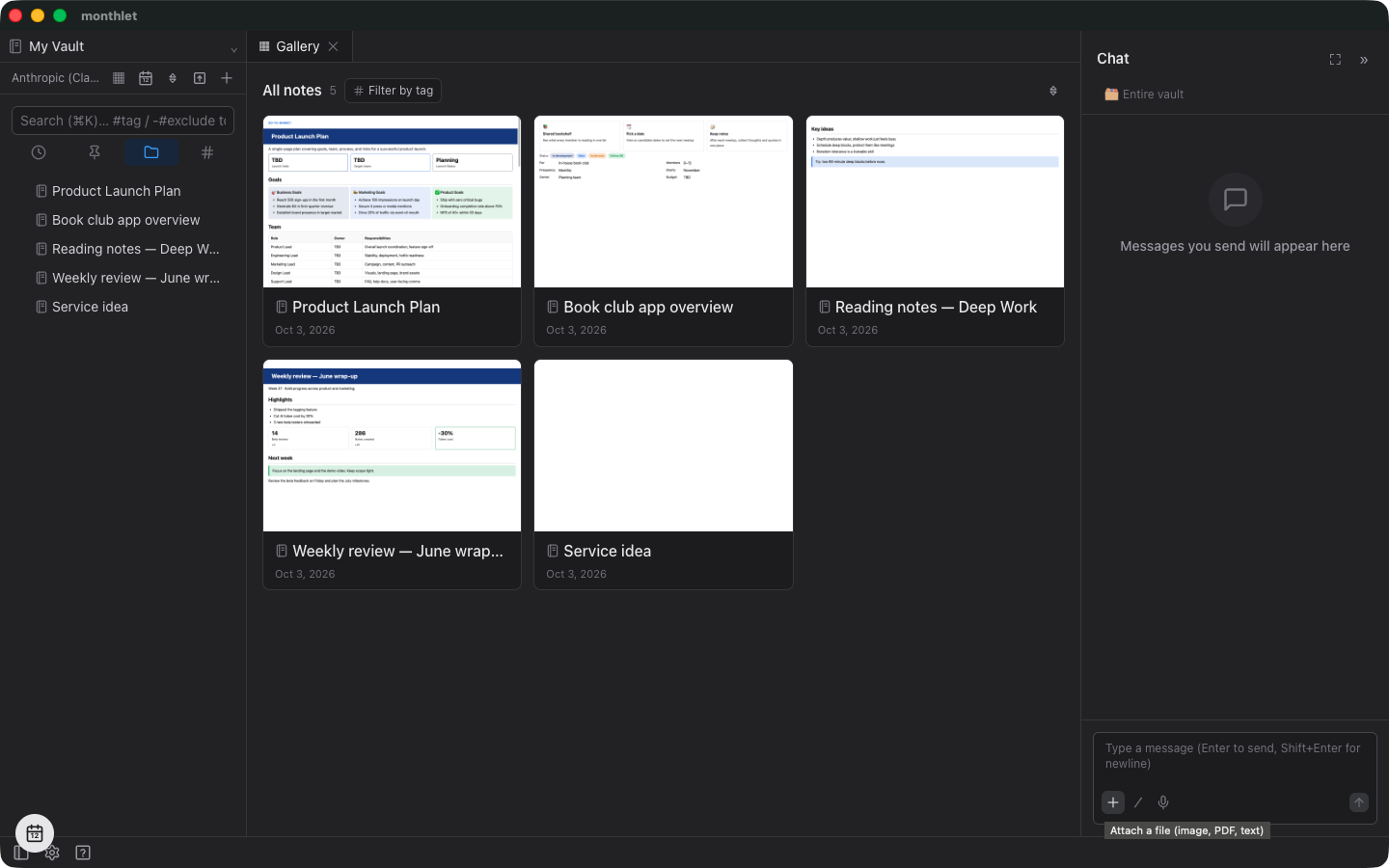
The tooltip on the + button states what can be attached: images, PDFs, and text. Images can be PNG, JPEG, GIF, or WebP files; text can be .txt and .md files. You can attach up to 10 files per message, counting all types together.
⌘V handles images. PDFs and text files are attached with the + button or by dropping them.
How PDFs and text files are sent
How a PDF is sent depends on the connected AI and the size of the PDF. If the connection is Claude or Gemini and the PDF is 20 pages or fewer and 10 MB or smaller, the PDF is sent as-is, so figures and tables can be read too.
If the connection is OpenAI or an OpenAI-compatible (custom) endpoint, or if the PDF is larger than that, the text is extracted and sent instead. Figures, tables, and layout are not sent. Extraction covers the first 50 pages, up to 60,000 characters.
A notice appears the moment you attach the file telling you which of the two will happen, along with the page count. When the PDF is sent as-is, it says “Sending PDF … as images”; when the text is extracted, it says the PDF “will be sent as extracted text”.
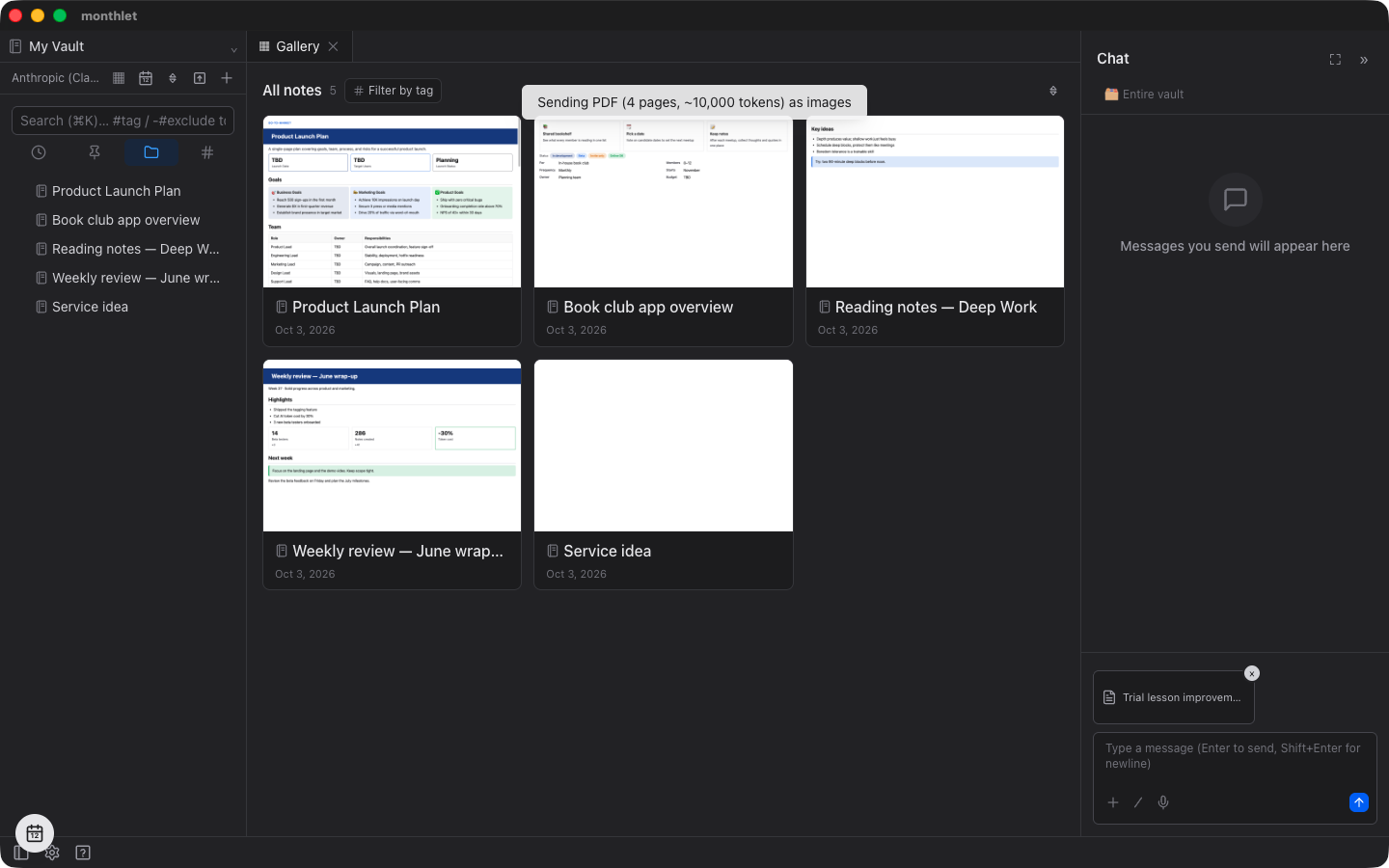
If you want a document with many figures and tables read properly, check this notice before sending to confirm that the PDF will be sent as-is.
Text files are sent along with your question, with their contents capped at 60,000 characters.
Attached files are kept in the vault
A file attached from outside the vault is copied into the vault. If a note is open and the chat is about that note, the copy is placed in the same folder as that note. In other chats, it goes to the top level of the vault.
A screenshot pasted with ⌘V is saved as “pasted-image.png”. If that name already exists, a number is added. When you attach a file that is already inside the vault, the original file is used without copying.
The conversation record stores the location of each attached file. The file is re-read each time you send, so if you move or delete it later, that attachment drops out of the conversation.
Images kept in the vault can be read by the AI later just by naming the file. For example, write “look at pasted-image.png” and the AI opens that image from the vault. From 0.20.0, PDFs inside the vault can also be read as text by naming the file.
To put an image or PDF into the body of a note, drop it onto the note. Also from 0.20.0, dropping a PDF places its first page in the body.
Try it
monthlet runs on macOS (Apple Silicon) and Windows. The Windows version is available from the Microsoft Store. Enter your own AI API key to use every feature.
- Download: https://monthlet.ai/download
- Discord: https://discord.gg/aP4Hc7cJGU
- X: https://x.com/monthlet
- YouTube: https://www.youtube.com/@monthletofficial