 monthlet
monthlet is a note app where you write and grow notes through AI chat. Each note is a single ordinary HTML file that also opens in a browser.
When you use AI with your own API key, each AI provider charges according to the number of tokens you send. If you ask a question with a long note open, or a conversation runs on for a while, a single request can be larger than you expect. monthlet has a setting that estimates that amount before you send, and stops to confirm with you when it is large. This journal entry covers how to turn the setting on, and how to read the numbers you see before and after sending.
Turning it on in settings
In the AI tab of settings, turn on Estimate tokens before sending. It is off by default. While it is off, no estimate is calculated.
Turning it on reveals a Confirmation threshold (tokens) field below it. When the estimate goes over this number, a confirmation appears before sending. The default is 15,000, and it can be set anywhere between 1,000 and 200,000.
The setting is per vault, so you can turn it on only for the vaults where you work with long notes.
The estimate appears to the left of the send button
In a vault where it is on, typing into chat shows a small number such as “~1.2k” to the left of the send button. This is the estimated number of input tokens for sending right now.
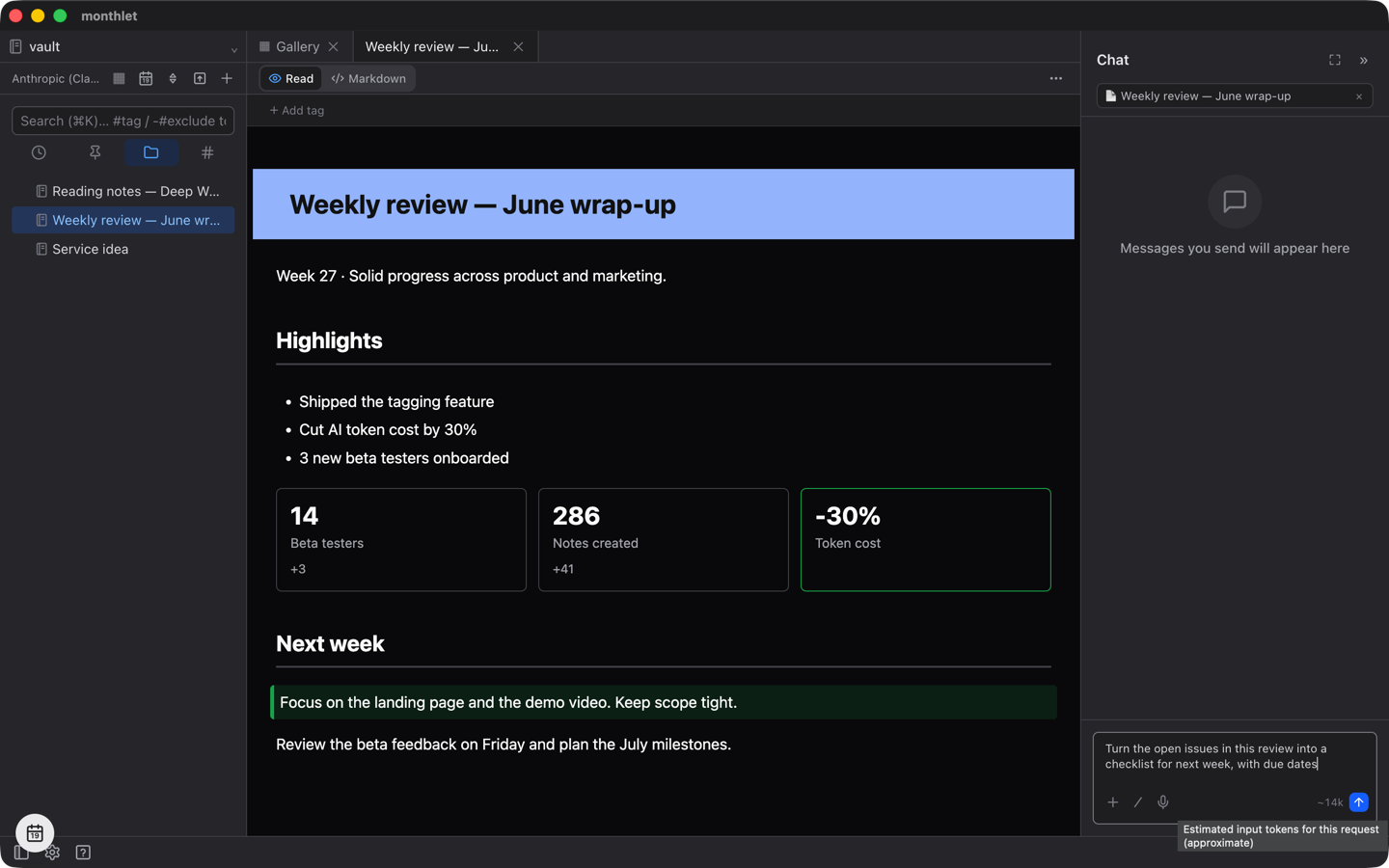
What gets counted is not only the text you are currently typing. It includes the body of the note you have open, the conversation so far, and the instructions the app passes to the AI, so even a short question produces a large number if a long note is open.
The estimate is approximate. It is counted on your computer from the number of characters, so it differs from the counting method each AI provider actually uses. Treat it as a rough sense of the volume you are about to send.
A confirmation appears when the threshold is exceeded
If the estimate is over the threshold when you send, Confirm before sending appears first. It shows roughly how many tokens the request will be. Choose Send to send it, or Cancel to stop. If the estimate is at or below the threshold, nothing appears.
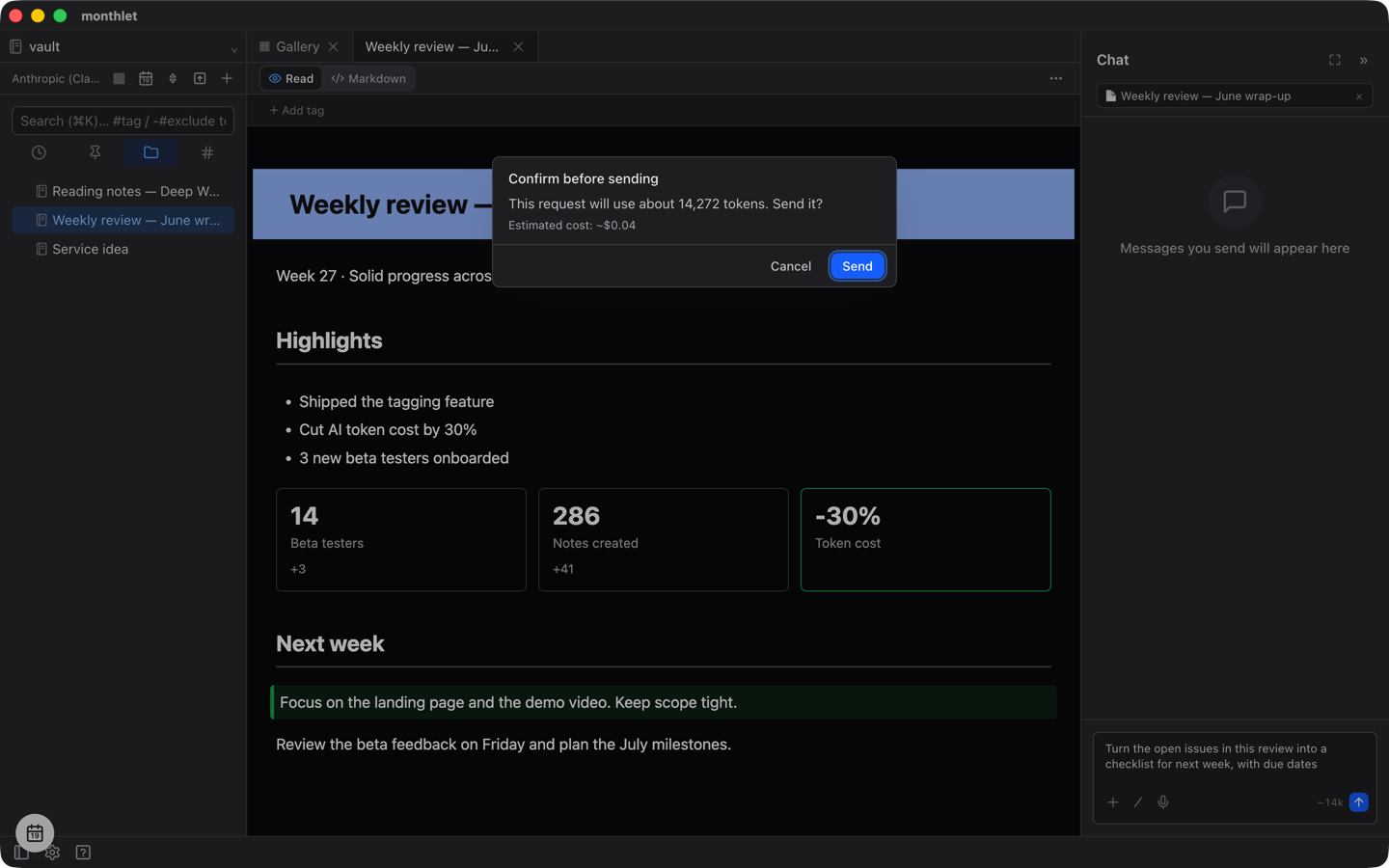
When the per-token price of the model you are using is known, an Estimated cost is shown below it as well. That figure is a dollar estimate for the input only, and does not include the response that comes back.
Checking the amount after sending
The actual amount after sending appears below the reply. The number after ↑ is input tokens and the number after ↓ is output tokens. If the AI went back and forth several times, reading notes for example, this is the total of those exchanges.
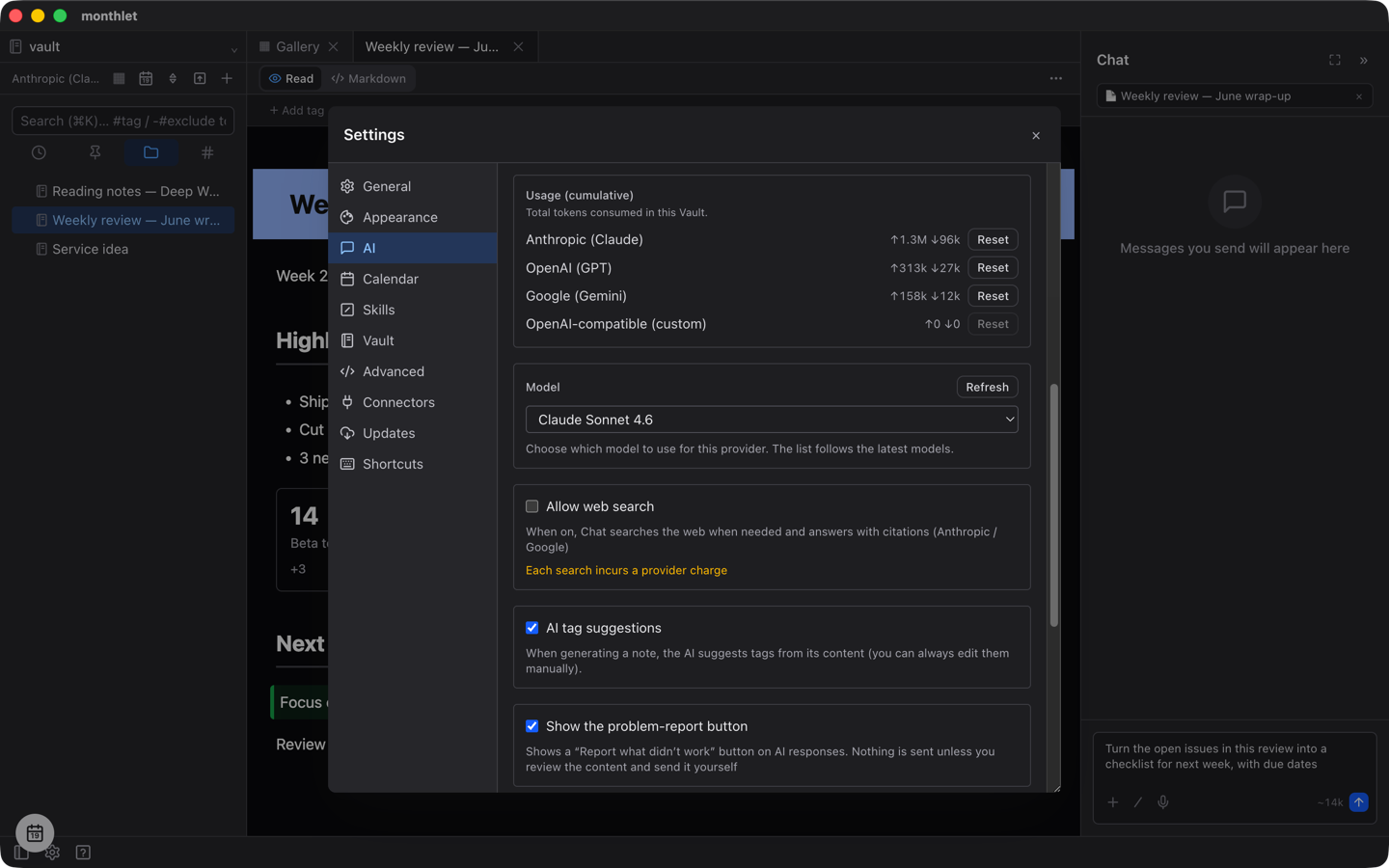
The Usage (cumulative) section in the AI tab of settings lists the total tokens used in that vault, broken down by connection. When you want to start counting again, Reset returns a total to zero.
The estimate and the numbers below the reply will not match. The estimate counts one request from character counts before sending, while the numbers below the reply are the actual amount counted by the AI you connected to, so the counting methods differ to begin with. The actual numbers are often larger, so use the estimate as a way to tell whether you are sending thousands of tokens or tens of thousands.
Try it
monthlet runs on macOS (Apple Silicon) and Windows. The Windows version is available from the Microsoft Store. Enter your own AI API key and all features are available.