 monthlet
monthlet is a note app where you write and grow notes through AI chat. It includes a calendar view that lets you look at your notes by month, week, and day, and a Daily Note that gives each day a single note. Both have been there since the first beta release. As of 1.1.0, times written in the body of a note also show up on the calendar. This post explains how to use them.
An earlier post, Google Calendar integration, covered reading events out of Google Calendar from chat and turning them into notes. The calendar view in this post is a screen that arranges the notes you already have by date. Google Calendar events do not appear there. The last section explains where the two meet.
Opening the calendar
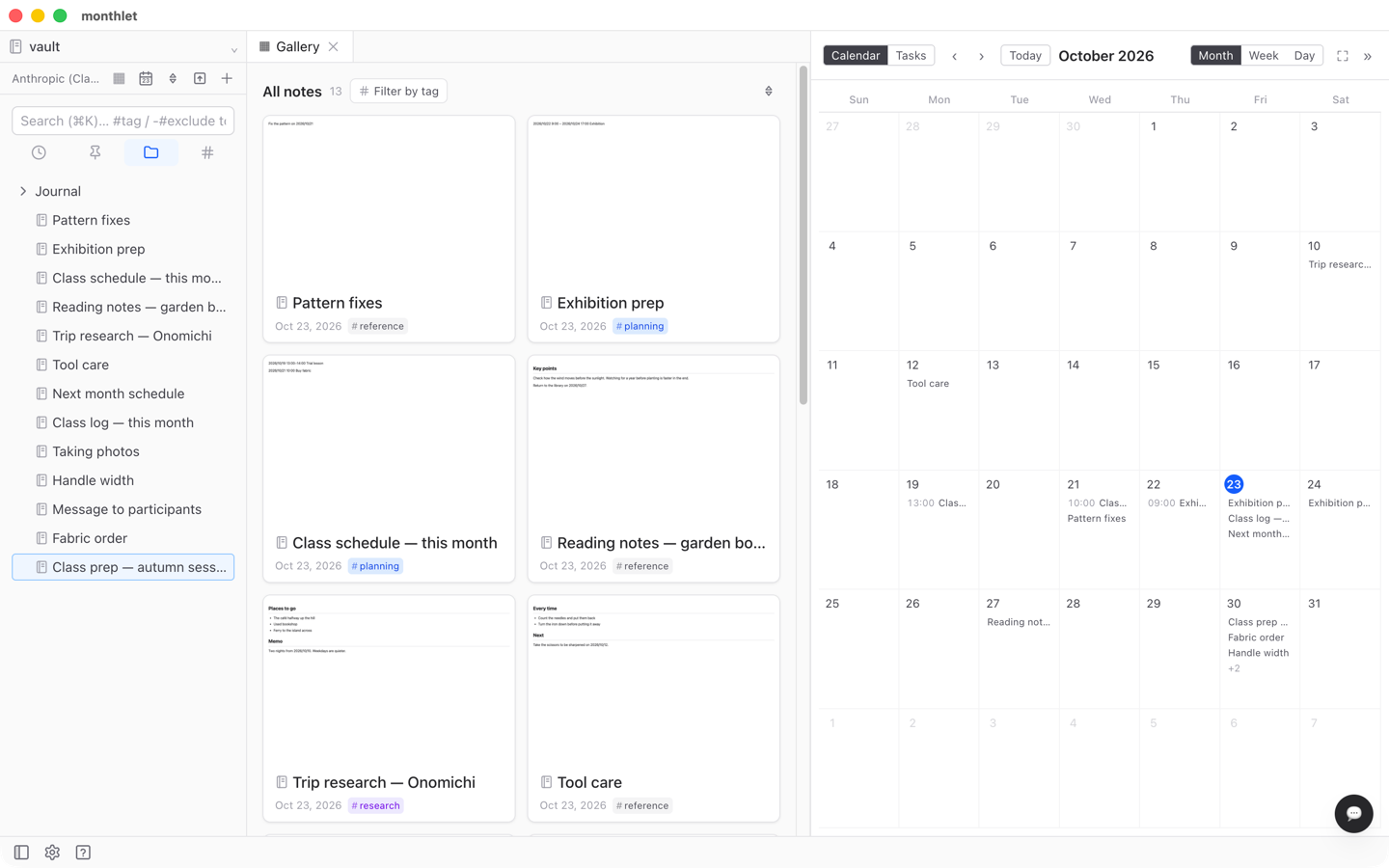
Press the calendar icon at the top of the sidebar and the calendar opens on the right side of the screen. In the Calendar tab of settings, there is a setting for where the calendar appears; set it to open as a tab and the calendar opens like a note instead.
Use the Month, Week, and Day controls in the upper right to switch the unit of display. “‹” and “›” move the period, and Today returns to today’s position. Today’s date is marked with a blue circle. In the month and week screens, pressing the number of a date opens the day view for that date. Weeks start on Sunday.
Which notes appear on the calendar
What lines up under each day is not the notes you created that day, nor the notes you updated that day. It is the notes that have that date written somewhere in the file name, the title, or the body.
The forms that are read are 2026/09/06, 2026-09-06, 2026.09.06, and the Japanese form 2026年9月6日. Only four-digit years are read. The month and day may be written with one digit. Dates that do not exist are not counted.
Put the other way around: no matter when a note was created, writing a date in the body puts it under that day. Minutes you wrote up three days after a meeting still line up on the day of the meeting, as long as the body carries that date. Adding the date later works the same way.
If the file name is a date such as 2026-09-06, the note is tied to that day even with no date in the body. If you have been keeping a journal with dates as file names, importing those files is enough to have them line up on the calendar.
The month screen shows up to three titles per day and the week screen up to eight; anything beyond that is collapsed into a “+N”. The day view shows all of them. Notes with a time come first, in time order, and the rest follow in title order. Archived notes do not appear.
Times and events
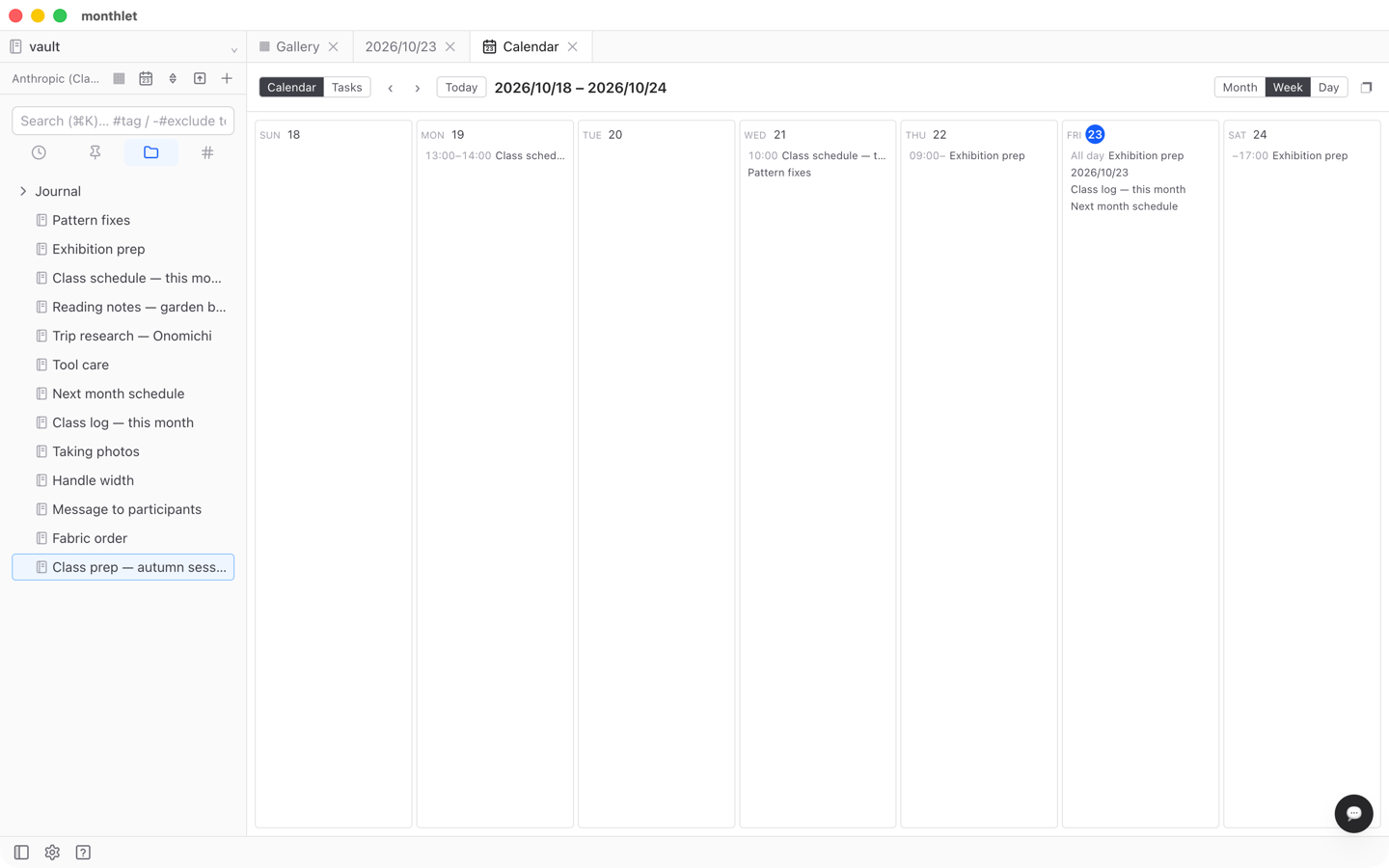
As of 1.1.0, a time written on the same line as a date also shows on the calendar. Times can be written as 13:00 or 9:30, and also in the Japanese forms 13時 and 13時30分. For example, if the body has the line 2026/11/06 13:00 Project meeting, the note lines up under November 6 with its time.
Connect an end time and you get an event with a start and an end, written as 2026/11/06 13:00〜14:00 Project meeting. The connector can be 〜, ~, or –, and between two times a plain - also works.
When an event crosses a date boundary, write a date on the end side as well. 2026/11/06 22:00〜2026/11/07 02:00 appears on both the 6th and the 7th: the 6th shows “22:00–”, the 7th shows “–02:00”, and any day in between is marked as all day. An end time earlier than the start, such as 22:00〜02:00, is treated as running until 2:00 the next day.
Times look different on each screen. On the month screen, the start time is prefixed to the note title. On the week screen, notes in each day’s column carry a span such as “13:00–14:00”. In the day view, events are listed one per line in time order; whatever is left of the line after the date and time (in the example above, “Project meeting”) becomes the heading, with the note title shown at the right edge.
A time is bound to the date on the same line. If you write the date in a heading and only the time on the next line, that time does not appear on the calendar. The same applies inside a Daily Note: write the date on any line where you want a time to count.
Tasks with due dates
1.1.0 also added due dates on checklist items. Incomplete tasks with a due date appear on the calendar under that day.
On the month and week screens they appear as a count, such as “☐ 2”, and clicking switches to the day view for that date. In the day view, tasks are listed at the top, and clicking one jumps to the corresponding item in its note. Completed tasks drop off the calendar.
Setting due dates, and the task list opened from the upper left of the calendar, are covered in a separate post.
From a date inside a note to the calendar
There is a path in the other direction too. When you are reading a note in Read mode, dates in the body are underlined with a dotted line. Press one and the calendar switches to the day view for that date. The same goes for dates inside spreadsheet cells.
So when you are reading meeting minutes and want to know what else you wrote that day, pressing the date is all it takes. If you rewrite or delete a note, the calendar reflects it automatically.
Turning on the Daily Note
A Daily Note is a single note for a given day. It is off at first, so it takes a bit of setup.
Open settings, go to the Calendar tab, turn on the Daily Note setting, choose a folder inside your Vault as the save folder, and confirm. The feature is not enabled unless a folder is specified.
When you pick a folder, if it already contains notes named with dates, the number of existing daily notes detected is shown.
Opening a day’s Daily Note
Once it is on, the top of the day view has a button that opens or creates the Daily Note for that day. Pressing it creates the note first if there is none and then opens it, or simply opens the existing one, so you never end up with two for the same day.
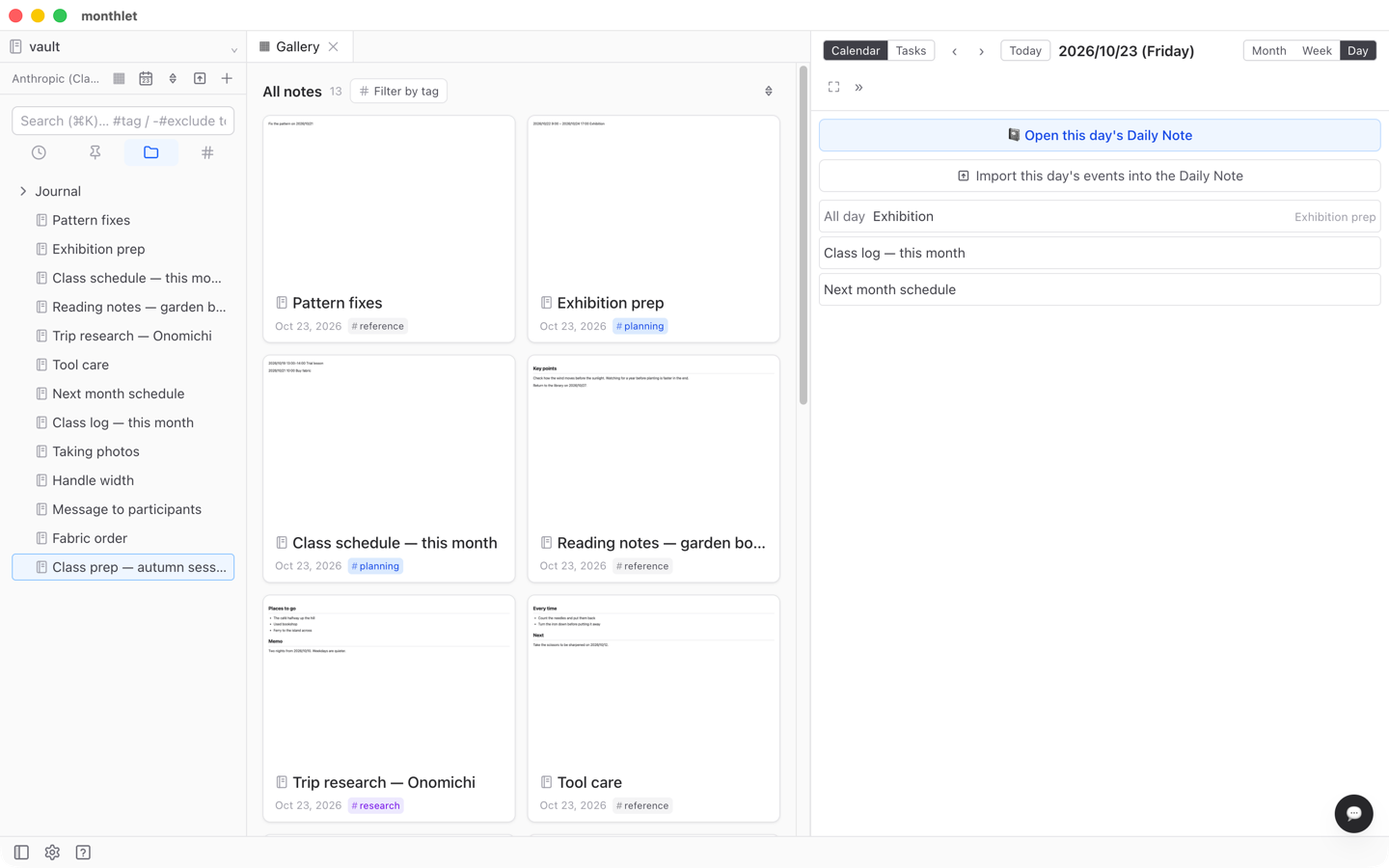
On the month and week screens, hovering the mouse over a day shows a “+” in the upper right. It does the same thing, letting you open that day’s Daily Note without switching to the day view. Opening today’s is three steps — press Today, switch to Day, press the button — or, from the month screen, just press the “+” on today’s date.
The note that gets created contains one date heading and one empty paragraph. There is no template. What goes in it is up to you afterward, typed by hand or asked for in chat.
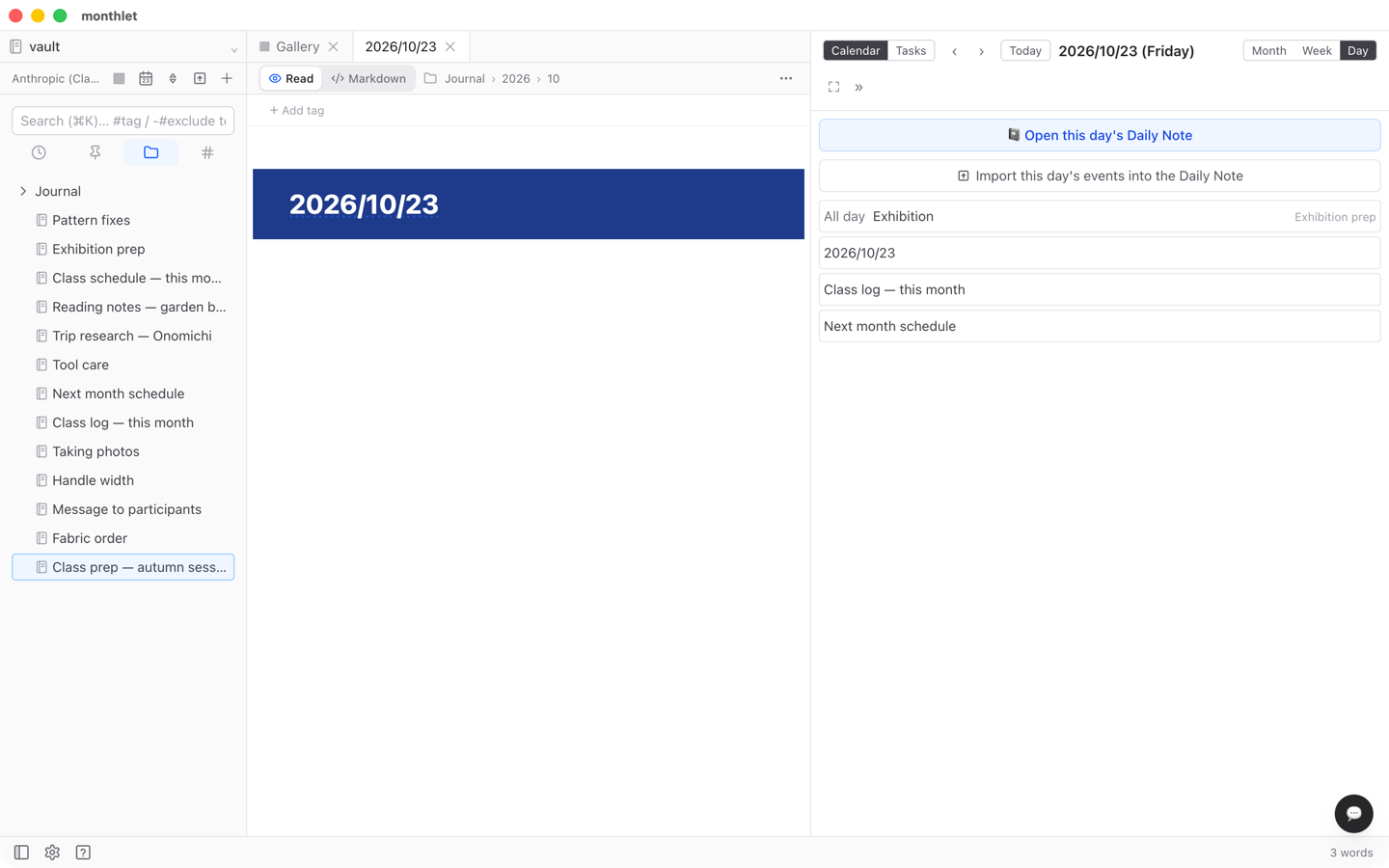
The save path is a year and month folder under the folder you specified, in the form 2026/09/2026-09-06.html. The note title follows the date format setting, which defaults to 2026/09/06. Because the file name is a date, the note lines up under that day on the calendar even with nothing written in the body. On the month screen, that day’s Daily Note appears as a 📓 mark instead of a title.
Writing to the Daily Note from chat
Once enabled, the Daily Note can also be handled from AI chat. Ask “write the main points of the meeting I just had into today’s Daily Note” and the AI looks for that day’s Daily Note, creates it if there is none, and writes the body. You can specify a date, as in “show me yesterday’s”.
The screen does not switch while this happens. You can check the note that was written from the calendar’s day view or by opening it from the save folder. If the Daily Note is turned off in settings, the AI says so. This has been available since 0.14.0.
Where Google Calendar events fit
As noted at the start, Google Calendar events do not appear in the calendar view. What lines up there is the notes on your machine and the dates and times written in them.
There is one point of connection. When the Daily Note is enabled, the top of the day view offers an action for importing that day’s events into the Daily Note. Pressing it does not start an import on the spot. It only puts a sentence into the chat input box, along the lines of “import the events for 2026-09-06 into that day’s Daily Note”. Whether to send it, and whether to change the date or the range first, is up to you. The import itself is carried out by the AI in chat, using the Google Calendar integration. This button has been there since 0.15.0.
Give it a try
monthlet runs on macOS (Apple Silicon) and Windows. The Windows version is available from the Microsoft Store. Enter your own AI API key and all features are available.