 monthlet
monthlet is a note app where you write and grow notes through AI chat. Version 1.1.0 was released on October 15, 2026. The Windows build moved to 1.1.0 on the Microsoft Store the same day.
1.1.0 adds features around how you write notes and how you capture quick thoughts. This article introduces the main ones briefly. Some of them get their own article later. The complete set of changes is in the release notes.
You can also open the release notes with View release notes on the Updates tab in Settings.
Text color and underline
Select text in edit mode and right-click, and the menu now includes Underline and Text color. The color choices are red, orange, green, blue, purple, and gray. Other color… lets you pick any color, and Remove color goes back to the default.
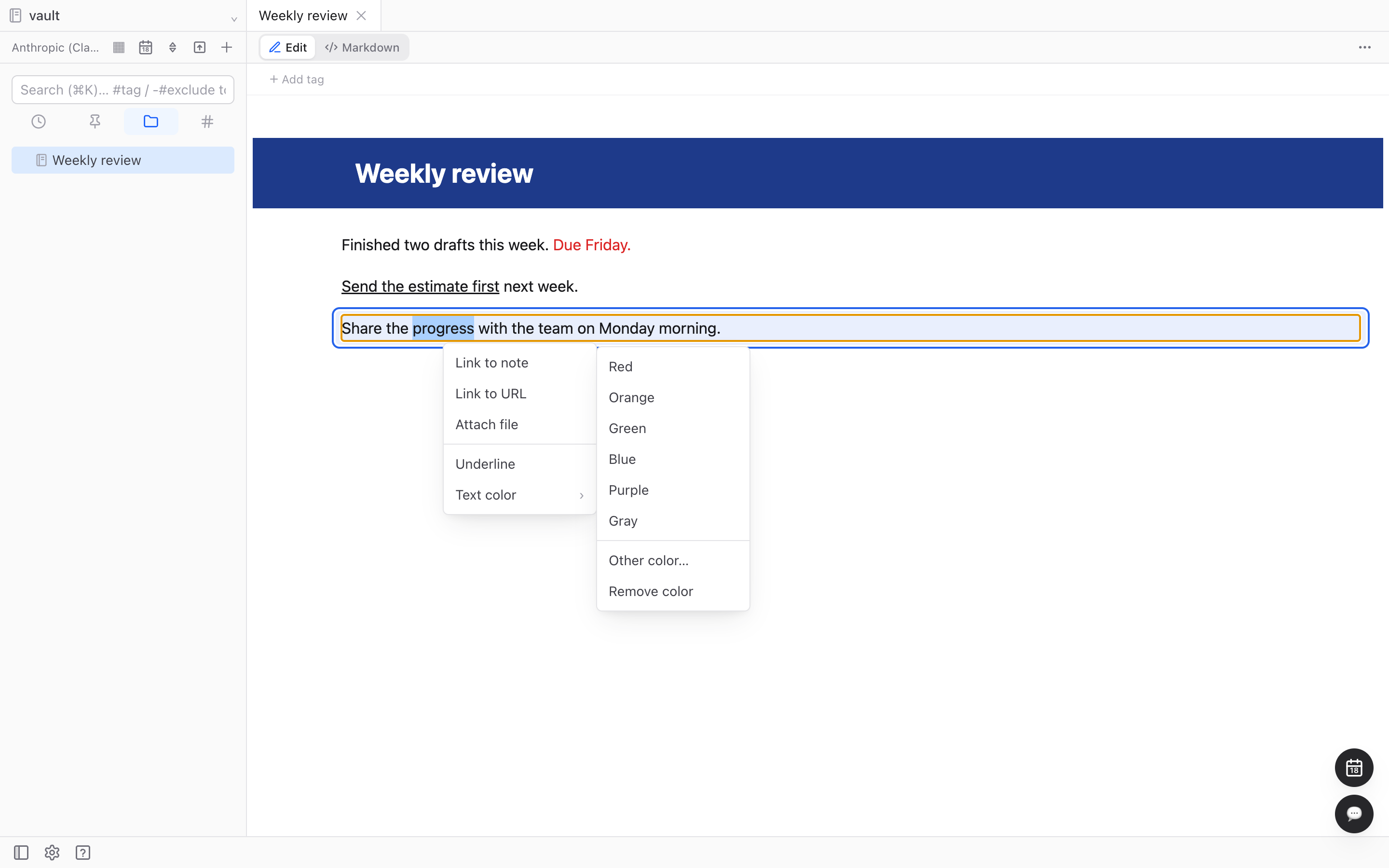
From the keyboard, ⌘B, ⌘I, and ⌘U (Ctrl on Windows) toggle bold, italic, and underline. In dark mode, colors are brightened so they stay readable. The saved color itself does not change.
Collapsing sections under a heading
Hover over a heading and a ▼ appears to its left. Click it, and everything up to the next heading at the same or a higher level is hidden, and the marker changes to ▶. Click again to expand. This works in both Read and Edit mode.
The collapsed state is kept until you quit the app and is not written into the note file. Searching inside a collapsed section, or clicking a link to a heading inside it, expands it automatically.
Linking to notes while you type
Type [[ in the body in edit mode and a list of notes to link to appears. Keep typing to narrow the list, use ↑↓ to choose, and press Enter or Tab to insert the link.
Typing 「「 or [[ with Japanese input enabled brings up the same list.
Pasting images, and searching the text inside them
Press ⌘V (Ctrl+V on Windows) in edit mode and an image on the clipboard is inserted into the note. A screenshot or copied image goes in as an image block after the block the cursor is in. The image is saved inside the note’s folder. PNG, JPEG, GIF, and WebP can be pasted.
Text inside images pasted into a note is now searchable too. Text recognition uses the operating system, so images are not sent anywhere outside the machine. A result that matched only text inside an image is marked Text in an image in the search results.
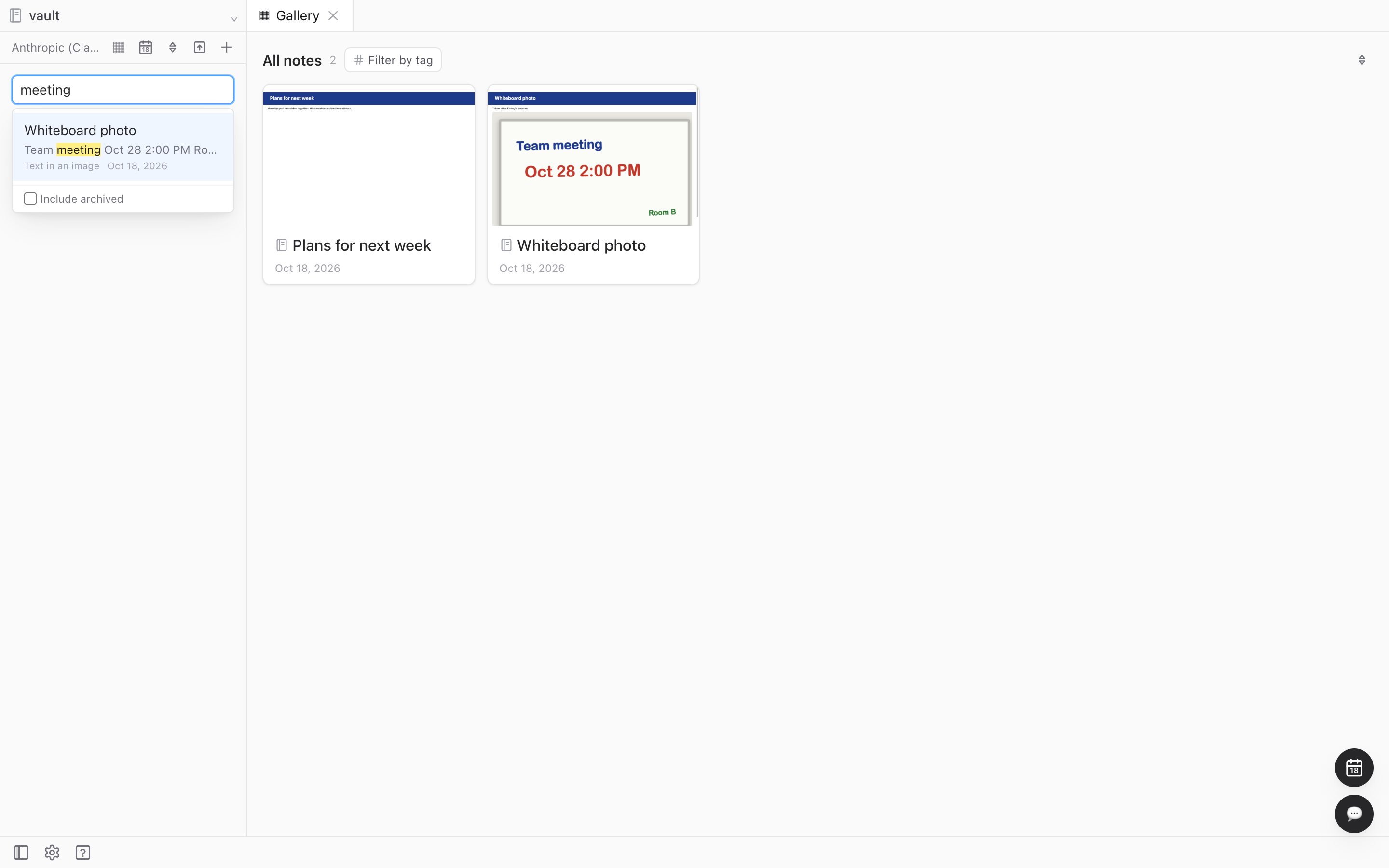
Recognition runs gradually in the background, so there is a short delay between pasting an image and it showing up in search results.
Exporting to Word
Word (.docx) was added under Export in a note’s “…” menu. Headings, bullet lists, checklists, quotes, code, tables, images, and links come out as formatting you can edit in Word. Bold and italic, along with text color and underline, are preserved as formatting.
Charts, diagrams, formulas, kanban boards, and similar elements are inserted into the Word file as images.
Capturing a note from any app
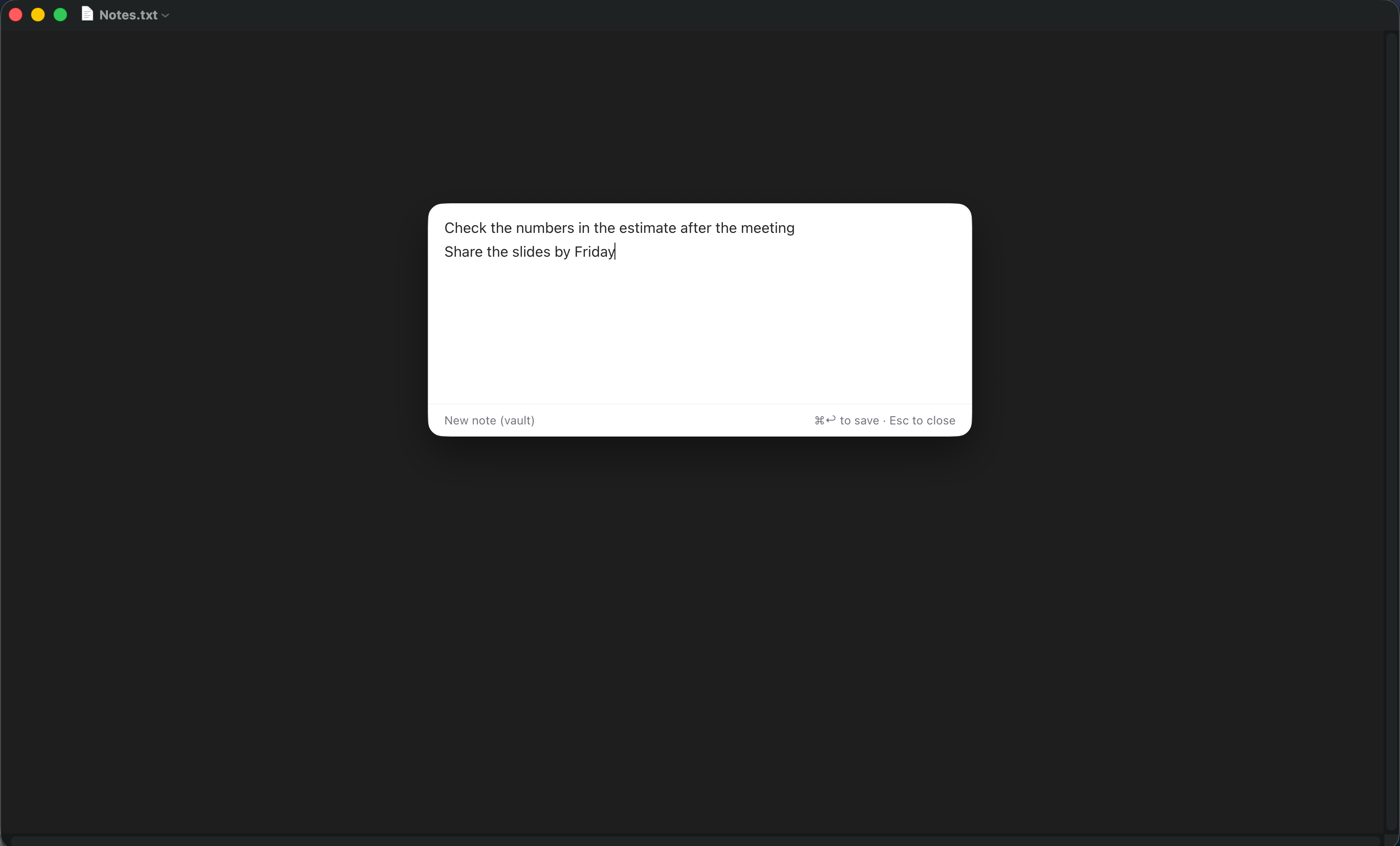
You can now write down a thought with a keyboard shortcut while you are in another app. Whatever app you are using, Control+Shift+Space brings up a small input window. Write, then press ⌘↩ (Ctrl+Enter on Windows) to save, or Esc to close.
The text is saved either as a new note in the top-level folder of the vault or appended to the end of today’s daily note. The shortcut and the destination can be changed under Quick capture in the General tab in Settings. Images can be pasted into the input window as well. This feature gets its own article.
Kanban boards and task due dates
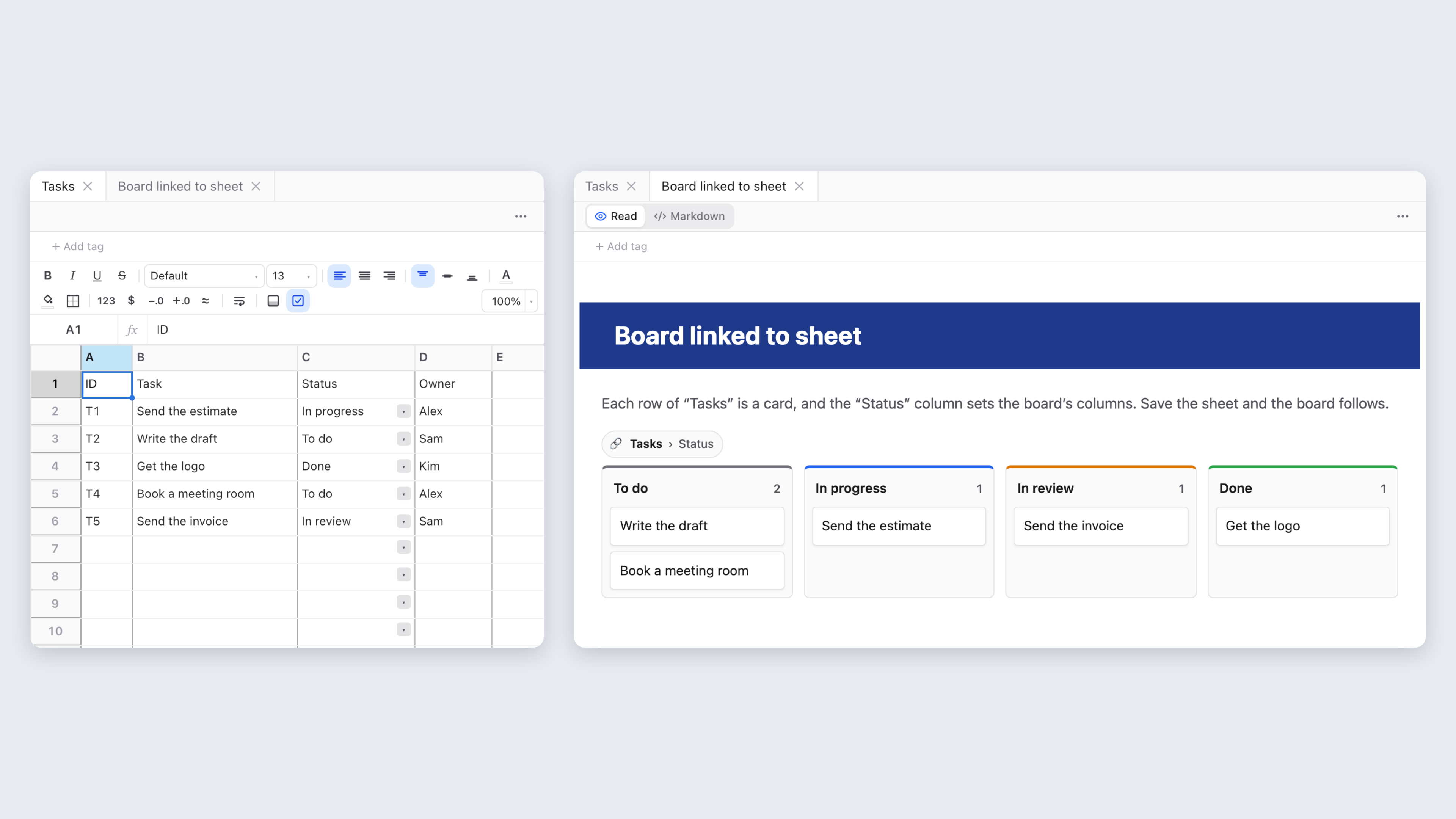
You can now place a kanban board in a note. Choose Kanban board under Data in the + menu, or ask the AI something like “turn these tasks into a kanban board”. Cards can be dragged and dropped between columns and within a column.
A kanban board can also be connected to a spreadsheet. Rows of the sheet become cards, and the values in the status column become the board’s columns. When you drag a card to another column in edit mode, the status column in the sheet is rewritten too.
Checklist items can now have a due date. Hover over an item, click 📅, and choose a date. Switching the calendar panel to tasks lists the tasks across the whole vault, grouped into Overdue, Today, Next 7 days, Later, and No due date.
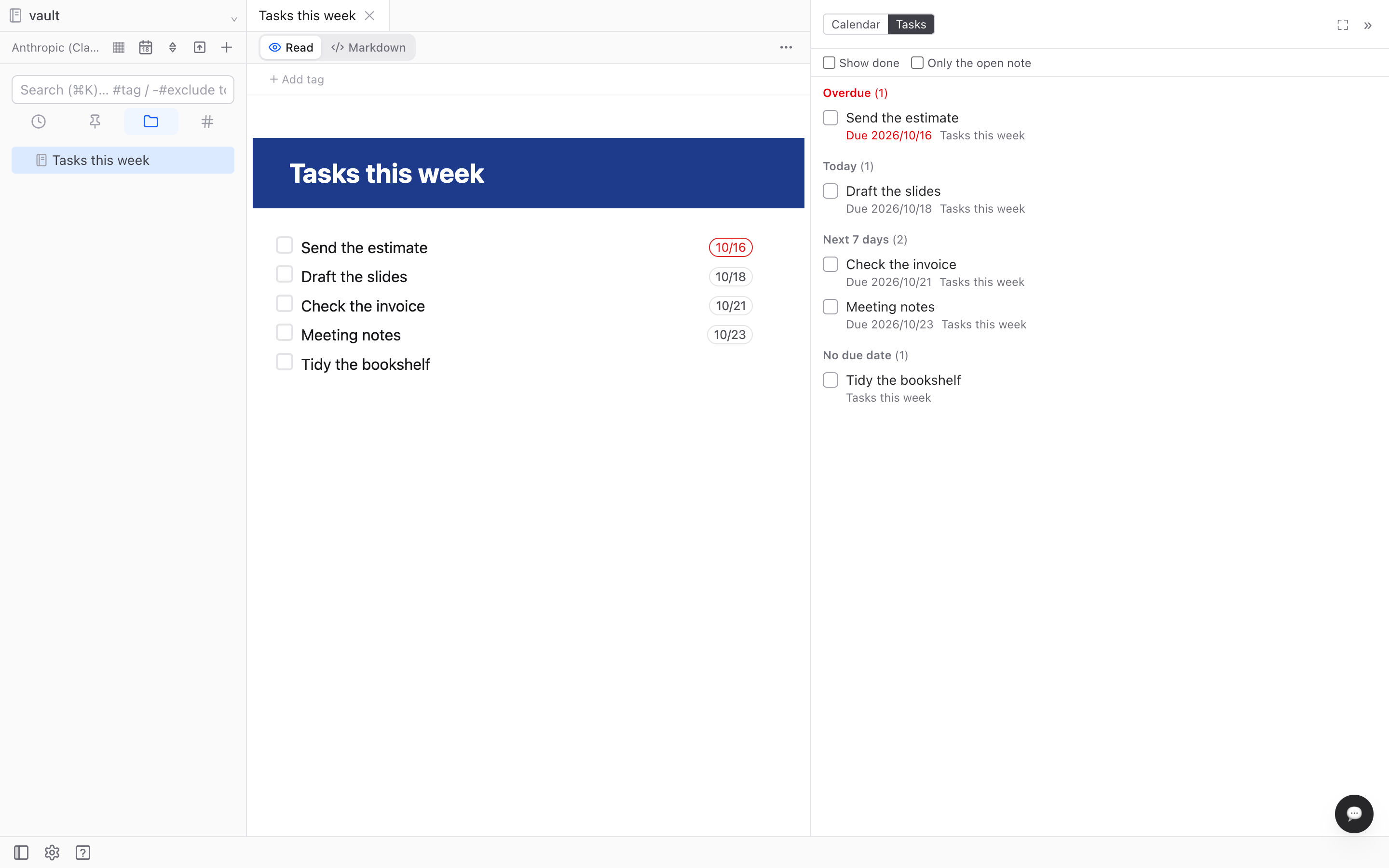
Kanban boards and task due dates also get their own article.
Features covered in separate articles
The additions to tables and spreadsheets, such as merged cells and sorting a range, will be covered in a separate article.
The calendar now showing times and events written in note bodies will also be covered separately.
External agents (MCP) can now be allowed to move and rename notes and folders. That too gets its own article.
Other changes
The app now remembers window size and position. The size, position, and maximized state at the time you closed it are restored the next time you start it.
The operations available to external agents (MCP) now include rewriting only part of a note, and searching notes by exact match or regular expression.
When you open an HTML file in the vault that was not created by monthlet, images from the internet are no longer loaded; a banner offers to display the external images instead. This keeps the fact that you opened the file from reaching the servers hosting those images. If you use the button in the banner, images load only while that tab is open. The file itself is not modified.
The fixes most likely to be noticed in everyday use:
-
Results of calculated fields created by the AI sometimes displayed as 0. Already-saved notes show the correct result once reopened.
-
When asked about a value in a spreadsheet, the AI sometimes answered without reading the sheet. It now reads the sheet first.
-
Blocks the AI added one after another at the same position came out in reverse order. They now appear in the order the AI wrote them.
-
In a narrow window, the note body was squeezed. The body is now kept at 260 pixels and the sidebar and right panel shrink instead.
-
Right-click menus could extend past the bottom edge of the window.
-
Mainly on Windows, when the vault was inside OneDrive, startup could stop at the vault selection screen.
Try it
monthlet runs on macOS (Apple Silicon) and Windows. The Windows build is available on the Microsoft Store. The features in this article are from 1.1.0 onward. Enter your own AI API key and all features are available.